
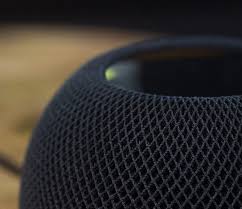
How To Use Homepod Mini: A Step-by-step Guide
As a tech enthusiast, I’m excited to share with you the latest addition to Apple’s smart speaker family – the HomePod mini. This compact device not only plays music but also integrates seamlessly with other Apple devices, making it an ideal companion for any smart home setup.
What is Homepod Mini?
HomePod mini is a smart speaker produced by Apple that allows users to control their smart home devices, play music, and access various services using Siri, the virtual assistant. It’s a compact device that measures 84.3 Mm in height, 97.9 Mm in width, and weighs 345 grams.
Key Features of Homepod Mini
- Multi-room Audio: HomePod mini can be paired with other HomePod devices to create a multi-room audio experience.
- Smart Home Control: Use Siri to control your smart home devices using HomeKit, Apple’s smart home system.
- Siri Integration: Access various services like Apple Music, podcasts, and news updates using Siri.
Configuring Homepod Mini
Before you can start using HomePod mini, you need to configure it. Here’s a step-by-step guide:
- Unbox your HomePod mini and connect the cable to the power adapter.
- Wait for the device to turn on – indicated by a white light on top.
- Open the Settings app on your iPhone, iPad, or iPod Touch and go to Bluetooth.
- Tap on “HomePod mini” from the list of available devices.
- Go back to the Home screen and tap on the “House” icon (a yellow house on a white background).
- Tap on the “+” button in the top-right corner and select “Add Accessory.”
- Choose “Other Options” and select “HomePod mini” from the list of available accessories.
- Follow the guided process to complete the setup.
Using Homepod Mini
Now that you’ve configured your HomePod mini, here’s how to use it:
- Vocal Control: Say “Hey Siri” to activate Siri and make requests or execute commands.
- Touch Controls: Use the touch controls on top of HomePod mini to play music, pause, skip tracks, and adjust volume.
- Airplay: Stream audio from your iPhone, iPad, or Mac using AirPlay.
Common Issues With Homepod Mini
If you’re experiencing issues with HomePod mini, here are some common problems and their solutions:
- Configuration Issues: Consult the Apple support website for troubleshooting guides.
- Siri Not Responding: Restart HomePod mini and try again.
- Audio Issues: Check your internet connection or restart HomePod mini.
Compatibility Issues
HomePod mini is compatible with iPhone (6s or later), iPad Pro, iPad (5th generation or later), iPad Air 2 or later, and iPod Touch (7th generation). If you’re using an Android device, unfortunately, you won’t be able to configure HomePod mini directly.
How to Configure Homepod Mini on Mac
If you have a Mac, you can use the Home app to configure your HomePod mini. Here’s how:
- Open the Home app on your Mac.
- Tap on the “+” button in the top-right corner and select “Add Accessory.”
- Choose “Other Options” and select “HomePod mini” from the list of available accessories.
How to Configure Homepod Mini With Spotify
Unfortunately, you cannot directly access Spotify using Siri on HomePod mini. However, you can use AirPlay to stream audio from your iPhone or Mac to HomePod mini.
Conclusion
HomePod mini is a powerful smart speaker that integrates seamlessly with other Apple devices. With this guide, you should now be able to configure and use your HomePod mini like a pro! If you have any further questions or issues, don’t hesitate to reach out.
Frequently Asked Questions (FAQs)
- Q: What is The Price of Homepod Mini?
A: The list price of HomePod mini is 99 euros. - Q: How do I Configure Homepod Mini on my Mac?
A: You can use the Home app on your Mac to configure HomePod mini. - Q: Can I Use Spotify With Homepod Mini?
A: Unfortunately, you cannot directly access Spotify using Siri on HomePod mini. However, you can use AirPlay to stream audio from your iPhone or Mac to HomePod mini. - Q: What Devices Are Compatible With Homepod Mini?
A: HomePod mini is compatible with iPhone (6s or later), iPad Pro, iPad (5th generation or later), iPad Air 2 or later, and iPod Touch (7th generation). - Q: How do I Troubleshoot Issues With Homepod Mini?
A: Consult the Apple support website for troubleshooting guides. - Q: Can I Use Homepod Mini as an Intercom?
A: Yes, you can use HomePod mini as an intercom by connecting multiple devices and using the built-in microphone to communicate between rooms. - Q: How do I Update The Software on my Homepod Mini?
A: You can update the software on your HomePod mini by going to the Home app on your iPhone or Mac. - Q: Can I Use Airplay to Stream Audio From my Android Device to Homepod Mini?
A: No, unfortunately, you cannot directly use AirPlay to stream audio from an Android device to HomePod mini.


