
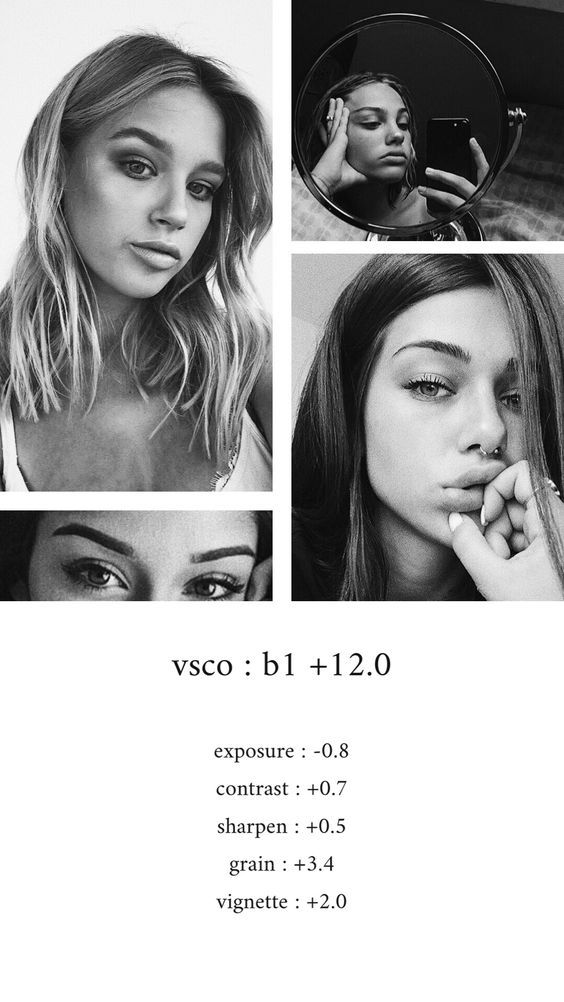
How to Transform a Photo Into Black And White
As a digital enthusiast, you’ve probably come across beautiful artistic photos in black and white that leave you wondering how they were created. Well, you’re in luck because we’ll guide you through the process of transforming your favorite photos into stunning black and white masterpieces using various software and online services.
Understanding Black And White Conversion
Before diving into the nitty-gritty, it’s essential to understand what black and white conversion entails. This process involves removing colors from an image and replacing them with shades of gray, resulting in a monochromatic effect. The goal is to create a visually appealing image that showcases the subject’s features without any distractions.
Using Adobe Photoshop
Photoshop is the industry-standard software for photo editing, and it offers a range of tools for transforming photos into black and white. Here’s how you can achieve this:
- Open Your Image: Launch Photoshop and open the image you want to transform.
- Convert to Grayscale: Go to Image > Adjustments > Grayscale.
- Adjust Contrast And Brightness: Use the Levels or Curves tool to adjust the contrast and brightness of your image.
- Save Your Work: Click File > Save As to save your transformed image.
Using Online Services
If you don’t have Adobe Photoshop, worry not! There are several online services that can help you transform your photos into black and white:
- Photopea: Photopea is a free online photo editor that offers a range of tools for editing images.
- Imagecolorize: ImageColorize is another online service that allows you to convert images to grayscale.
- Canva: Canva is a popular graphic design platform that also offers an image editor with black and white conversion capabilities.
Mobile Apps
If you’re on-the-go, don’t worry! You can use mobile apps like:
- Snapseed: Snapseed is a powerful photo editing app for Android and iOS devices.
- Fotor: Fotor is another popular photo editing app that offers a range of tools for transforming images.
Tips And Tricks
Here are some additional tips to keep in mind when transforming your photos into black and white:
- Choose The Right Software: Select a software or online service that suits your needs.
- Experiment With Different Filters: Try out various filters to achieve the desired effect.
- Adjust Contrast And Brightness: Use the Levels or Curves tool to adjust the contrast and brightness of your image.
- Save Multiple Versions: Save multiple versions of your image to compare the results.
Conclusion
Transforming a photo into black and white is an art that requires patience and practice. By following these steps and using the right software, online services, or mobile apps, you can create stunning black and white masterpieces that will leave everyone in awe.
Faqs
- Q: What is Black And White Conversion?
A: Black and white conversion involves removing colors from an image and replacing them with shades of gray. - Q: How do I Transform a Photo Into Black And White Using Adobe Photoshop?
A: Launch Photoshop, open your image, convert to grayscale, adjust contrast and brightness, and save your work. - Q: What Are Some Online Services That Can Help me Transform my Photos Into Black And White?
A: Photopea, ImageColorize, Canva, Resize Pixel, Photo effects, and Snapseed are some online services that offer black and white conversion capabilities. - Q: Can I Use Mobile Apps to Transform my Photos Into Black And White?
A: Yes, you can use mobile apps like Snapseed, Fotor, or Canva to transform your photos into black and white. - Q: What Are Some Tips For Transforming a Photo Into Black And White?
A: Choose the right software, experiment with different filters, adjust contrast and brightness, and save multiple versions of your image. - Q: How do I Save my Transformed Image?
A: Save your transformed image by clicking File > Save As in Adobe Photoshop or using the export button in online services and mobile apps.
Conclusion
Transforming a photo into black and white is an art that requires patience and practice. By following these steps and using the right software, online services, or mobile apps, you can create stunning black and white masterpieces that will leave everyone in awe.


