
How to Check if Your PC is 32 or 64 Bit: A Comprehensive Guide
Are you wondering whether your computer’s operating system is 32-bit or 64-bit? Look no further! In this article, we will guide you through the process of checking your PC’s bit version on Windows, Mac, and Linux.
Why is it Important to Know Your Pc’s Bit Version?
Knowing whether your PC’s operating system is 32-bit or 64-bit is essential for several reasons:
- It determines the type of applications that can be installed on your computer.
- It affects the amount of memory (RAM) that can be used by your computer.
- It influences the performance and speed of your computer.
Windows 11
If you’re using Windows 11, checking your PC’s bit version is a straightforward process. Here’s how to do it:
- Click on the Start menu icon in the bottom left corner of your screen.
- Select the Settings app from the list of available options.
- In the Settings window, click on the “System” tab.
- Scroll down to the “About” section and look for the “Type system” entry.
Windows 10
If you’re running Windows 10, follow these steps:
- Press the Windows key + I to open the Settings app.
- Click on the “Update & Security” tab.
- Select the “Activation” option from the menu.
- Look for the “Type system” entry under the “About” section.
Windows 8/8.X
If you’re using Windows 8 or 8.1, Here’s what to do:
- Press the Windows key + X to open the Charms Bar.
- Click on the “Settings” icon from the list of available options.
- Select the “Change PC settings” option.
- Scroll down to the “PC and devices” section.
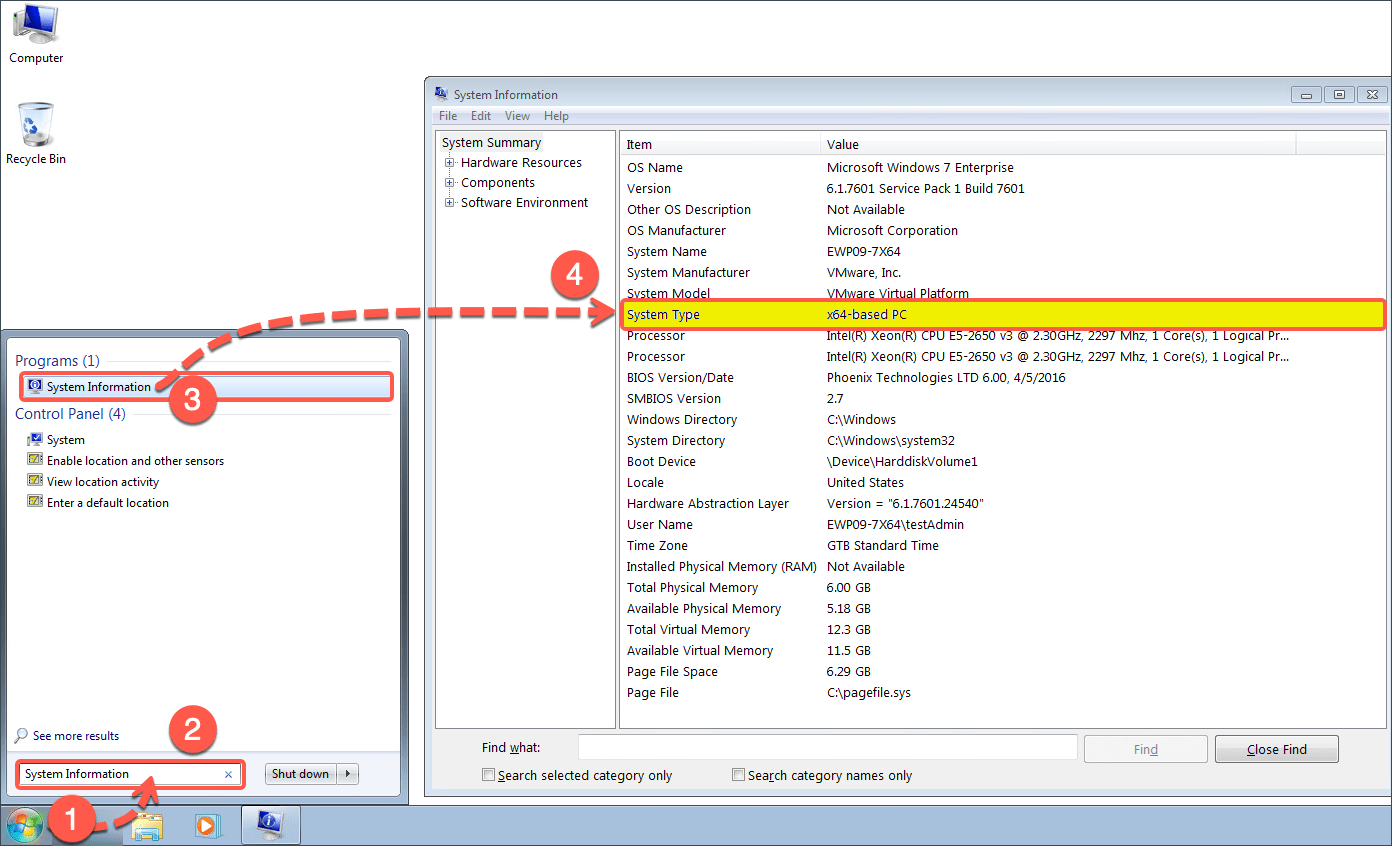
Windows 7/Vista
If you’re running Windows 7 or Vista, follow these steps:
- Click on the Start menu icon in the bottom left corner of your screen.
- Select the “Computer” option from the list of available options.
- Right-click on the “Computer” icon and select “Properties.”
- Look for the “Type system” entry under the “System” tab.
Windows XP
If you’re using Windows XP, here’s what to do:
- Click on the Start menu icon in the bottom left corner of your screen.
- Select the “Run” option from the list of available options.
- Type
sysdm.Cpland press Enter. - In the System Properties window, look for the “System type” entry under the “General” tab.
Mac
If you’re using a Mac, checking your computer’s bit version is also relatively easy:
- Click on the Apple menu in the top left corner of your screen.
- Select the “About This Mac” option from the list of available options.
- Look for the “Software” tab and click on it.
Linux
If you’re using a Linux distribution, such as Ubuntu, follow these steps:
- Open the Terminal app.
- Type
uname -tand press Enter. - Look for the output to determine whether your system is 32-bit or 64-bit.
In conclusion, checking your PC’s bit version is a straightforward process that can be accomplished on Windows, Mac, and Linux operating systems. By following these steps, you’ll be able to determine whether your computer is running a 32-bit or 64-bit operating system.
Frequently Asked Questions (FAQs)
-
What is The Difference Between 32-bit And 64-bit Operating Systems?
- A 32-bit operating system can only use up to 4 GB of RAM, while a 64-bit operating system can use much more memory.
-
Can I Upgrade my Pc’s Bit Version?
-
It depends on the type of hardware and software you’re using. In some cases, it may be possible to upgrade your PC’s bit version, but in other cases, it may not be feasible.
-
How Does The Bit Version Affect my Computer’s Performance?
-
A 64-bit operating system can provide better performance and speed compared to a 32-bit operating system, especially when running resource-intensive applications.
By understanding your PC’s bit version, you’ll be able to make informed decisions about software installation and system upgrades. Happy computing!


