
When cleaning your keyboard, or if you want to ensure that no unintended actions occur while away from your computer, blocking your keyboard and mouse temporarily is an effective solution. This article will guide you through various methods on how to block these devices on both Windows and macOS, making it easier for you to clean your keyboard without accidental keystrokes or to prevent others (like curious children) from interfering with your work.
Why Block Keyboard and Mouse?
Before diving into the methods, you may wonder why blocking your keyboard and mouse could be helpful. Here are a few reasons:
- Cleaning: It prevents any unintended actions when you clean your keyboard or mouse.
- Security: Blocking the keyboard or mouse prevents unauthorized use.
- Childproofing: It prevents young children from causing havoc when you step away from the computer.
- Focus: If you’re presenting something on screen and want to avoid distractions from accidental mouse clicks or keystrokes.
Let’s explore step-by-step methods to achieve this on Windows 10/11 and macOS.
Blocking Keyboard and Mouse on Windows 10 and 11
If you’re using Windows 10 or Windows 11, there are built-in methods to block your keyboard and mouse, as well as third-party software that can get the job done.
1. Device Manager Method
The easiest way to disable both your keyboard and mouse is by using the Device Manager, a tool that comes pre-installed on Windows. Here’s how to do it:
Steps:
- Right-click on the Start button and choose Device Manager.
- Under Keyboards, find the keyboard you want to disable, right-click on it, and select Uninstall Device.
- Similarly, under Mice and other pointing devices, right-click on your mouse and choose Uninstall Device.
Note: To re-enable them, simply restart your computer or reconnect the devices.
2. Using the Filter Keys Function
If you only want to disable the keyboard, you can use the Filter Keys feature. This feature is available in the Ease of Access settings and allows you to disable your keyboard with a simple key combination.
Steps:
- Hold down the right Shift key for eight seconds.
- When prompted, confirm to enable Filter Keys, which disables your keyboard input temporarily.
To reverse this, go back to the Ease of Access settings and disable Filter Keys.
3. Third-Party Software for Windows
There are also several third-party applications you can use to block your keyboard and mouse. Let’s discuss a couple of popular options.
KeyFreeze
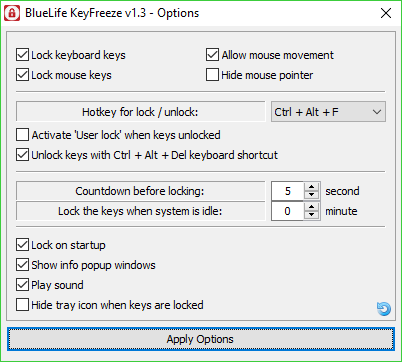
KeyFreeze is a free, easy-to-use software that can temporarily lock both the keyboard and mouse. You can unlock them by pressing a specific combination of keys.
Steps:
- Download KeyFreeze from its official website.
- Install and launch the program.
- Click on Lock Keyboard & Mouse, and it will count down before locking the devices.
To unlock, use the combination Ctrl+Alt+Delete and cancel the command.
BlockInput
This tool works similarly to KeyFreeze, allowing you to lock the keyboard and mouse for a set duration.
Steps:
- Download BlockInput here.
- After launching, use the key combination Ctrl+Q to block or unblock your devices.
4. Bluetooth Devices
If you use Bluetooth-connected devices, you can easily disable and re-enable them through the Bluetooth settings.
Steps:
- Go to Settings > Devices > Bluetooth & other devices.
- Find your Bluetooth mouse or keyboard and click Remove device.
To reconnect, turn the device off and on or pair it again via the Bluetooth settings.
Blocking Keyboard and Mouse on macOS
Blocking input devices on macOS requires a different approach, but there are also multiple ways to do so.
1. Using KeyboardCleanTool for macOS
KeyboardCleanTool is a free app designed specifically to block the keyboard on Mac while you clean it or prevent accidental key presses.
Steps:
- Download KeyboardCleanTool from its official website.
- Launch the application.
- Click Click to start cleaning mode / lock the keyboard! to disable the keyboard.
To unlock, simply press Click to stop cleaning mode / unlock the keyboard!.
2. Trackpad and Mouse Settings on macOS
For the trackpad or mouse, you can disable them by dissociating them from your Mac’s Bluetooth settings.
Steps:
- Open System Preferences and go to Bluetooth.
- Locate your Bluetooth mouse or trackpad and click Disconnect.
Alternatively, you can remove any USB wireless receivers from your Mac to disable external devices.
Other Solutions for macOS and Windows
If you’re looking for additional software options, both Windows and macOS offer other third-party programs to block input devices.
Kid Key Lock (Windows)
This free program allows you to block both the keyboard and mouse. It’s highly customizable and works across all versions of Windows.
Steps:
- Download Kid Key Lock from here.
- Launch the program and choose which keys or buttons to lock.
To unlock, type kklquit on the keyboard.
Karabiner Elements (macOS)
If you’re a macOS user, Karabiner Elements provides advanced customization, allowing you to lock specific keys or even the entire keyboard.
Steps:
- Download Karabiner Elements from here.
- Install and configure the software as per your preferences to lock the keyboard.
Advantages of Blocking Keyboard and Mouse
Blocking your keyboard and mouse provides numerous benefits, including:
- Security: Avoid unauthorized access.
- Convenience: Clean your devices without worrying about accidental input.
- Safety: Protect your device from being tampered with by children.
How to Re-enable Devices
For both Windows and macOS, re-enabling your keyboard and mouse is simple. Here’s a quick guide:
- Windows: Reinstall the device drivers by restarting your computer or reconnecting the device.
- macOS: Simply reconnect the device via Bluetooth or USB, or disable the blocking tool you’ve installed.
Conclusion
Blocking your keyboard and mouse temporarily is a handy way to maintain your devices and secure your system. Whether you’re cleaning your keyboard, stepping away from your computer, or preventing unwanted access, you can easily block these devices with built-in system functions or third-party software.
FAQs
1. Can I block only the keyboard and leave the mouse functional?
Yes, by using the Filter Keys function in Windows or third-party software like Kid Key Lock, you can block just the keyboard.
2. How do I unblock the keyboard after using KeyFreeze?
Simply press Ctrl+Alt+Delete, then click cancel to unblock the keyboard and mouse.
3. Is it safe to disable the keyboard and mouse through Device Manager?
Yes, but make sure you know how to reinstall the drivers by either reconnecting the devices or restarting the system.
4. Can I lock my keyboard and mouse for a set time?
Yes, tools like BlockInput allow you to block them for a specific duration.
5. How do I disconnect a Bluetooth keyboard on macOS?
Go to System Preferences > Bluetooth and disconnect the device.
6. Will blocking my keyboard affect system performance?
No, blocking the keyboard or mouse won’t affect the performance of your computer.
7. What happens if I unplug my USB keyboard or mouse?
The device will be temporarily disabled until you reconnect it to the computer.
8. Can I lock both devices with a single program?
Yes, programs like KeyFreeze and Kid Key Lock can lock both the keyboard and mouse simultaneously.


