
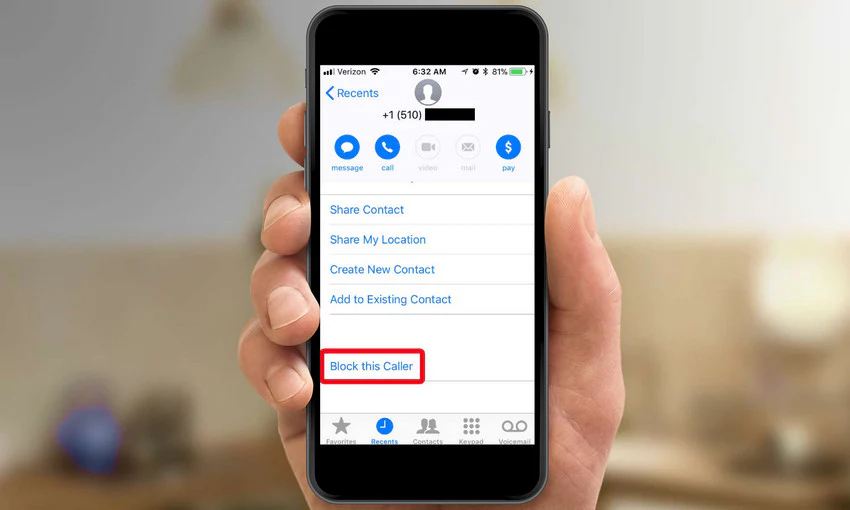
In the age of smartphones, unwanted calls are a common annoyance, especially from unknown numbers, telemarketers, or even scammers. If you’re using a Huawei device and tired of these disturbances, this guide will help you effectively block unwanted numbers.
Table of Contents:
- Introduction
- Understanding Huawei’s Built-In Blocking Features
- Benefits of the Built-In Blocker
- Situations to Use the Blocker
- How to Block a Number on Huawei Devices
- Step-by-Step Process
- Unblocking a Number
- Blocking Private and Unknown Numbers
- Enabling the Feature on Huawei Devices
- Why It’s Important
- Using Third-Party Apps for Call Blocking
- Why You Might Prefer an App
- Top Call Blocking Apps for Huawei
- Truecaller
- Should I Answer?
- Conclusion
- FAQs
Introduction
Are you tired of receiving unwanted calls or texts from unknown or blocked numbers on your Huawei device? Whether it’s from telemarketers or spammers, dealing with such disturbances can be frustrating. Thankfully, Huawei offers built-in tools that allow you to block these unwanted contacts. In this comprehensive guide, we’ll show you how to block numbers on Huawei phones using both built-in methods and third-party apps.
Understanding Huawei’s Built-In Blocking Features
Before diving into the step-by-step guide, it’s important to understand how Huawei’s blocking system works and why it can be beneficial to use this feature.
Benefits of the Built-In Blocker
Huawei phones come with a built-in blocking feature that allows you to add specific numbers to a blacklist, preventing those contacts from calling or texting you. Unlike third-party apps, using this feature is completely free, easy to set up, and doesn’t require downloading additional software.
Situations to Use the Blocker
This feature is perfect for blocking:
- Persistent telemarketers
- Spam calls or text messages
- Unwanted acquaintances or contacts
The advantage is that once blocked, these numbers won’t be able to disturb you in any way, ensuring your peace of mind.
How to Block a Number on Huawei Devices
Now that you understand the basics, let’s walk through the steps of blocking a phone number on your Huawei device.
Step-by-Step Process
- Open the Phone app on your Huawei device.
- In the call log, locate the number you wish to block.
- Tap and hold the number until a menu appears.
- Select Add to Blacklist from the options.
- Confirm your action, and the number will be added to the blocked list.
Once a number is blocked, the caller will no longer be able to reach you, and you’ll no longer receive texts from them.
Unblocking a Number
If you’ve blocked someone by mistake or changed your mind, unblocking is simple:
- Open the Phone app.
- Navigate to Blocked Numbers in the settings.
- Find the number you want to unblock, and tap on it.
- Select Remove from Blacklist.
That’s it! The number will now be able to contact you again.
Blocking Private and Unknown Numbers
Dealing with private or unknown numbers can be particularly frustrating, as these calls often come from telemarketers or anonymous sources. Fortunately, Huawei has a solution for this as well.
Enabling the Feature on Huawei Devices
To block private or unknown numbers:
- Open the Optimizer app on your Huawei device.
- Tap on Harassment Filter.
- Navigate to Call Block Rules.
- Toggle Block Unknown Numbers and Block Private Numbers to ON.
This ensures that any incoming calls from numbers not in your contact list, or those that are withheld, will automatically be blocked.
Why It’s Important
Blocking unknown or private numbers is essential because it allows you to control who can reach you. Scammers often use private numbers to hide their identity, and this feature helps reduce the risk of falling prey to such calls.
Using Third-Party Apps for Call Blocking
Although Huawei’s built-in blocking feature is sufficient for most people, some users may prefer third-party apps for additional functionality.
Why You Might Prefer an App
Third-party apps provide enhanced features such as:
- Comprehensive call logs with more details.
- Advanced spam detection.
- International number blocking.
- Greater control over blocking settings.
Let’s explore some popular third-party apps that can be used on Huawei devices.
Top Call Blocking Apps for Huawei
Here are two highly recommended apps for blocking numbers on Huawei devices.
Truecaller
Truecaller is one of the most popular call-blocking apps, used by millions worldwide. It provides powerful features such as identifying unknown numbers, blocking spam calls, and creating a personal blacklist.
- Features:
- Blocks numbers automatically using a global spam list.
- Identifies unknown numbers before you answer.
- Simple interface for adding numbers to your block list.
- How to Use:
- Download the app from the Play Store.
- Set it as your default phone app.
- Add numbers manually to block or let the app filter spam for you.
While Truecaller is free, it also offers a premium version with additional features like advanced blocking options and no ads.
Should I Answer?
If you’re looking for an alternative that prioritizes privacy, Should I Answer? is a great option. Unlike Truecaller, this app doesn’t require access to your contact list, making it a more privacy-friendly choice.
- Features:
- Relies on a community-driven spam database.
- Blocks both calls and texts.
- Doesn’t upload your contacts to a server.
- How to Use:
- Install from the Play Store.
- Set it up to block unknown, private, or specific numbers.
- Customize the blocking rules to suit your preferences.
If privacy is a priority for you, “Should I Answer?” is a fantastic alternative to Truecaller.
Conclusion
Blocking unwanted numbers on your Huawei device is easier than ever, thanks to its built-in features and the availability of third-party apps. Whether you’re dealing with spam, telemarketers, or simply an unwanted contact, you now have the tools to stop them from reaching you. With the step-by-step guide above, you’re fully equipped to block any number and regain control over who can contact you.
FAQs
1. Can I block multiple numbers at once on Huawei?
Yes, you can add as many numbers as you like to the blacklist.
2. What happens to blocked calls?
Blocked calls are typically routed directly to voicemail, though this can depend on your carrier.
3. How can I block texts from a specific number?
You can block texts by adding the number to your blacklist in the messaging app settings.
4. Does the person know they’re blocked?
No, the caller will hear a standard voicemail message or busy tone, but won’t know they’ve been blocked.
5. Can I block numbers from international countries?
Yes, some apps like Truecaller offer the ability to block numbers based on country codes.
6. What’s the difference between blocking a private number and an unknown number?
A private number hides its caller ID, while an unknown number means the number isn’t stored in your contacts.
7. Do third-party apps like Truecaller collect my personal data?
Yes, some apps may collect data to improve spam detection. Always review the privacy policies before using.
8. Can I block numbers without an app on Huawei?
Yes, Huawei’s built-in blacklist feature allows you to block numbers without needing any third-party apps.


