
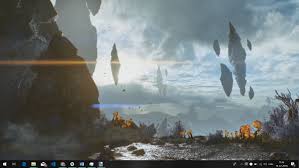
Are you tired of static wallpapers and looking for a way to spice up your desktop? Setting a video as your desktop background might be just what you need! Whether you’re using Windows or macOS, this guide will walk you through the steps to bring your screen to life with animated wallpapers.
Why Use a Video as Your Desktop Background?
Imagine your wallpaper moving, providing dynamic visuals that enhance your productivity or simply entertain you. Setting a video as your desktop background adds a personalized and engaging touch to your workspace. It’s especially helpful for gamers, creatives, or anyone who loves customization. However, be mindful that live wallpapers may consume more system resources and battery power.
How to Set a Video as Desktop Background on Windows
Windows provides several ways to animate your desktop with video wallpapers. Let’s explore some of the best solutions for this.
Using Wallpaper Live for Desktop
If you have Windows 10 or later versions, such as Windows 11, you can easily use Wallpaper Live for Desktop, a third-party application available from the Microsoft Store.
Steps:
- Download and Install: Visit the Microsoft Store and search for “Wallpaper Live for Desktop.” Download and install the app.
- Install .NET Framework: On the first launch, the app may prompt you to install the Microsoft .NET Framework. Follow the instructions to complete this installation if needed.
- Launch the App: Open Wallpaper Live for Desktop. You’ll see several pre-made wallpapers under the “Samples” section.
- Add Your Own Video: If you have a specific video file, go to the Collection tab on the left side, click Browse, and select the video file from your computer.
- Set the Video as Background: Once your video is added, click the video thumbnail to apply it as your desktop background.
Note that the free version of this app supports limited video formats, such as .wmv and .mov. For more video formats, you can either upgrade to the pro version or use a video converter.
Using ScreenPlay for Animated Backgrounds
ScreenPlay is another great third-party app that you can use to set videos as your background on Windows. It’s an open-source tool available via Steam.
Steps:
- Download Steam: Install Steam if you don’t have it already. Follow this guide for installation instructions.
- Install ScreenPlay: Search for “ScreenPlay” in the Steam Store, click Free and download the app.
- Browse Video Backgrounds: Launch ScreenPlay and use the Steam Workshop to explore video wallpapers uploaded by the community. You can filter results by trends, votes, or even content created by your friends.
- Set as Background: Once you find a video you like, subscribe to it. After downloading, open ScreenPlay and apply the video wallpaper to your desktop.
Note: As ScreenPlay is still in early access, occasional bugs or crashes may occur.
Wallpaper Live vs ScreenPlay
| Feature | Wallpaper Live | ScreenPlay |
|---|---|---|
| Price | Free, with a Pro version | Free |
| Platform | Windows 10, Windows 11 | Windows (through Steam) |
| Video Formats | Limited (WMV, MOV) | Multiple formats (through Steam) |
| Customization | Basic | Community-driven options |
How to Set a Video as Desktop Background on macOS
Though macOS doesn’t natively support video wallpapers, there are third-party tools that allow you to set videos as your wallpaper.
Using VLC Media Player on macOS
One of the easiest ways to set a video as your desktop background on macOS is using VLC Media Player. This method is simple and effective.
Steps:
- Download VLC: If you don’t have VLC, download and install it from here.
- Open VLC: Launch VLC and navigate to the VLC menu at the top left corner.
- Enable Wallpaper Mode: Go to Preferences > Video, and check the option for Enable Wallpaper Mode. Click Save to confirm.
- Play Your Video: Open the video file in VLC. It will now play as your desktop wallpaper.
- Set to Loop: To keep the video running continuously, go to Playback > Repeat. This will ensure the video loops endlessly.
To disable the video wallpaper, simply quit VLC, and your desktop will revert to a static background.
Dynamic Wallpapers on macOS
If you’re looking for something less resource-intensive, macOS offers dynamic wallpapers that change with the time of day. While not videos, they provide subtle visual transitions that are more energy-efficient.
You can download custom dynamic wallpapers from Dynamic Wallpaper Club, and apply them through System Preferences > Desktop & Screen Saver.
Setting a Video Background on Mobile Devices
Want to extend the animated wallpaper experience to your mobile device? It’s possible on both Android and iOS, and here’s how.
Video Wallpapers on Android
On Android, you can use an app like Live Wallpaper – Any Video to set your video as a background.
Steps:
- Download the App: Install Live Wallpaper – Any Video from the Google Play Store.
- Select Video: Open the app and choose the video from your phone’s gallery that you want to use.
- Apply the Wallpaper: Set the video as your live wallpaper, choosing whether it should display on your home screen or both the home and lock screens.
This app is straightforward and does not require any in-app purchases or ads.
Video Backgrounds on iPhone or iPad
On iOS, you can use Live Photos to create dynamic wallpapers, though these are short, looping videos rather than full-length clips. For more creative solutions, check out apps like intoLive from the App Store.
Performance Considerations for Video Backgrounds
While video wallpapers are visually stunning, they come with some caveats. They can be resource-intensive, causing:
- Higher CPU Usage: Videos running in the background may slow down your system.
- Increased Battery Drain: On laptops or mobile devices, live wallpapers can significantly reduce battery life.
- Potential System Lag: Older or lower-end devices may struggle with performance when running video backgrounds.
If you notice any performance degradation, consider switching back to a static image or dynamic wallpaper that’s less demanding on your hardware.
Best Practices for Using Video Backgrounds
Here are some tips to optimize your experience with video wallpapers:
- Use Short Videos: Choose shorter clips to reduce resource consumption.
- Lower Video Resolution: High-resolution videos may look great, but they consume more power. Use a lower resolution for better performance.
- Monitor Performance: Keep an eye on your system’s performance and remove the video wallpaper if you notice a slowdown.
Conclusion
Adding a video as your desktop background can transform the look and feel of your workspace. Whether you’re using Windows or macOS, there are plenty of ways to animate your desktop with easy-to-use third-party apps. Remember, while video wallpapers look amazing, they do come with some trade-offs in terms of performance and battery life. Choose wisely and enjoy your vibrant new desktop!
FAQs
1. Will setting a video as my desktop background slow down my computer?
Yes, video backgrounds can increase CPU usage and may cause system slowdowns, especially on older hardware.
2. Can I use a video as my desktop wallpaper on macOS?
Yes, using VLC Media Player, you can set a video as your desktop wallpaper on macOS.
3. Does Windows 10 have built-in video wallpaper support?
No, Windows does not natively support video wallpapers, but you can use third-party apps like Wallpaper Live or ScreenPlay to achieve this.
4. What video formats are supported by Wallpaper Live for Desktop?
The free version of Wallpaper Live supports .wmv and .mov files. You can convert other formats using a video converter.
5. Will video wallpapers drain my battery faster?
Yes, on laptops and mobile devices, video wallpapers consume more battery than static images.
6. Can I set a video wallpaper on my phone?
Yes, on Android, apps like Live Wallpaper – Any Video let you set video wallpapers. On iPhone, you can use Live Photos for animated backgrounds.
7. Is ScreenPlay available for macOS?
Yes, ScreenPlay is available on both Windows and macOS through Steam.
8. How can I reduce the impact of video wallpapers on performance?
Use shorter, lower-resolution videos and monitor system performance. If issues arise, switch to a static or dynamic wallpaper.


