
Instagram has become a central part of our social media life. Whether you’re sharing the perfect moment in a post, creating a fun story, or simply scrolling through the feed, it’s common to access Instagram on multiple devices. However, with all these logins, how can you ensure that no unauthorized devices are accessing your account?
In this detailed guide, we’ll show you how to check devices connected to your Instagram account and how to log out of devices you no longer want connected. Whether you’re using an Android, iPhone, or a PC, we’ll cover all the necessary steps.
Table of Contents
- Why Check Devices Connected to Instagram?
- How to Check Devices Connected to Instagram via the App
- Using an Android Device
- Using an iPhone
- How to Check Devices Connected to Instagram on a PC
- How to Disconnect Devices from Your Instagram Account
- Disconnecting Devices on the App
- Disconnecting Devices on PC
- How to Ensure Security on Instagram
- Enabling Two-Factor Authentication
- Recognizing Suspicious Activities
- Why You Should Keep Track of Connected Devices
- What to Do if You Notice an Unauthorized Device?
- Conclusion
- FAQs
Why Check Devices Connected to Instagram?
The more devices you connect to your Instagram, the higher the risk of unauthorized access. By keeping track of your connected devices, you ensure that only your trusted gadgets have access to your account. Whether it’s from logging in on public computers or letting friends use your phone, unauthorized access could lead to serious privacy issues. Regularly checking your connected devices gives you control over your account’s security.
How to Check Devices Connected to Instagram via the App
Checking the devices connected to your Instagram account via the app is a straightforward process. Here’s how to do it step by step for both Android and iPhone users.
Using an Android Device
- Open the Instagram app on your Android device.
- Tap on your profile picture in the bottom right corner to go to your profile.
- Click on the menu icon (≡) in the top right corner.
- Select Settings & Privacy and then Account Center.
- From there, go to Password and Security.
- Tap on Devices You’ve Logged Into and select the Instagram account you want to check.
This will show you a list of devices currently logged into your Instagram account. If you find any device that looks unfamiliar, follow the steps to disconnect it.
Using an iPhone
The steps are identical for iPhone users. Simply open the Instagram app, access your profile, and follow the steps above to find the list of connected devices.
How to Check Devices Connected to Instagram on a PC
You can also check the devices logged into your Instagram via a PC using the browser or the desktop application. Here’s how:
- Visit the Instagram website and log in to your account.
- Click on the More (☰) icon located on the bottom left of the screen.
- Choose Settings from the dropdown menu.
- Click on See More in Account Center.
- Once inside, navigate to Password and Security.
- Select Devices You’ve Logged Into.
Now you’ll see a list of all devices that have access to your Instagram account. If any devices seem suspicious, you can log them out from here.
How to Disconnect Devices from Your Instagram Account
If you find an unfamiliar device on your list, you can easily disconnect it. Here’s how to do it both from the app and on the PC.
Disconnecting Devices on the App
- Follow the steps to view connected devices (as outlined above).
- Tap on the device you wish to disconnect.
- Select Log Out.
Alternatively, you can tap Select Devices to Log Out, check the boxes next to the devices, and tap Log Out to remove multiple devices at once.
Disconnecting Devices on PC
- On the Devices You’ve Logged Into page, select the device you want to log out from.
- Click Log Out.
You can also use the Select Devices to Log Out option to remove multiple devices at once, just as you can on the app.
How to Ensure Security on Instagram
Checking your connected devices is just the first step in securing your Instagram account. Here are additional measures you can take to further enhance your account’s security.
Enabling Two-Factor Authentication
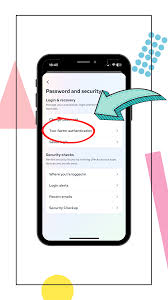
Two-factor authentication (2FA) adds an extra layer of security to your Instagram account. By enabling 2FA, every time you log in from a new device, you’ll need to verify the login with a second method (like a text message or an authenticator app). Here’s how to enable 2FA:
- Go to Settings in the Instagram app.
- Select Security and tap Two-Factor Authentication.
- Choose your preferred security method (SMS or an authentication app) and follow the steps to set it up.
Recognizing Suspicious Activities
It’s crucial to monitor your account for any unusual activity. Instagram will notify you of any unusual logins, but you should also regularly check your account activity:
- Go to Settings.
- Select Security and then Login Activity.
- Review the list of devices and locations where your account has been accessed.
Why You Should Keep Track of Connected Devices
Keeping track of your connected devices ensures that no one can access your account without your knowledge. This is particularly important for anyone who uses public devices or shares their phone with others. It’s a good habit to periodically check and ensure only trusted devices have access to your Instagram account.
If you notice an unfamiliar device, here’s what you should do immediately:
- Log Out: Disconnect the device from your account.
- Change Your Password: Go to Settings > Security > Password and create a new, strong password.
- Enable Two-Factor Authentication: Ensure no one can access your account without your authorization.
- Check Email and Account Information: Verify that your account email and phone number haven’t been changed.
Conclusion
Managing the devices connected to your Instagram account is essential for keeping your profile secure. By regularly checking your devices and enabling two-factor authentication, you ensure that only you can access your Instagram account. If you ever spot a device that looks unfamiliar, immediately log it out and update your security settings.
FAQs
1. How often should I check the devices connected to my Instagram account?
It’s a good idea to check your connected devices at least once a month, especially if you frequently use public devices or share your phone.
2. Can I get a notification if someone logs into my Instagram from a new device?
Yes, Instagram sends notifications when your account is accessed from a new device or location.
3. What should I do if I find an unfamiliar device on my account?
Log it out immediately, change your password, and enable two-factor authentication.
4. Can I log out of multiple devices at once on Instagram?
Yes, you can log out of multiple devices at once by selecting them on the Devices You’ve Logged Into page.
5. How can I enhance the security of my Instagram account?
Enable two-factor authentication, use a strong password, and monitor login activity regularly.
6. What is two-factor authentication, and should I enable it?
Two-factor authentication adds an extra layer of security. It’s highly recommended to enable it for all your accounts, including Instagram.
7. Can someone access my Instagram without my password?
If someone gains access to your email or phone, they could potentially reset your Instagram password. This is why two-factor authentication is essential.
8. Is there a way to see the locations of the devices connected to my Instagram account?
Yes, when you check your login activity, Instagram shows the location of the devices logged into your account.


