
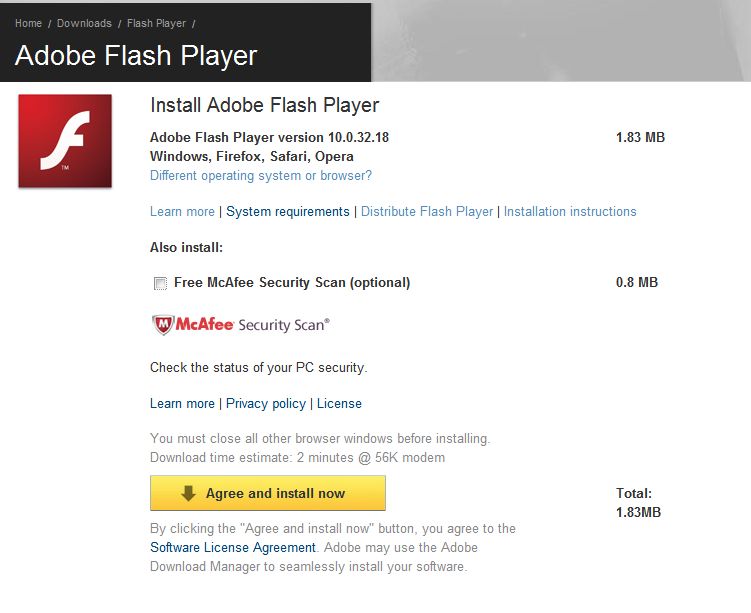
Adobe Flash Player: Downloading And Using The Software
Are you still wondering how to download and use Adobe Flash Player? You’re not alone! In this article, we’ll guide you through the process of downloading and using Adobe Flash Player on both Windows and Mac operating systems.
What is Adobe Flash Player?
Adobe Flash Player is a free plug-in that allows you to play video, games, animations, and other interactive multimedia content in your web browser. It was once a popular software, but has since been discontinued due to safety concerns and the rise of more efficient technologies like HTML5.
Why Do I Need Adobe Flash Player?
You may need Adobe Flash Player if:
- You have content with .SWF extension that you want to view online or offline.
- You’re trying to run a game or animation on your computer.
- You want to visualize multimedia content created in Flash.
Downloading Adobe Flash Player For Windows
To download Adobe Flash Player on Windows, follow these steps:
- Open the website of Adobe Flash Projector and click on the “Download” button.
- Choose the correct file type (.Exe) for your operating system (Windows).
- Save the file to your computer.
- Run the downloaded file and select the “Open…” Option from the menu bar.
- Browse to the location where you saved the content with .SWF extension and click on it.
Downloading Adobe Flash Player For Mac
To download Adobe Flash Player on a Mac, follow these steps:
- Visit the website of Adobe Flash Projector and click on the “Download” button.
- Choose the correct file type (.Dmg) for your operating system (Macintosh).
- Save the package to your computer.
- Open the downloaded package and drag the icon of Flash Player to the Applications folder.
- Open Flash Player by double-clicking its icon.
Alternative Solutions
If Adobe Flash Player doesn’t work for you, there are other solutions available:
- You can use a video player like VLC Media Player, which supports various formats including FLV and MP4.
- If you’re using Windows 10 or later, you can download the Microsoft Store version of VLC.
- If you’re using Windows 8.1 Or earlier, or if you’re on a Mac, you can download the classic installation version of VLC.
Using Vlc Media Player
To use VLC Media Player:
- Download and install VLC from the official website.
- Open VLC and select the “Open…” Option from the menu bar.
- Browse to the location where you saved the content with .FLV extension and click on it.
- To initiate playback, click on the “Open” button.
Converting Flv Files
If you need to convert a video from FLV format to MP4 or another compatible format, follow these steps:
- Use VLC Media Player to convert your file (you can find instructions in my guides on converting FLV to other formats).
Conclusion
Adobe Flash Player is no longer supported by Adobe, but there are alternative solutions available for playing multimedia content created in Flash. We’ve guided you through the process of downloading and using Adobe Flash Player on Windows and Mac operating systems, as well as introduced you to VLC Media Player as a more modern solution.
Frequently Asked Questions
- Q: Why Did Adobe Discontinue Flash Player?
A: Adobe discontinued Flash Player due to safety concerns and the rise of more efficient technologies like HTML5. - Q: Can I Still Use Flash Player on my Computer?
A: Yes, you can still download and install Flash Player, but it’s no longer supported by Adobe. - Q: What Are The Alternatives to Flash Player?
A: There are various alternative solutions available, including VLC Media Player, which supports FLV and MP4 formats. - Q: How do I Convert a Video From Flv Format to Mp4 or Another Compatible Format?
A: You can use VLC Media Player to convert your file (follow the instructions in my guides on converting FLV to other formats). - Q: Why Should I Choose Vlc Media Player Over Flash Player?
A: VLC is a more modern and efficient solution that supports various formats, making it a better choice for playing multimedia content.


