
Backup Android: A Step-by-step Guide
Are you looking for ways to create a backup of your Android device? Look no further! In this article, we will guide you through the process of backing up your Android data, including photos, videos, contacts, and more.
Why Backup Your Android Device?
Backing up your Android device is essential in case your phone or tablet gets lost, stolen, or damaged. With a backup, you can easily restore all your important data, such as contacts, messages, and photos.
Method 1: Google Drive Backup
One of the easiest ways to back up your Android device is by using Google Drive. This method allows you to sync your data with Google’s cloud storage service.
- To start, go to your phone’s settings and select “Accounts” or “Google Account.”
- Make sure you have a Google account set up on your device.
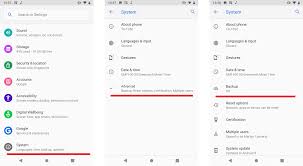
- Go back to the settings menu and select “Backup & reset.”
- Choose the type of data you want to backup, such as contacts, messages, and photos.
Method 2: Using Android Backup Services
Android offers built-in backup services that allow you to create a backup of your device. You can use these services to back up your data, including contacts, messages, and photos.
- Go to the settings menu on your phone.
- Select “Backup & reset.”
- Choose the type of data you want to backup.
Method 3: Using Third-party Backup Apps
There are also several third-party backup apps available that can help you create a backup of your Android device. Some popular options include Google Photos, Samsung Cloud, and Huawei Mobile Cloud.
- Download and install the app on your phone.
- Follow the instructions provided by the app to set up the backup process.
Method 4: Using PC Software
If you want to create a more comprehensive backup of your Android device, you can use software on your computer. This method allows you to back up all data on your phone, including photos, videos, and documents.
- Connect your phone to your computer using a USB cable.
- Install the necessary software on your computer.
- Follow the instructions provided by the software to set up the backup process.
Method 5: Using Cloud Storage Services
Another option is to use cloud storage services like Dropbox or OneDrive. You can install their apps on your Android device and sync your data with their cloud servers.
- Download and install the app on your phone.
- Follow the instructions provided by the app to set up the backup process.
Common Mistakes to Avoid
When backing up your Android device, there are a few common mistakes to avoid:
- Not regularly checking for updates to the backup software or service.
- Not verifying that the backup was successful.
- Not storing backups in multiple locations.
By following these methods and avoiding common mistakes, you can ensure that your data is safe and easily recoverable in case of an emergency.


