
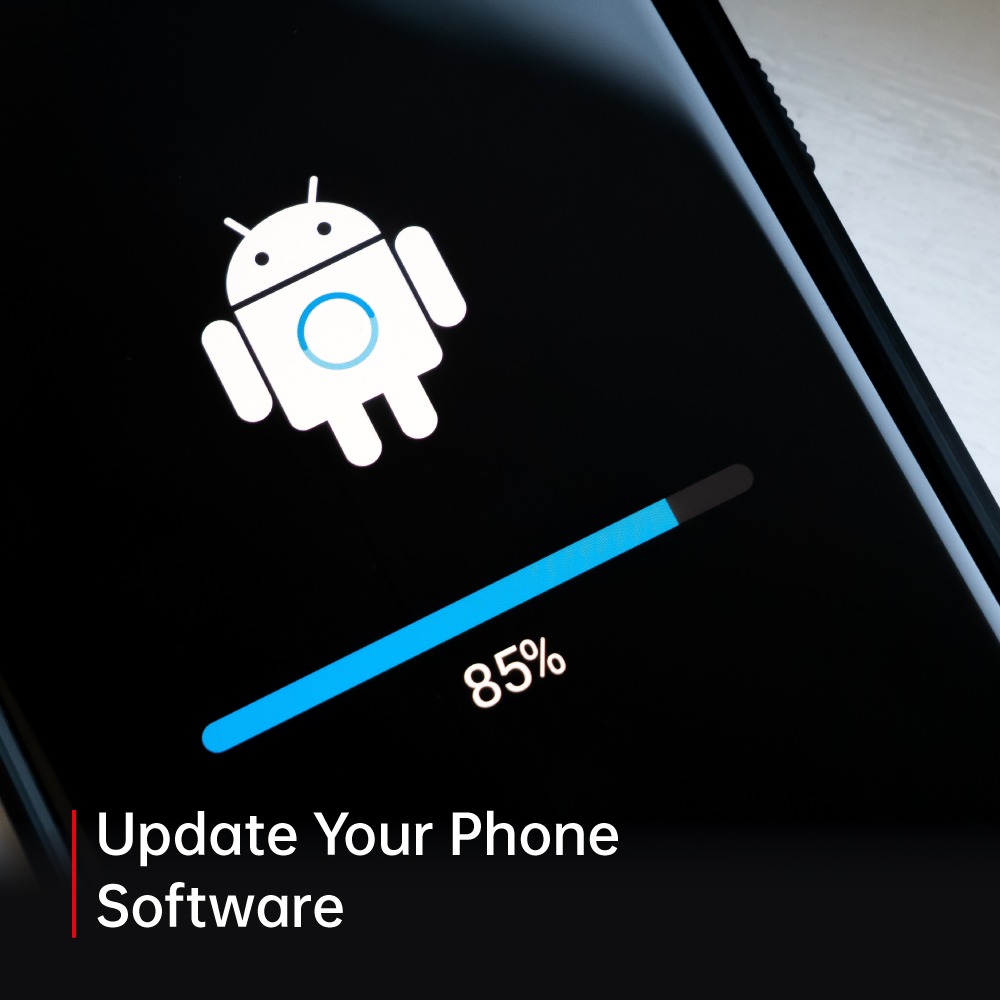
Update Android: A Step-by-step Guide to Updating Your Smartphone
As a smartphone user, you’re likely no stranger to the frustration of dealing with outdated software on your device. Whether it’s a security patch or a new feature, keeping your Android up-to-date is crucial for ensuring that your phone remains secure and runs smoothly.
In this article, we’ll guide you through the process of updating your Android smartphone using various methods, including Over-The-Air (OTA) updates, PC-based updates, and custom ROMs. We’ll also explore other typologies of update Android and provide tips on how to troubleshoot common issues.
Why Update Android?
Before we dive into the nitty-gritty details of updating your Android smartphone, let’s quickly discuss why it’s essential to keep your software up-to-date.
Updating your Android device ensures that you have the latest security patches and features. This helps protect your personal data from potential threats and enhances your overall user experience.
Method 1: Over-the-air (OTA) Updates
The most straightforward way to update your Android smartphone is by using OTA updates. Here’s how:
How to Check For Ota Updates on Your Android Device
- Open the Settings app on your phone.
- Tap on System > Update of system.
- Search for updates and let the check complete.
Method 2: Pc-based Updates Using Samsung Smart Switch, Huawei Hisuite, Lenovo Smart Assistant Tool, LG PC Suite, or Sony Xperia Companion
If you’re experiencing difficulties with OTA updates, you can try using a PC-based update tool specific to your device manufacturer.
How to Update Your Android Device Using a Pc-based Update Tool
- Download and install the appropriate update tool for your device.
- Connect your phone to your computer using a USB cable.
- Open the update tool and follow the instructions to complete the update process.
Method 3: Custom Roms
If your device manufacturer has stopped supporting updates, you can try installing a custom ROM on your Android device. However, be aware that this method involves rooting your device, which carries some risks.
How to Install a Custom Rom on Your Android Device
- Research and download the appropriate custom ROM for your device.
- Follow the instructions provided by the developer or community to install the ROM.
- Be cautious when flashing a new ROM, as this can potentially brick your device.
Other Typologies of Update Android
While OTA updates are the most convenient method, there are other ways to update your Android device, such as:
- Using a Custom Rom: As mentioned earlier, custom ROMs offer an alternative way to install the latest version of Android on your device.
- Flash Tool: A flash tool can be used to manually update your device with a new image or firmware.
- Pccustom Rom: Some devices may have specific requirements for updating using a PCCustom ROM.
Conclusion
Updating your Android smartphone is crucial for ensuring that you have the latest security patches and features. In this article, we’ve covered various methods of updating your device, including OTA updates, PC-based updates, and custom ROMs. While each method has its own set of instructions and requirements, remember to always follow proper procedures to avoid any potential issues.
If you’re experiencing difficulties with updating your Android device or need more information on a specific topic, feel free to leave us a comment below.
Frequently Asked Questions (FAQs)
-
Q: How do I Check if my Device is Eligible For an Ota Update?
A: To check for updates, go to Settings > System > Update of system.
2. Q: What Are The Risks Associated With Using a Custom Rom on my Android Device?A: Flashing a custom ROM can potentially brick your device or cause data loss. Always research and understand the requirements before proceeding.
3. Q: Can I Use a Pc-based Update Tool if I Don’t Have a Usb Cable?A: No, some devices may require a USB connection for updating purposes.
4. Q: Are Custom Roms Available For All Android Devices?A: No, custom ROMs are generally developed for popular devices or those with dedicated communities.
5. Q: How do I Troubleshoot Common Issues During The Update Process?A: Refer to your device’s manufacturer documentation or seek help from online forums and communities.
6. Q: Can I Roll Back to a Previous Version of Android if I Encounter Problems After an Update?A: Check with your device manufacturer regarding their policy on downgrades.


