
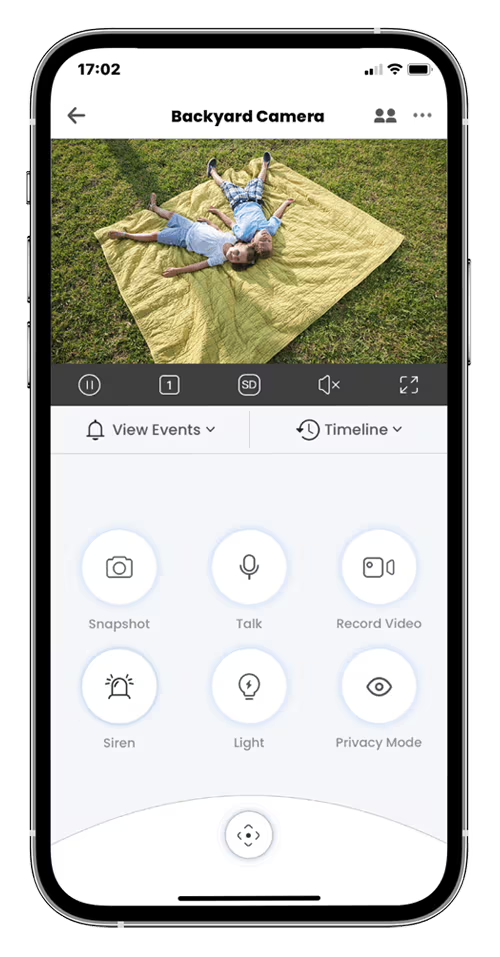
Setting Up Your Dvr System: A Step-by-step Guide
As a homeowner or business owner, installing a digital video recording (DVR) system can provide you with peace of mind knowing that your property is being monitored remotely. However, setting up the system can be overwhelming, especially if you’re not tech-savvy.
In this article, we’ll guide you through the process of setting up your DVR system, including choosing the right app to use and configuring it for optimal performance.
Understanding Your Dvr System
Before we dive into the setup process, let’s understand how a typical DVR system works. A DVR system consists of cameras, a DVR unit, and an app or software that allows you to view live footage and record video remotely.
The cameras capture video footage, which is then transmitted to the DVR unit for recording and storage. The app or software allows you to access the recorded footage, receive notifications when motion is detected, and even control the cameras remotely.
Choosing The Right App
There are many apps available that can help you set up and manage your DVR system. Some popular options include:
- Socatch: A user-friendly app for Android and iOS devices that allows you to configure multiple patterns and marks of DVR in circulation.
- Dmss: An app for Android and iOS devices compatible with various brands of DVR and NVR systems, including Dahua.
- Meye: An optimum app for Android devices that offers a range of features, including the ability to add a new DVR by scanning a QR code.
Setting Up Your Dvr System
To set up your DVR system, follow these steps:
- Download And Install The App: Download and install the chosen app on your smartphone or tablet.
- Configure The App: Follow the in-app instructions to configure the app for use with your DVR system.
- Enter Your Dvr Details: Enter your DVR’s IP address, username, and password into the app.
- Select Your Cameras: Select which cameras you want to view live footage from and record video.
- Configure Motion Detection: Configure motion detection settings, such as sensitivity and alerts.
Configuring Your App
Each app has its own configuration process, but here are some general steps:
- Socatch:
- Tap the “NEW” button to create a new configuration.
- Enter your DVR’s name, host (DNS dynamic), port, username, and password.
- Select which cameras you want to view live footage from and record video.
- Dmss:
- Tap the “+” icon to add a new device.
- Enter your DVR’s IP address or domain, port, username, and password.
- Select which cameras you want to view live footage from and record video.
Common Issues And Solutions
Some common issues that may arise when setting up your DVR system include:
- Connection Issues: If you’re experiencing connection issues, try restarting the app and re-entering your DVR’s details.
- Camera Not Detected: If a camera is not detected by the app, check that it’s properly connected to the DVR unit.
Conclusion
Setting up your DVR system can be a straightforward process if you have the right guidance. By following these steps and choosing the right app for your needs, you’ll be able to monitor your property remotely with ease.
Remember to configure motion detection settings and select which cameras you want to view live footage from and record video. With these tips in mind, you’ll be well on your way to enjoying peace of mind knowing that your property is being monitored remotely.
Faqs
- What is The Best App For my Dvr System?
The best app for your DVR system depends on your specific needs and preferences. Some popular options include SoCatch, DMSS, and MEye. - How do I Configure Motion Detection Settings in my App?
To configure motion detection settings in your app, follow these steps: Select the cameras you want to monitor, set sensitivity levels, and choose whether to receive alerts when motion is detected. - What if I’m Experiencing Connection Issues With my App?
If you’re experiencing connection issues with your app, try restarting the app and re-entering your DVR’s details. If this doesn’t resolve the issue, contact the app’s customer support team for further assistance. - Can I Use Multiple Apps to Monitor my Dvr System?
Yes, you can use multiple apps to monitor your DVR system. However, be aware that each app may require its own configuration and settings.
Additional Resources
If you need additional guidance on setting up your DVR system or configuring motion detection settings, refer to the following resources:
- Dvr System Installation Guide: A comprehensive guide covering all aspects of installing a DVR system.
- Motion Detection Settings Guide: A detailed guide explaining how to configure motion detection settings in your app.
By following these guidelines and choosing the right app for your needs, you’ll be able to set up and manage your DVR system with ease.


