
The Ultimate Guide to Downloading Apps on Iphone: A Step-by-step Tutorial
Are you excited to get your hands on the best apps for your new iPhone? Congratulations, you’ve made an excellent choice! With over 2 million apps available on the App Store, it can be overwhelming to decide which ones to download. Don’t worry; we’ve got you covered!
In this article, we’ll take you through a step-by-step guide on how to download and install apps on your iPhone. We’ll also recommend some of the best apps in various categories, including productivity, social media, entertainment, and more.
Getting Started With The App Store
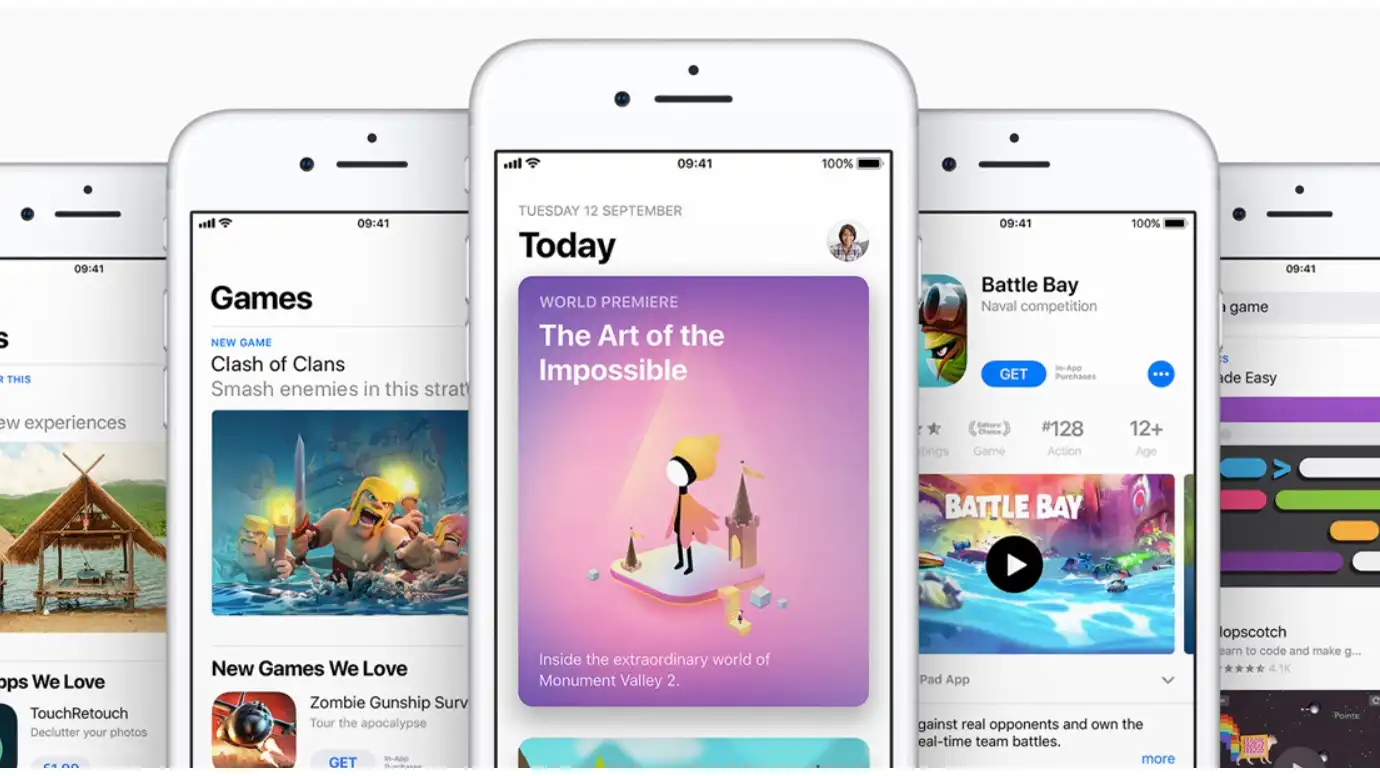
Before we dive into the tutorial, let’s talk about the App Store itself. The App Store is an official digital shop owned by Apple where you can download and install apps on your iPhone or iPad. It’s a vast marketplace that offers everything from games to productivity tools, entertainment apps to education resources.
Step 1: Launching The App Store
To access the App Store, follow these simple steps:
- Tap on the App Store icon on your home screen.
- Alternatively, you can swipe down on your home screen and search for “App Store” in Spotlight mode.
Step 2: Searching For Apps
Once you’re inside the App Store, it’s time to search for apps that interest you. Here’s how:
- Tap on the Search tab at the bottom of the screen.
- Type in the name of the app you’re looking for using the keyboard.
- Browse through the search results and tap on the app icon when you find what you want.
Step 3: Installing Apps
Now that you’ve found an app, it’s time to install it. Here’s how:
- Tap on the Get button next to the app icon.
- Wait for a few seconds while the app is downloaded and installed.
- Once the installation process is complete, tap on the Open button to launch the app.
Step 4: Managing Your Apps
As you continue to download and install apps, it’s essential to manage them efficiently. Here’s how:
- Tap on the Settings icon on your home screen.
- Scroll down and select General from the list.
- Select Iphone Storage and then tap on the Manage App Data button.
The Best Apps For Iphone
Now that you know how to download and install apps, let’s talk about some of the best ones in various categories. Here are a few recommendations:
Productivity
- Microsoft 365: A suite of productivity tools including Word, Excel, PowerPoint, and OneNote.
- Iwork: A suite of productivity tools developed by Apple, including Pages, Numbers, and Keynote.
Social Media
- Facebook: The popular social media app where you can connect with friends and family.
- Instagram: A visual-centric social media app where you can share photos and videos.
Entertainment
- Netflix: A streaming service that offers a wide range of movies, TV shows, and documentaries.
- Spotify: A music streaming service that offers millions of songs to listen to.
Other Essential Apps
In addition to these categories, here are some other essential apps you might want to consider:
- Whatsapp: A popular messaging app where you can communicate with friends and family.
- Google Chrome: A web browser that offers fast browsing experience and access to Google services.
- Siri Shortcuts: A feature-rich app that allows you to automate tasks using Siri.
Conclusion
Downloading apps on iPhone is an exciting process, but it can be overwhelming. By following this step-by-step guide, you’ll learn how to navigate the App Store, search for apps, install them, and manage your downloads. Remember, the best apps are those that meet your specific needs, so explore different categories and find what works best for you.
Frequently Asked Questions
- How do I Update an App?
To update an app, tap on the Settings icon on your home screen, select General, and then select Software Update. - Can I Delete an App From my Iphone?
Yes, you can delete an app by tapping on the X button next to the app icon or by going to the Settings > Iphone Storage menu. - How do I Reset my Iphone?
To reset your iPhone, go to Settings > General and select Reset.
Hope this detailed guide helps!


