
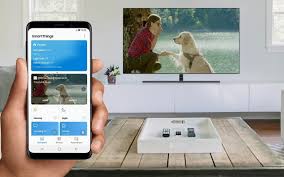
The Ultimate Guide to Apps on Samsung Smart Tvs
Are you excited about your new Samsung Smart TV? You’re not alone! With the increasing popularity of smart TVs, it’s no wonder why many people are eager to explore the world of apps available on these devices. In this comprehensive guide, we’ll take you through the best apps for Samsung Smart TVs, how to use them, and some tips and tricks to make your viewing experience even better.
Top Apps For Streaming Movies And TV Shows
- Netflix: The ultimate streaming service that needs no introduction. With a vast library of content, including original series and movies, Netflix is a must-have app on any Samsung Smart TV.
- Amazon Prime Video: Another popular streaming service that offers a wide range of movies, TV shows, and original content. Amazon Prime Video is available on most Samsung Smart TVs, making it easy to access your favorite shows and movies.
- Disney+: The new kid on the block in the world of streaming services, Disney+ has quickly gained popularity with its vast library of Disney, Pixar, Marvel, and Star Wars content.
Other Noteworthy Apps
- Youtube: The go-to platform for video sharing and entertainment. YouTube is a great app to have on your Samsung Smart TV, allowing you to access a vast library of user-generated content.
- Now TV: A UK-based streaming service that offers a wide range of movies, TV shows, and sports content. NOW TV is available on most Samsung Smart TVs, making it easy to access your favorite channels and programs.
Music And Radio Apps
- Spotify: The popular music streaming service that allows you to access millions of tracks, playlists, and radio stations.
- Apple Music: A comprehensive music streaming service that offers a wide range of content, including exclusive content from popular artists.
- Tidal: A high-fidelity music streaming service that offers lossless audio quality and exclusive content from popular artists.
News And Entertainment Apps
- Rai News: The official app for Italian news network Rai, offering live updates, TV programs, and in-depth analysis.
- Mediaset Play: The official app for Italian media company Mediaset, offering a wide range of TV shows, movies, and exclusive content.
Fitness And Wellness Apps
- Geethanjali – Yoga: A comprehensive yoga app that offers video lessons, meditation, and breathing exercises to help you relax and rejuvenate.
- Samsung Health: A popular health and fitness app that allows you to track your exercise routine, monitor your weight, and access a wide range of wellness content.
Social Media Apps
- Facebook: The popular social media platform that allows you to stay connected with friends and family, share updates, and access exclusive content.
- Twitter: A real-time social media platform that allows you to stay up-to-date with the latest news, trends, and conversations.
Gaming Apps
- Angry Birds: The popular mobile game that has made its way to Samsung Smart TVs, offering a unique gaming experience on your big screen.
- Super Candy 2: A sweet treat for gamers, this app offers hours of fun and entertainment on your Samsung Smart TV.
Using Apps on Your Samsung Smart TV
To access apps on your Samsung Smart TV, follow these simple steps:
- Make sure you have a stable internet connection.
- Press the Home button on your remote control to access the main menu.
- Scroll down to the Apps section and select it.
- Browse through the available apps and select the one you want to install.
- Follow the on-screen instructions to download and install the app.
Tips And Tricks
- Use The Smart Remote: The Smart Remote control that comes with your Samsung Smart TV is designed to make navigation easier. Use it to access apps, change channels, and adjust settings.
- Customize Your Home Screen: Personalize your home screen by adding or removing widgets, changing the background image, and adjusting font sizes.
- Use Multiple Profiles: Create multiple profiles on your Samsung Smart TV to access different content and settings.
Conclusion
In conclusion, apps have revolutionized the way we consume media on our Samsung Smart TVs. With a wide range of streaming services, music and radio apps, news and entertainment channels, fitness and wellness programs, social media platforms, and gaming experiences available at your fingertips, it’s never been easier to enjoy your favorite content on the big screen.
Frequently Asked Questions
-
What Apps Are Available on Samsung Smart Tvs?
A: A wide range of apps is available on Samsung Smart TVs, including streaming services like Netflix, Amazon Prime Video, and Disney+, music and radio apps like Spotify and Apple Music, news and entertainment channels like Rai News and Mediaset Play, fitness and wellness programs like Geethanjali – Yoga and Samsung Health, social media platforms like Facebook and Twitter, and gaming experiences like Angry Birds and Super Candy 2. -
How do I Install Apps on my Samsung Smart Tv?
A: To install apps on your Samsung Smart TV, follow these steps: Press the Home button on your remote control to access the main menu, scroll down to the Apps section and select it, browse through the available apps and select the one you want to install, and follow the on-screen instructions to download and install the app. -
Can I Use my Samsung Smart TV Without a Wifi Connection?
A: Yes, you can use your Samsung Smart TV without a WiFi connection by using an external device like Google Chromecast or Amazon Fire TV Stick. -
How do I Access Apps on my Samsung Smart Tv?
A: To access apps on your Samsung Smart TV, press the Home button on your remote control to access the main menu, scroll down to the Apps section and select it, browse through the available apps and select the one you want to open. -
Can I Customize my Home Screen on my Samsung Smart Tv?
A: Yes, you can customize your home screen on your Samsung Smart TV by adding or removing widgets, changing the background image, and adjusting font sizes. -
How do I Use Multiple Profiles on my Samsung Smart Tv?
A: To use multiple profiles on your Samsung Smart TV, go to Settings > Accounts, select Add Profile, and follow the on-screen instructions to create a new profile. -
Can I Access Apps Without a Samsung Smart Tv?
A: Yes, you can access some apps without a Samsung Smart TV by using external devices like Google Chromecast or Amazon Fire TV Stick. -
How do I Uninstall an App From my Samsung Smart Tv?
A: To uninstall an app from your Samsung Smart TV, go to Settings > Apps, select the app you want to remove, and follow the on-screen instructions to delete it. -
Can I Use Apps With a Non-samsung Smart Tv?
A: Yes, some apps can be used with non-Samsung Smart TVs by using external devices like Google Chromecast or Amazon Fire TV Stick. -
How do I Update my Samsung Smart TV Software?
A: To update your Samsung Smart TV software, go to Settings > Support > Software Update, and follow the on-screen instructions to download and install the latest software version.


