
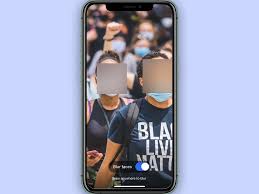
App For Blurring Photo: Enhancing Your Mobile Photography
Are you tired of taking monotonous photos? do you want to add a touch of originality to your mobile photography? look no further! in this article, we will explore the best apps for blurring photos on both android and ios devices.
What is Blur Photo?
Blur photo refers to the process of blurring or softening the background of a photograph, creating a shallow depth-of-field effect. This technique can help draw attention to the subject of the photo and make it stand out from the rest.
Top Apps For Blurring Photos on Android And Ios
- Snapseed (android/ios/ipados)
If you’re looking for an optimal app for blurring photos, look no further than snapseed. This free solution is developed by google and offers a wide range of editing tools, including blur, or the ability to blur the background of a photograph.
How to Use Snapseed
To use snapseed, simply download and install the app from the play store (android) or app store (ios/ipados). Launch the app and select the photo you want to edit. Tap on the “instruments” tab and then select “blur.” Use the blue ring to define the area of the image that will be blurred, and adjust the intensity of the blur using the bars at the bottom of the screen.
2. Photosphere Express (android/ios/ipados)
Photoshop express is another excellent app for blurring photos on both android and ios devices. This app offers a wide range of editing tools, including blurs, textures, and effects.
How to Use Photoshop Express
To use photoshop express, simply download and install the app from the play store (android) or app store (ios/ipados). Launch the app and select the photo you want to edit. Tap on the “modification” tab and then select the blur tool. Use the blue ring to define the area of the image that will be blurred, and adjust the intensity of the blur using the bars at the bottom of the screen.
3. Afterfocus (android/ios/ipados)
Afterfocus is a fantastic app for blurring photos on both android and ios devices. This app allows you to manually select the area of the image that will be blurred, creating a shallow depth-of-field effect.
How to Use Afterfocus
To use afterfocus, simply download and install the app from the play store (android) or app store (ios/ipados). Launch the app and select the photo you want to edit. Tap on the “album” tab and then select the blur tool. Choose the area of the image that will be blurred using the red color, and adjust the intensity of the blur using the bars at the bottom of the screen.
4. Pixlr (android/ios/ipados)
Pixlr is another excellent app for blurring photos on both android and ios devices. This free solution offers a wide range of editing tools, including blurs, textures, and effects.
How to Use Pixlr
To use pixlr, simply download and install the app from the play store (android) or app store (ios/ipados). Launch the app and select the photo you want to edit. Tap on the “photo” tab and then select the blur tool. Choose the area of the image that will be blurred using the red color, and adjust the intensity of the blur using the bars at the bottom of the screen.
5. Afterlight (android/ios/ipados)
Afterlight is an excellent app for blurring photos on both android and ios devices. This free solution offers a wide range of editing tools, including blurs, textures, and effects.
How to Use Afterlight
To use afterlight, simply download and install the app from the play store (android) or app store (ios/ipados). Launch the app and select the photo you want to edit. Tap on the “postcard” tab and then choose the image that will be modified. Select the blur tool using the diamond icon, and adjust the intensity of the blur using the bars at the bottom of the screen.
Other Apps to Blur Photo
There are many other excellent apps for blurring photos on both android and ios devices, including:
-
Fotor (android/ios/ipados)
-
Point blur (android)
-
Pixelmator (ios/ipados)
Conclusion
Blurring photo is a simple yet effective technique that can help enhance your mobile photography. With the apps listed above, you can easily blur or soften the background of a photograph, creating a shallow depth-of-field effect.
Faqs
- What is Blur Photo?
Blur photo refers to the process of blurring or softening the background of a photograph, creating a shallow depth-of-field effect.
- Which App Should i Use to Blur Photo?
The best app for blurring photos depends on your personal preference and device. Snapseed, photoshop express, afterfocus, pixlr, and afterlight are all excellent options.
- How do I Use Snapseed to Blur a Photo?
To use snapseed, simply download and install the app from the play store (android) or app store (ios/ipados). Launch the app, select the photo you want to edit, and tap on the “instruments” tab to access the blur tool.
- How do I Use Photoshop Express to Blur a Photo?
To use photoshop express, simply download and install the app from the play store (android) or app store (ios/ipados). Launch the app, select the photo you want to edit, and tap on the “modification” tab to access the blur tool.
- Can i Use Blur Photo on my Computer?
Yes, you can use blur photo on your computer using software such as adobe photoshop or gimp.
- What Are The Benefits of Using Blur Photo?
The benefits of using blur photo include creating a shallow depth-of-field effect, drawing attention to the subject of the photo, and making it stand out from the rest.
- Can i Use Blur Photo on Multiple Images at Once?
Yes, most apps for blurring photos allow you to apply the effect to multiple images at once.
- How do I Save my Edited Photo?
To save your edited photo, simply tap on the “save” button in the app. You can also share your edited photo on social media or send it via email.


