
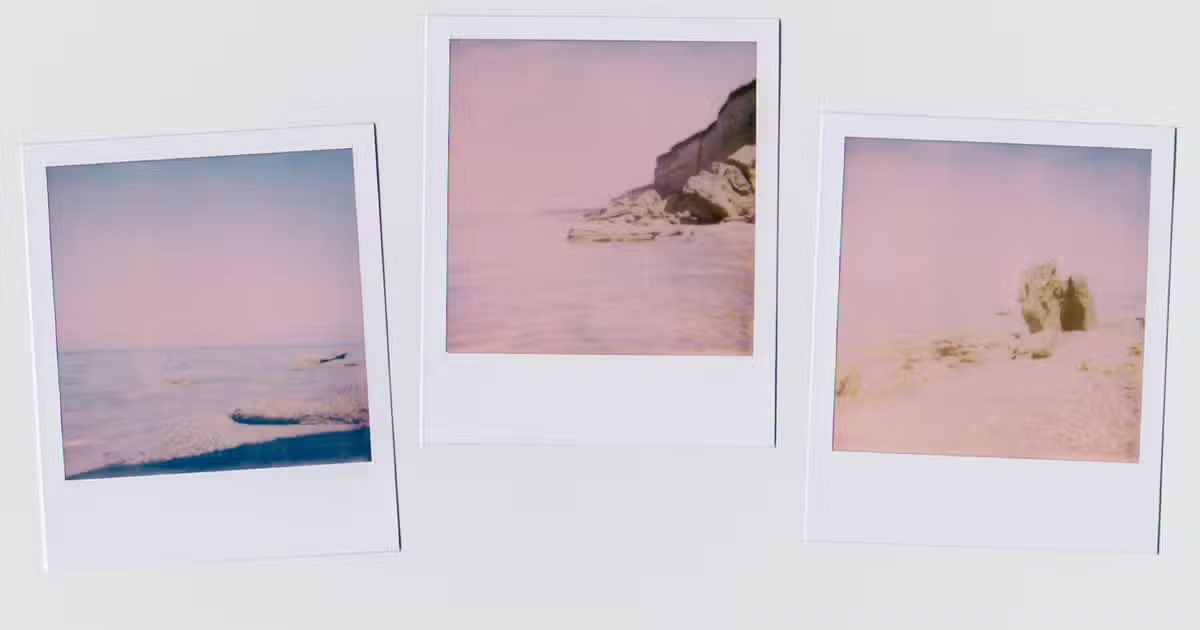
The Ultimate Guide to Adding White Boards to Your Photos
Are you tired of using boring old borders on your photos? Do you want to add a touch of elegance and sophistication to your images? Look no further! In this article, we will explore the world of photo editing apps that allow you to add white boards to your photos. We’ll take a look at some of the best apps available for both Android and iOS devices.
Why Add White Boards to Your Photos?
Adding white boards to your photos can be a great way to enhance their visual appeal. It’s a simple yet effective way to add a touch of elegance and sophistication to your images. Whether you’re looking to create beautiful collages, edit family photos, or simply want to add some extra flair to your social media posts, adding white boards is a great option.
The Best Apps For Adding White Boards to Your Photos
Here are some of the best apps available for adding white boards to your photos:
Snapseed (Android/iOS/iPadOS)
One of the most popular photo editing apps on the market, Snapseed is a must-have for anyone looking to add white boards to their photos. This free app offers a range of tools and features that make it easy to edit your photos and add stylish borders.
How to Use Snapseed
To use Snapseed, simply download the app and open it up. Choose the photo you want to edit and select the “Tools” icon in the bottom left corner of the screen. From there, choose the “Borders” option and select a white board from the list of available borders. You can then adjust the size and color of the border to your liking.
Pixlr (Android/iOS/iPadOS)
Another popular photo editing app, Pixlr is a great choice for anyone looking to add white boards to their photos. This app offers a range of tools and features that make it easy to edit your photos and add stylish borders.
How to Use Pixlr
To use Pixlr, simply download the app and open it up. Choose the photo you want to edit and select the “Tools” icon in the bottom left corner of the screen. From there, choose the “Borders” option and select a white board from the list of available borders. You can then adjust the size and color of the border to your liking.
Other Great Apps For Adding White Boards
If you’re not satisfied with Snapseed or Pixlr, don’t worry! There are plenty of other great apps out there that can help you add white boards to your photos. Here are a few more options to consider:
Pic Collage (Android/iOS/iPadOS)
This free app offers a range of tools and features that make it easy to create beautiful collages with white borders.
Picsart (Android/iOS/iPadOS)
Another popular photo editing app, PicsArt is a great choice for anyone looking to add white boards to their photos. This app offers a range of tools and features that make it easy to edit your photos and add stylish borders.
Photo Collage (Android)
This app is specifically designed for Android devices and offers a range of tools and features that make it easy to create beautiful collages with white borders.
Pic Stitch (iOS/iPadOS)
This free app allows you to create beautiful collages with white borders, perfect for sharing on social media or printing out as a keepsake.
How to Use These Apps
Each of these apps is designed to be user-friendly and easy to use. Simply download the app, open it up, and follow the prompts to add a white board to your photo. You can adjust the size and color of the border to your liking, and even add other features such as text or decorations.
Tips For Using White Boards in Your Photos
Here are a few tips to keep in mind when using white boards in your photos:
- Choose The Right Size: Make sure to choose a border that is proportional to the size of your photo.
- Select The Right Color: Choose a color that complements the colors in your photo and adds visual interest.
- Don’t Overdo it: Remember, less is often more. Avoid using too many borders or decorations, as this can clutter up your photo.
Conclusion
Adding white boards to your photos can be a great way to enhance their visual appeal. With so many amazing apps available for both Android and iOS devices, there’s never been a better time to try it out! Whether you’re looking to create beautiful collages, edit family photos, or simply want to add some extra flair to your social media posts, white boards are the perfect solution.
Frequently Asked Questions
Here are some frequently asked questions about adding white boards to your photos:
Q: What is a white board?
A: A white board is a type of border that can be added to a photo to enhance its visual appeal. White boards come in a range of styles and sizes, from simple and elegant to complex and ornate.
Q: How do I add a white board to my photo?
A: To add a white board to your photo, simply download an app such as Snapseed or Pixlr and follow the prompts. Choose the border you like best, adjust its size and color to your liking, and save the edited photo.
Q: Can I use a white board on any type of photo?
A: Yes! White boards can be used on any type of photo, from family portraits to landscapes and cityscapes. They’re a great way to add some extra flair to your photos and make them stand out on social media or in print.
Q: Are there any other ways to add borders to my photos?
A: Yes! In addition to using white boards, you can also use other types of borders such as shapes, colors, and textures. Experiment with different options to find the one that works best for your photo.
Q: Can I save my edited photos in high quality?
A: Yes! Most apps allow you to save your edited photos in high-quality formats such as JPEG or PNG. This means you can print out your edited photos in high resolution or share them online without worrying about pixelation.


