
How to Record Your Iphone’s Screen: A Step-by-step Guide
Are you tired of searching for ways to record your iPhone’s screen? Look no further! In this article, we’ll show you how to record your iPhone’s screen using various methods, including the built-in function and third-party apps.
Why Record Your Iphone’s Screen?
Recording your iPhone’s screen can be useful in many situations. You might want to:
- Create a tutorial or guide for a friend
- Show someone how to use an app or feature
- Demonstrate a problem with an app or game
- Create a video review or walkthrough
Method 1: Using The Built-in Function
The first method is to use the built-in function in iOS. This method is easy and straightforward.
How to Use The Built-in Function
To record your iPhone’s screen using the built-in function, follow these steps:
- Open Control Center by swiping up from the bottom of the screen (on iPhone X and later) or swiping down from the top right corner (on iPhone 8 and earlier).
- Tap on the “Screen Recording” icon.
- Tap on the red circle to start recording.
- To stop recording, tap on the red circle again.
That’s it! Your recorded video will be saved in the Photos app.
Method 2: Using Third-party Apps
If you want more features and flexibility, consider using third-party apps. We’ll review two popular options:
Record It!
Record It! is a popular app that allows you to record your iPhone’s screen with ease.
Features:
- Record your iPhone’s screen with audio
- Edit your recordings with the built-in editor
- Share your recordings on social media or via email
How to Use Record It!
- Download and install Record It! from the App Store.
- Open the app and tap on “Start Recording”.
- Choose the resolution, bitrate, and framerate that suits your needs.
- Tap on the red circle to start recording.
- To stop recording, tap on the red circle again.
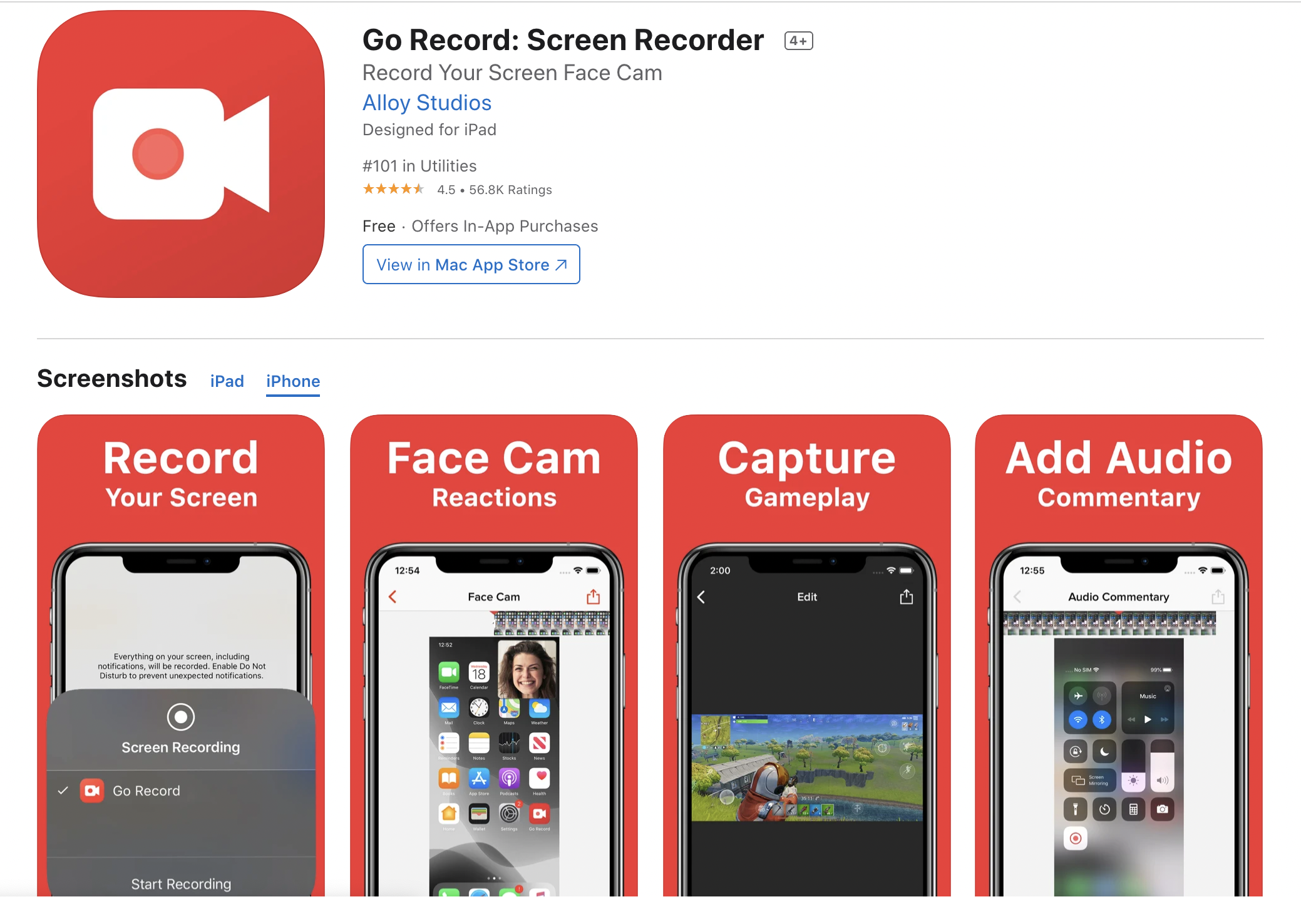
Go Record
Go Record is another popular app that allows you to record your iPhone’s screen with ease.
Features:
- Record your iPhone’s screen with audio
- Edit your recordings with the built-in editor
- Share your recordings on social media or via email
How to Use Go Record
- Download and install Go Record from the App Store.
- Open the app and tap on “Start Recording”.
- Choose the resolution, bitrate, and framerate that suits your needs.
- Tap on the red circle to start recording.
- To stop recording, tap on the red circle again.
Conclusion
Recording your iPhone’s screen can be a useful tool for various purposes. Whether you choose to use the built-in function or third-party apps, we’ve shown you how to do it easily and effectively. Remember to save your recordings in the Photos app or share them on social media using one of the many sharing options available.
Frequently Asked Questions
- Q: How Long Can I Record my Iphone’s Screen?
A: The built-in function allows you to record for up to 3 minutes, while third-party apps may have different limits. - Q: Can I Edit my Recordings?
A: Yes, both the built-in function and third-party apps allow you to edit your recordings using a built-in editor or external editing software. - Q: How Can I Share my Recordings?
A: You can share your recordings on social media, via email, or save them to your Photos app. - Q: Are There Any Costs Associated With Recording my Iphone’s Screen?
A: The built-in function is free, while third-party apps may have in-app purchases or subscription fees. - Q: Can I Use These Methods on Ipad as Well?
A: Yes, all the methods we’ve described can be used on iPad devices. - Q: Are There Any Limitations to Recording my Iphone’s Screen?
A: Yes, some apps may have limits on resolution, bitrate, and framerate, while others may require a subscription or in-app purchase to unlock additional features. - Q: Can I Add Audio Commentary to my Recordings?
A: Yes, both the built-in function and third-party apps allow you to add audio commentary to your recordings. - Q: How Can I Access my Recorded Videos?
A: Your recorded videos will be saved in the Photos app or within the respective third-party app’s interface.


