
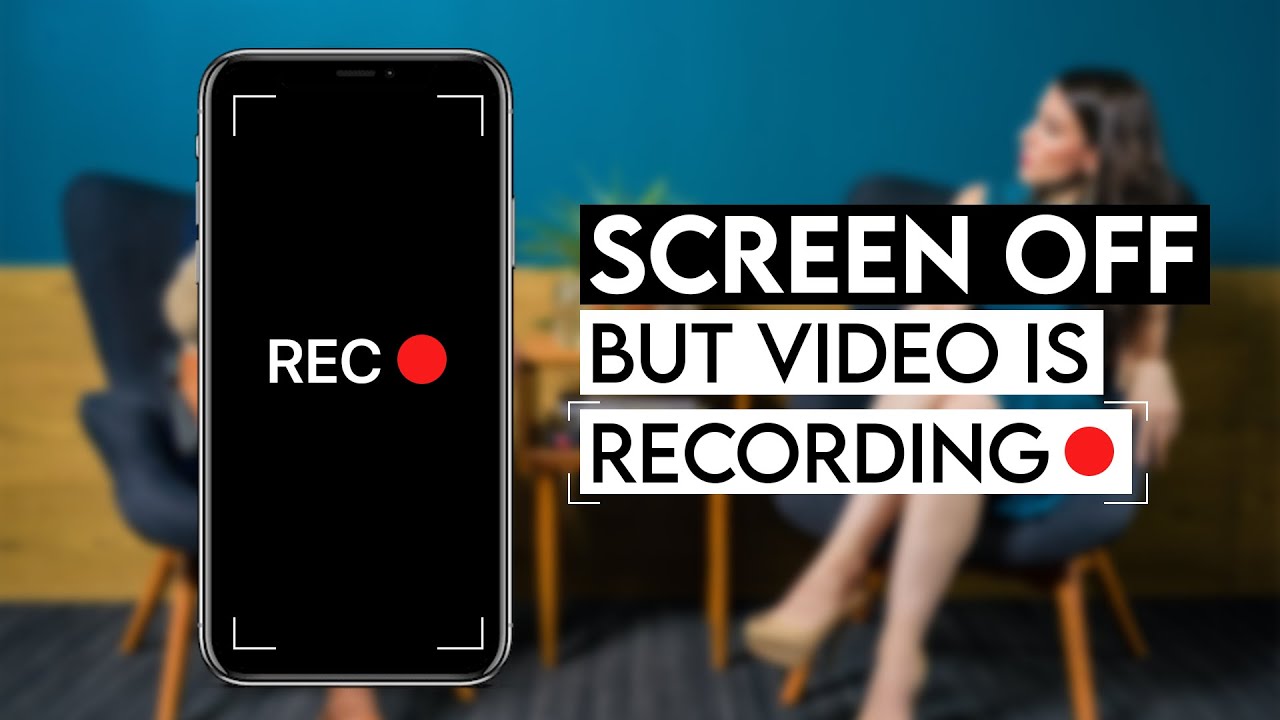
Recording a Video With The Monitor Turned Off on Iphone: A Comprehensive Guide
Are you tired of dealing with the constant trailer that appears on your monitor while recording a video on your iPhone? Do you want to record a video without being distracted by the luminosity or visualizing the trailer? Look no further! This article will guide you through the process of recording a video with the monitor turned off on your iPhone, using both built-in functions and third-party apps.
Why Record a Video With The Monitor Turned Off?
Recording a video with the monitor turned off can be helpful in various situations. For instance, if you’re filming actors on a set, having the monitor turned off can reduce distractions and create a more immersive experience. Additionally, recording without visualizing the trailer can help preserve battery life and prevent overheating.
Built-in Functions: Recording Video With Monitor Turned Off Using Accessibility Features
Your iPhone has an integrated feature called Accessibility that allows you to record video with the monitor turned off. Here’s how to use it:
- Open Settings: Go to your iPhone’s settings app.
- Scroll Down to Accessibility: Use your finger to scroll down until you find the section on Accessibility.
- Enable Access Guided And Voiceover: On this page, enable both options: “Access Guided” and “VoiceOver.”
- Go Back to Settings: Close the Settings app and go back to the Home screen.
Now that you have enabled these features, let’s move on to the next step:
Recording Video With Monitor Turned Off
- Turn Down Your Phone Volume: Lower the volume of your iPhone to zero or put it in Silent mode.
- Open Camera App: Open the Camera app on your iPhone.
You’re now ready to record a video without visualizing the trailer. Here’s how:
Recording Process
- Double-tap on The Record Button: Double-click the red circle button at the center of the screen to start recording.
- Monitor Will Turn Off Automatically: The monitor will automatically switch off during recording.
To stop recording, simply double-click the red circle button again or swipe up from the bottom to open the interface and select “Stop.”
What Happens When You Stop Recording?
When you stop recording, the monitor will turn back on. If you want to reactivate it and stop the recording process, do a triple tap with three fingers on the screen.
Third-party Apps: Recording Video With Monitor Turned Off Using Chamber Eye or Discreet
While built-in functions are great, sometimes third-party apps can provide more flexibility and user-friendly interfaces. Let’s take a look at two popular options:
- Chamber Eye: This app offers a simple and intuitive interface for recording video with the monitor turned off.
- Discreet: With this app, you can record video without visualizing the trailer.
Both Chamber Eye and Discreet offer additional features that might suit your needs better than built-in functions. However, always make sure to download these apps from trusted sources and follow their instructions carefully.
Comparison of Features
| Built-in Function | Chamber Eye | Discreet | |
|---|---|---|---|
| Ease of use | Moderate | Simple | Simple |
| Video quality | Good | Excellent | Excellent |
| Resolution options | Limited | Up to 4K | Up to 4K |
Conclusion
Recording a video with the monitor turned off on your iPhone can be achieved using both built-in functions and third-party apps. This guide has walked you through each process, highlighting key features and differences between various apps.
Whether you’re an actor, filmmaker, or just someone who wants to minimize distractions while recording, we hope this article has provided valuable insights into achieving the desired outcome.
Faqs
- Q: Can I Record Video With Monitor Turned Off Using Other Iphone Models?
A: Yes, most recent iPhone models support this feature. - Q: How do I Reactivate The Monitor During Recording?
A: Use a triple tap with three fingers on the screen to turn it back on and stop the recording process. - Q: What Are Some Other Benefits of Using Built-in Functions For Recording Video?
A: Built-in functions can help preserve battery life, reduce distractions, and prevent overheating. - Q: Can I Customize Settings Within Third-party Apps Like Chamber Eye or Discreet?
A: Yes, both Chamber Eye and Discreet allow you to adjust various settings according to your preferences. - Q: What’s The Difference Between Using Accessibility Features Versus Third-party Apps For Recording Video?
A: Accessibility features are native to your iPhone and provide a simple way to record video without visualizing the trailer. Third-party apps, like Chamber Eye or Discreet, offer more advanced features but require separate downloads. - Q: Will This Method Work With Other Devices Besides Iphones?
A: Unfortunately, this guide focuses on using iPhone-specific features, but there are alternative methods available for Android devices and other smartphones.
Hope you found our comprehensive guide helpful!


