
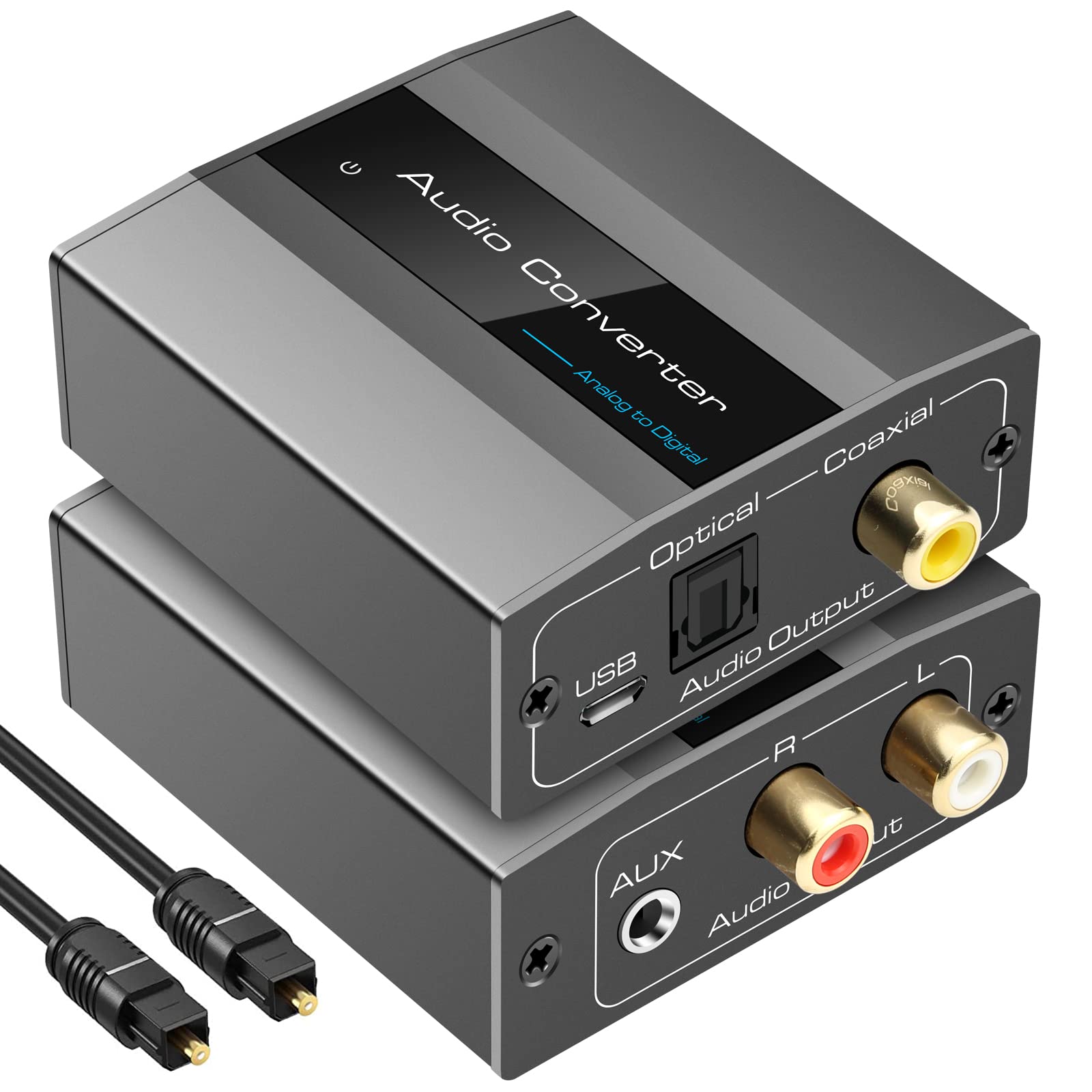
Converting Audio Files: A Comprehensive Guide
Are you tired of dealing with incompatible audio file formats? Do you want to convert your music collection into a single format that’s easy to play on any device? Look no further! In this article, we’ll explore the best ways to convert audio files using various software and online tools.
Why Convert Audio Files?
Converting audio files is essential in today’s digital age. With so many devices and operating systems available, it’s not uncommon for audio files to become incompatible. Converting your music collection into a single format can help you:
- Play music on any device, without worrying about compatibility issues
- Reduce file size, making it easier to store and share music
- Improve sound quality by converting files to a higher bitrate or resolution
Software Converters For Windows, Macos, And Linux
There are many software converters available that can help you convert audio files. Here are some of the most popular ones:
1. Fre:ac (Windows, Macos, Linux)
Fre:Ac is a free and open-source audio converter that supports a wide range of formats, including MP3, MP4, WMA, OGG, FLAC, AAC, WAV, and more. It’s easy to use and can be downloaded from the official website.
How to Use Fre:Ac
- Download and install fre:Ac on your computer.
- Open the software and select the file you want to convert.
- Choose the output format and settings.
- Click “Convert” to start the conversion process.
2. Mediahuman Audio Converter (Windows, Macos)
MediaHuman Audio Converter is another popular audio converter that supports a wide range of formats. It’s free to use and can be downloaded from the official website.
How to Use Mediahuman Audio Converter
- Download and install MediaHuman Audio Converter on your computer.
- Open the software and select the file you want to convert.
- Choose the output format and settings.
- Click “Convert” to start the conversion process.
3. Vlc (Windows, Macos, Linux)
VLC is a popular media player that can also be used as an audio converter. It’s free and open-source, and supports a wide range of formats.
How to Use Vlc
- Download and install VLC on your computer.
- Open the software and select the file you want to convert.
- Choose the output format and settings.
- Click “Convert” to start the conversion process.
4. Windows Media Player (Windows)
Windows Media Player is a built-in media player that can also be used as an audio converter. It’s free and supports a wide range of formats.
How to Use Windows Media Player
- Open Windows Media Player on your computer.
- Select the file you want to convert.
- Choose the output format and settings.
- Click “Convert” to start the conversion process.
5. Itunes/music (Windows, Macos)
ITunes/Music is a popular media player that can also be used as an audio converter. It’s free and supports a wide range of formats.
How to Use Itunes/music
- Open iTunes/Music on your computer.
- Select the file you want to convert.
- Choose the output format and settings.
- Click “Convert” to start the conversion process.
Online Converters
If you don’t want to download software, there are many online converters available that can help you convert audio files. Here are some of the most popular ones:
1. Converter Audio (123Apps)
Converter Audio is a free online converter that supports a wide range of formats. It’s easy to use and can be accessed from any web browser.
How to Use Converter Audio
- Open the website on your computer.
- Select the file you want to convert.
- Choose the output format and settings.
- Click “Convert” to start the conversion process.
2. Cloudconvert
CloudConvert is another popular online converter that supports a wide range of formats. It’s free to use, but has some limitations on the number of conversions per day.
How to Use Cloudconvert
- Open the website on your computer.
- Select the file you want to convert.
- Choose the output format and settings.
- Click “Convert” to start the conversion process.
3. Media.io
Media.Io is a popular online converter that supports a wide range of formats. It’s free to use, but has some limitations on the number of conversions per day.
How to Use Media.Io
- Open the website on your computer.
- Select the file you want to convert.
- Choose the output format and settings.
- Click “Convert” to start the conversion process.
4. Zamzar
Zamzar is another popular online converter that supports a wide range of formats. It’s free to use, but has some limitations on the number of conversions per day.
How to Use Zamzar
- Open the website on your computer.
- Select the file you want to convert.
- Choose the output format and settings.
- Click “Convert” to start the conversion process.
5. Converter Audio (iOS/iPadOS)
Converter Audio is a popular app for iOS/iPadOS devices that supports a wide range of formats. It’s free to use, but has some limitations on the number of conversions per day.
How to Use Converter Audio
- Open the app on your device.
- Select the file you want to convert.
- Choose the output format and settings.
- Click “Convert” to start the conversion process.
6. Audio Converter (Android)
Audio Converter is a popular app for Android devices that supports a wide range of formats. It’s free to use, but has some limitations on the number of conversions per day.
How to Use Audio Converter
- Open the app on your device.
- Select the file you want to convert.
- Choose the output format and settings.
- Click “Convert” to start the conversion process.
7. You Convert Multimedial (iOS/iPadOS)
You Convert Multimedial is a popular app for iOS/iPadOS devices that supports a wide range of formats. It’s free to use, but has some limitations on the number of conversions per day.
How to Use You Convert Multimedial
- Open the app on your device.
- Select the file you want to convert.
- Choose the output format and settings.
- Click “Convert” to start the conversion process.
8. Converter Audio (iOS/iPadOS)
Converter Audio is a popular app for iOS/iPadOS devices that supports a wide range of formats. It’s free to use, but has some limitations on the number of conversions per day.
How to Use Converter Audio
- Open the app on your device.
- Select the file you want to convert.
- Choose the output format and settings.
- Click “Convert” to start the conversion process.
9. Audio Converter (Android)
Audio Converter is a popular app for Android devices that supports a wide range of formats. It’s free to use, but has some limitations on the number of conversions per day.
How to Use Audio Converter
- Open the app on your device.
- Select the file you want to convert.
- Choose the output format and settings.
- Click “Convert” to start the conversion process.
10. Converter Audio (iOS/iPadOS)
Converter Audio is a popular app for iOS/iPadOS devices that supports a wide range of formats. It’s free to use, but has some limitations on the number of conversions per day.
How to Use Converter Audio
- Open the app on your device.
- Select the file you want to convert.
- Choose the output format and settings.
- Click “Convert” to start the conversion process.
In conclusion, converting audio files is a simple process that can be done using various software and online tools. Whether you’re looking for a free solution or a paid one, there’s an option available that suits your needs. So next time you need to convert an audio file, don’t hesitate to try out one of these options.
Faqs
Q: What is the best way to convert audio files?
A: The best way to convert audio files depends on your specific needs and preferences. You can use software like fre:Ac, MediaHuman Audio Converter, or VLC, or online converters like CloudConvert or Media.Io.
Q: How long does it take to convert an audio file?
A: The time it takes to convert an audio file varies depending on the size of the file, the complexity of the conversion process, and the speed of your computer or internet connection. In general, converting a small audio file can take just a few seconds, while converting a large audio file can take several minutes.
Q: Can I convert audio files in batch mode?
A: Yes, many audio converters allow you to convert multiple files at once using batch mode. This feature is especially useful if you have a large collection of audio files that need to be converted.
Conclusion
Converting audio files is an essential process that can help you play music on any device, reduce file size, and improve sound quality. With so many software and online tools available, there’s no excuse for not converting your audio files today!


