
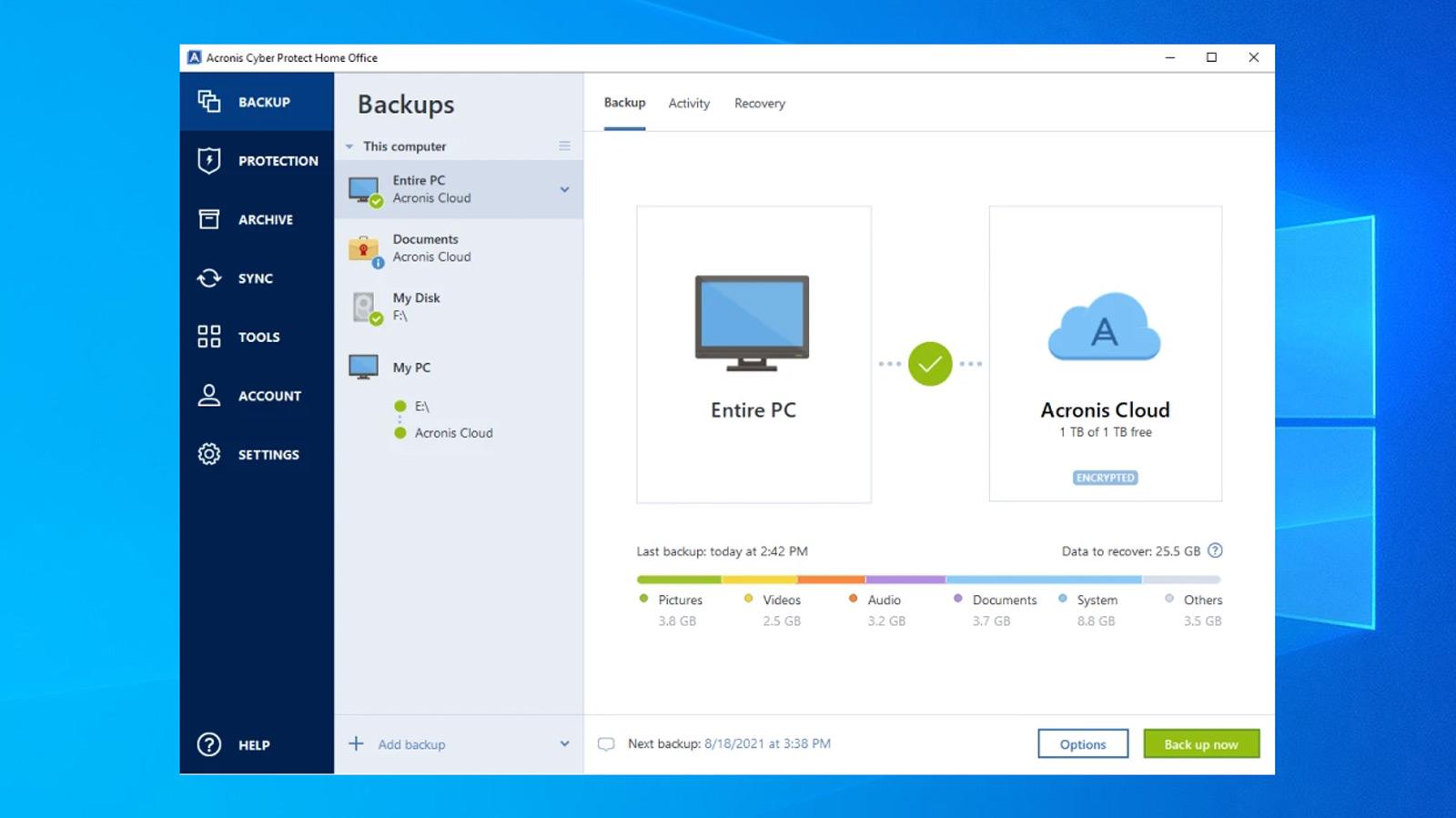
PC Backup Programs
In this article, we will explore the best pc backup programs, both for windows and mac. Backing up your data is an important operation to protect your information in the event of loss or damage to your device.
Windows Backup
On PCs with the Windows 10 operating system and later versions, it is possible to back up your personal files and the operating system configuration thanks to Microsoft OneDrive and the Windows Backup app. To back up your PC, you must ensure that you have a Microsoft account and that you have correctly associated it with your device.
To set up PC backup, follow these steps:
-
Access your PC settings.
-
Select the “account” option on the sidebar and click on the “backup windows” option.
-
Choose the information to include in the backup: For example, you can opt to retain information about installed apps, accessibility preferences, accounts and passwords, as well as personalization and language preferences.
-
Use the “configure synchronization” button to configure OneDrive folder synchronization.
Uranium Backup
Uranium backup is a very powerful and versatile software for backing up personal data (photographs, videos, documents) and business data. It is available in a free version that allows you to perform full, incremental, differential, row-by-row, and present folders backups.
The free version offers the ability to copy data to numerous destinations, including cloud services such as OneDrive, Dropbox and Google Drive. Furthermore, it allows data encryption with the AES-256 protocol.
To configure backup with uranium backup:
-
Download and install the software.
-
Open the program and select the “new” option to create a new backup.
-
Choose the files and folders to include in the backup.
-
Configure the backup destination: You can choose from several options, including local disk space, USB devices, or cloud services such as OneDrive or Google Drive.
Macrium Reflect
Macrium Reflect is a very popular software for disk backup and cloning. It is available in a free version that allows a 30-day trial, after which it will be possible to use the restore function for old backups but not create new ones.
To configure backup with macrium reflect:
-
Download and install the software.
-
Open the program and select the “new” option to create a new backup.
-
Choose the files and folders to include in the backup.
-
Configure the backup destination: You can choose from several options, including local disk space, USB devices, or cloud services such as OneDrive or Google Drive.
Free Syncback
Syncback free is a free software for data backup and synchronization. It is only available for Windows and offers a quick and easy way to back up and synchronize files between different folders.
To configure backup with syncback free:
-
Download and install the software.
-
Open the program and select the “new” option to create a new backup.
-
Choose the files and folders to include in the backup.
-
Configure the backup destination: You can choose from several options, including local disk space, USB devices, or cloud services such as OneDrive or Google Drive.
Mac Backup
On a Mac, you can back up your data using Time Machine. Is a free feature that allows automatic backup to be performed at regular intervals. To configure backup with time machine:
-
Access your Mac’s settings.
-
Select the “time machine” option.
-
Choose the backup disk and the folder where the files will be saved.
Android Backup
On an Android device, you can back up your data manually by copying files from one device to another using a USB connection. You can also use third-party software to back up.
To back up on PC:
-
Connect your Android device to your PC via a USB connection.
-
Choose the folders to include in the backup.
-
Configure the backup destination: You can choose from several options, including local disk space or USB devices.
Iphone And Ipad Backup
On iOS devices (iPhone and iPad), you can back up your data using iTunes on Windows or Finder on Mac. To configure backup:
-
Connect your iPhone or iPad to your PC via a USB connection.
-
Open itunes or finder.
-
Select the “backup” option and choose the backup destination.
Conclusion
Backing up your data is an important operation to protect your information in the event of loss or damage to your device. There are several software available, both for Windows and Mac, that can help you back up your data. Choose the program that best suits your needs and configure it correctly to ensure the safety of your files.
Frequently Asked Questions
Q: What Are The Best Backup Programs?
A: The best backup programs for PC are uranium backup, macrium reflect and syncback free. Time Machine is available for Mac.
Q: How Can I Back up my Data on Android?
A: You can back up your data to your PC by connecting your Android to the device via a USB connection, or use third-party software as per the most recent Android versions.
Q: How Can I Back up my Data on Iphone And Ipad?
A: You can back up your data to your PC by connecting your iPhone or iPad to the device via a USB connection, using iTunes on Windows or Finder on your Mac.


