
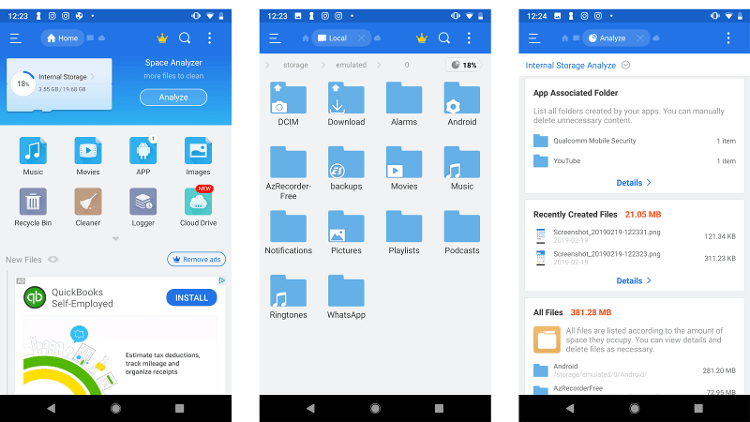
The Ultimate Guide to Android File Managers: Unlocking Your Device’s Full Potential
Are you tired of digging through your Android device’s memory, searching for a specific file or folder? Do you wish there was an easier way to manage your files, freeing up space and improving your overall user experience? Look no further! In this comprehensive guide, we’ll delve into the world of Android file managers, exploring the best options available to help you get the most out of your device.
What is a File Manager?
A file manager, also known as a file explorer or file browser, is an application that allows you to view, navigate, and manage the files stored on your Android device. It’s essentially a digital filing cabinet that helps you organize your files, create new folders, and access previously saved data.
Why Do I Need a File Manager?
With a file manager, you can:
- View and manage all the files stored on your device, including photos, videos, documents, and more
- Create new folders and subfolders to keep your files organized
- Access files from external storage devices, such as microSD cards or USB drives
- Share files with others via email, messaging apps, or cloud services
- Clean up unnecessary files and free up space on your device
Top File Managers For Android:
- Files by Google
Files by Google is a user-friendly file manager that comes pre-installed on many Android devices. It’s designed to help you quickly find and access the files you need, with features like:
* A clean and intuitive interface
* Fast searching and browsing capabilities
* Support for external storage devices
* Integration with Google Drive
Files by Google: Features And Benefits
Files by Google offers a range of benefits, including:
- Easy File Access: Quickly find and open files from any location on your device.
- Fast Search: Use the app’s built-in search function to locate specific files or folders.
- External Storage Support: Access files stored on external devices, such as microSD cards or USB drives.
-
Google Drive Integration: Seamlessly connect your Google Drive account and access files from there.
-
Solid Explorer
Solid Explorer is a powerful file manager that offers advanced features like:
* File encryption
* Folder hiding
* Customizable interface
* FTP server setup
How to Set Up an Ftp Server With Solid Explorer:
To initiate an FTP server using Solid Explorer, follow these steps:
- Open Solid Explorer and tap the hamburger menu in the top left corner.
- Select “Server” from the menu options.
- Tap on the “FTP” option.
-
Follow the prompts to set up your FTP server.
-
X-plore File Manager
X-Plore is a robust file manager that offers advanced features like:
* Root access
* LAN and FTP connectivity
* Customizable interface
How to Access Folders Requiring Root Access With X-plore:
To access folders requiring root access using X-Plore, follow these steps:
- Open X-Plore and tap the hamburger menu in the top left corner.
- Select “Root” from the menu options.
-
Tap on the folder you wish to access.
-
Mi File Manager
Mi File Manager is a user-friendly file manager designed for Xiaomi devices but available on other Android devices as well. It offers features like:
* A clean and intuitive interface
* Support for external storage devices
* Integration with Google Drive
Other Validated File Managers For Android:
- Total Commander
- Cx File Explorer
- Material Files
Each of these file managers has its unique set of features, but they all share the common goal of helping you manage your files and free up space on your device.
Conclusion:
In conclusion, a file manager is an essential tool for any Android user looking to optimize their device’s performance and stay organized. With so many options available, it’s easy to get lost in the sea of choices. By exploring the top file managers listed above, you’ll be able to find the perfect solution for your needs.
Frequently Asked Questions (FAQs):
- What is a File Manager, And Why do I Need One?
A file manager is an application that allows you to view, navigate, and manage the files stored on your Android device. - Which File Manager Should I Use?
The best file manager for you will depend on your specific needs and preferences. Consider factors like interface design, feature set, and compatibility with external storage devices. - Can I Access Folders Requiring Root Access Using a File Manager?
Yes, many file managers offer root access features, allowing you to manage files stored in protected areas of your device’s memory. - How do I Initiate an Ftp Server With Solid Explorer?
To set up an FTP server using Solid Explorer, follow the steps outlined above under “How to Set Up an FTP Server with Solid Explorer.” - What Are Some Advanced Features Offered by File Managers?
Some advanced features include file encryption, folder hiding, customizable interface options, and support for external storage devices like LAN, FTP, or USB drives. - Can I Use a File Manager to Share Files With Others?
Yes, many file managers offer sharing capabilities, allowing you to send files via email, messaging apps, or cloud services. - How do I Clean up Unnecessary Files And Free up Space on my Device Using a File Manager?
Many file managers include features like cleaning and optimization tools, making it easy to identify and remove unwanted files.
We hope this comprehensive guide has helped you unlock your Android device’s full potential with the power of file managers!


