
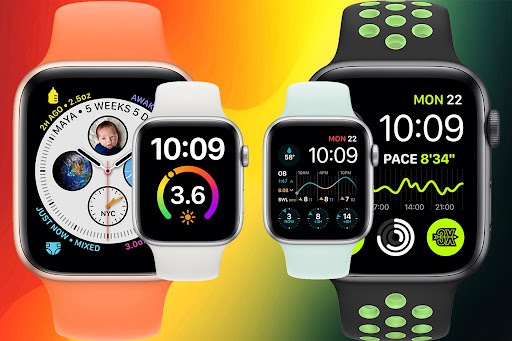
Are you fed up with using the same old quadrants on your Apple Watch? Look no further! In this article, we will delve into the best quadrants available for Apple Watch, including their features, benefits, and how to install them.
What Are Quadrants?
Before we dive into the best quadrants, let’s first understand what they are. Quadrants are the central elements of your Apple Watch that display information such as time, date, and notifications. They can be customized with various complications, colors, and styles to suit your taste.
Why Use Custom Quadrants?
Using custom quadrants on your Apple Watch can enhance your user experience in several ways:
- Personalization: With thousands of quadrants available, you can choose the ones that resonate with your style and preferences.
- Convenience: Custom quadrants can display information that is relevant to your daily life, such as weather forecasts, calendar events, or fitness tracking data.
- Aesthetics: Quadrants can be designed to match your watch’s look and feel, making it a unique accessory.
The Best Quadrants For Apple Watch
After researching and testing various quadrants, we have compiled a list of the top 20 best quadrants for Apple Watch:
- Attività: A quadrant that displays activity tracking data, including exercise, motion, and calories burned.
- Artista: A dynamic art quadrant created in collaboration with artist Geoff McFetridge.
- Astronomia: An astronomical clock quadrant that updates constantly to display the position of celestial bodies.
- Respirazione: A breathing rate quadrant based on the popular iPhone app, allowing you to track your breathing patterns.
- California: A rectangular quadrant available in various styles and colors, ideal for those who want a unique look.
- Cronografo: A chronograph quadrant that measures time in precise increments, perfect for athletes or professionals who require accurate timing.
- Colore: An analog quadrants that displays color-coded information, such as weather forecasts or calendar events.
- Conteggio: A timer quadrant that allows you to track time spent on specific activities.
- Esplorazione: A quadrant that indicates the strength of cellular signal and network activity.
- Focus And Water: An animation-based quadrant that displays water and focus elements, perfect for those who want a unique visual experience.
Installing New Quadrants
To install new quadrants on your Apple Watch:
- Open the Apple Watch app on your iPhone
- Tap on “My Watch”
- Select “General” and then “Quadrant”
- Choose from various quadrants available in the App Store
Tips And Tricks
Here are some tips and tricks to help you get the most out of your custom quadrants:
- Update Your Apple Watch Software: Ensure that your Apple Watch is running the latest version of watchOS.
- Experiment With Different Quadrants: Try out various quadrants to find the ones that suit your taste and preferences.
- Customize Your Quadrant Settings: Adjust the color scheme, font size, and style to match your unique look.
Conclusion
Using custom quadrants on your Apple Watch can elevate your user experience in numerous ways. With thousands of options available, you can choose the ones that resonate with your style and preferences. By following the tips and tricks outlined above, you can get the most out of your custom quadrants and enjoy a unique visual experience.
Frequently Asked Questions
- Q: How do I Install New Quadrants on my Apple Watch?
A: To install new quadrants, open the Apple Watch app on your iPhone, tap on “My Watch,” select “General” and then “Quadrant,” and choose from various quadrants available in the App Store. - Q: What Are The Benefits of Using Custom Quadrants?
A: Using custom quadrants can enhance your user experience by providing personalization, convenience, and aesthetics. - Q: How do I Update my Apple Watch Software?
A: To update your Apple Watch software, go to the Settings app on your iPhone, tap on “General” and then “Software Update,” and follow the prompts to download and install the latest version of watchOS.
Additional Resources
- For more information on custom quadrants, visit the Apple Support website.
- Explore the App Store for a wide range of quadrants available for download.
- Consult online forums and communities for tips and tricks from other users who have customized their quadrants.


