
The Ultimate Guide to Minecraft Texture Packs
Are you tired of playing Minecraft with the same old default graphics? Do you want to enhance your gaming experience and take it to the next level? Look no further! In this article, we’ll explore the world of Minecraft texture packs and show you how to install them on your PC or console.
What Are Texture Packs?
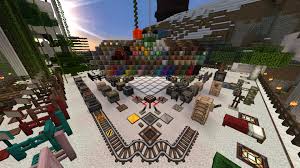
Texture packs are custom-made files that replace the default textures in Minecraft. They can add new visual effects, change the appearance of blocks and items, and even modify the game’s overall aesthetic. With so many texture packs available, it’s hard to choose which one is right for you.
How to Install Texture Packs on PC
To install a texture pack on your PC, follow these steps:
- Download a Reliable Source: Only download texture packs from trusted sources, such as the official Minecraft forums or reputable websites.
- Open Minecraft And Click Options: Access the game’s options menu by clicking on the gear icon in the top-right corner of the screen.
- Select Packs And Open Folder: Click on the “Packs” tab and select “Open Folder.” This will open a new window where you can drag your downloaded texture pack into place.
- Drag And Drop The Texture Pack: Simply drag the texture pack file from your downloads folder into the Minecraft packs folder.
How to Install Texture Packs on Console (PS4)
Installing texture packs on console is a bit more complicated than on PC, but we’ve got you covered!
- Check if External Packs Are Allowed: Make sure that your Minecraft game settings allow for external texture packs.
- Download From The Playstation Store: You can download texture packs directly from the PlayStation Store. Simply search for “Minecraft texture pack” and browse through the available options.
Best Texture Packs For Different Game Modes
Here are some of our top picks for texture packs, categorized by game mode:
Minecraft Pvp
- Aluzion Pvp: This pack is designed to make battles more intense and engaging. It simplifies the visuals, making it easier to focus on the action.
- Haku 32× Pvp: If you want a graphic-intensive experience without sacrificing performance, this pack adds various effects to attacks and modifies block textures.
Minecraft Bedwars
- Sapixcraft: This pack updates the graphics of Bedwars, making it more immersive and engaging. However, be aware that it may not be compatible with lower-end hardware.
- Easy Blocks: If you want a simplified visual experience without sacrificing performance, this pack simplifies block textures and modifies icons for easier identification.
Minecraft Ps4
- Pack Texture Natural: This pack is available on the PlayStation Store and updates the graphics of Minecraft to make it more realistic.
- Pack Texture Fantasy: For a more fantastical experience, try this pack, which adds decorative objects and enhances the overall aesthetic.
Tips And Tricks
- Always download texture packs from trusted sources to avoid malware or viruses.
- Be mindful of system requirements when choosing a texture pack. Some may be too resource-intensive for lower-end hardware.
- Experiment with different texture packs to find one that suits your gaming style.
Conclusion
Minecraft texture packs offer endless possibilities for customization and enhancement. By following our guide, you can install the best texture packs on PC or console and take your Minecraft experience to new heights. Happy gaming!
Faqs
-
What Are The Benefits of Using a Texture Pack?
Using a texture pack can enhance your gaming experience by adding new visual effects, changing block textures, and modifying game aesthetics. -
Can I Install Texture Packs on Any Version of Minecraft?
Texture packs are generally compatible with PC and console versions of Minecraft, but some may not work on older or newer versions. -
How do I Uninstall a Texture Pack?
To uninstall a texture pack, simply delete the file from the Minecraft packs folder (on PC) or remove it from the PlayStation Store (on PS4). -
Can I Use Multiple Texture Packs at Once?
Yes, you can use multiple texture packs simultaneously. However, be aware that some packs may conflict with each other. -
Are Texture Packs Compatible With Mods?
Texture packs and mods are generally compatible, but some mods may overwrite or conflict with texture pack files. -
Can I Create my Own Texture Packs?
Yes, you can create your own texture packs using various software tools and editing programs. -
How do I Troubleshoot Texture Pack Issues?
If you encounter problems with a texture pack, try reinstalling the game, checking for conflicts with other mods or packs, or seeking help from online communities. -
Are All Texture Packs Free to Download?
Some texture packs are free to download, while others may require payment or subscription to access premium content.


