
Optimizing Your Gaming Experience: The Best Settings For Modern Warfare 2
Are you a fan of Call of Duty’s Modern Warfare 2 series? Do you want to enhance your gaming experience with the best settings possible? Look no further! In this article, we’ll guide you through the optimal settings for MW2 on PC, PS4, Xbox, and other platforms.
Understanding The Importance of Settings
Before we dive into the settings, it’s essential to understand why they’re crucial in achieving a smooth gaming experience. The right settings can make all the difference in terms of frame rates, graphics quality, and overall performance. A well-configured game can ensure that you enjoy an immersive experience without any frustrating glitches or lag.
Best Settings For Modern Warfare 2 on PC
On PC, you have the most flexibility when it comes to configuring your settings. Here’s what we recommend:
- Video Settings: Go to the Video section and select “Only For Entire Monitor” under Modalities.
- Resolution: Ensure that your monitor is set to its highest resolution (e.G., 4K or higher).
- Framerate Limit: Set the Framerate Limit to Personalized, and then modify the various voices.
- Luminosity: Adjust the luminosity according to the game’s lines guide, aiming for around 50-60.
- High Dynamic Range (HDR): Disable HDR to prevent artifacts and ambient issues at high frame rates.
Best Settings For Modern Warfare 2 on Ps4
On PS4, you have a limited number of settings compared to PC. However, we’ve got you covered:
- Streaming Texture On-demand: Set this option to Yes if you have a stable internet connection.
- Effects Post-processing: Disable Motion Blur Scenario and Weapon for reduced latency.
- Depth of Field: Adjust the depth of field according to your preference (e.G., Focus on targets or see everything clearly).
- Fidelityfx Cas: Enable this feature for enhanced graphics quality, but be aware that it may impact performance.
Best Settings For Modern Warfare 2 on Xbox
On Xbox, the settings are similar to PS4:
- Streaming Texture On-demand: Set this option to Yes if you have a stable internet connection.
- Effects Post-processing: Disable Motion Blur Scenario and Weapon for reduced latency.
- Depth of Field: Adjust the depth of field according to your preference (e.G., Focus on targets or see everything clearly).
- Fidelityfx Cas: Enable this feature for enhanced graphics quality, but be aware that it may impact performance.
Tips And Tricks
Here are some additional tips to enhance your gaming experience:
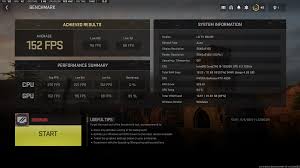
- Run a benchmark test to check your system’s capabilities.
- Adjust settings according to your hardware configuration (e.G., Upscaling technology based on GPU type).
- Experiment with different settings combinations to find the perfect balance for you.
Conclusion
Configuring the best settings for Modern Warfare 2 requires some trial and error, but with this guide, you’ll be well-equipped to achieve an optimal gaming experience. Remember to adjust settings according to your platform and hardware configuration, and don’t hesitate to experiment with different combinations to find what works best for you.
Frequently Asked Questions
Here are some additional FAQs to address common queries:
Q: What is The Ideal Frame Rate For Mw2?
A: The ideal frame rate depends on your monitor’s refresh rate. For 4K monitors, aim for 120 FPS or higher.
Q: How do I Enable 120 Fps on Xbox?
A: On Xbox Series X and S consoles, you can enable 120 FPS by going to Settings > Graphics.
Q: What is The Difference Between Fidelityfx Cas And Nvidia Dlss?
A: Both technologies enhance graphics quality, but they differ in implementation (e.G., AMD’s FSR vs. NVIDIA’s DLSS).
Q: Can I Use a Controller With Mw2 on Pc?
A: Yes, you can use a controller with MW2 on PC, but be aware that settings and performance may vary.
Q: How Often Should I Update my Drivers For Optimal Performance?
A: It’s recommended to keep your graphics drivers up-to-date regularly, especially if you’re experiencing performance issues.
Q: What is The Best Way to Optimize my System For Mw2?
A: Run a benchmark test and adjust settings according to your hardware configuration. Experiment with different combinations to find the perfect balance for you.


