
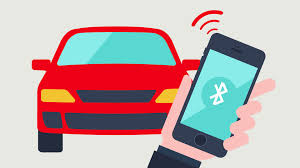
Bluetooth Car Connect: The Ultimate Guide
Are you tired of juggling multiple devices while driving? Do you want to stay connected and safe on the road? Look no further than Bluetooth Car Connect, a revolutionary app that lets you manage your Bluetooth connections with ease.
What is Bluetooth Car Connect?
Bluetooth Car Connect is a free application for Android devices that allows you to connect and disconnect Bluetooth devices quickly and easily. With this app, you can say goodbye to tedious settings adjustments and hello to a seamless driving experience.
How Does it Work?
To use Bluetooth Car Connect, simply follow these steps:
- Download The App: Get the Bluetooth Car Connect app from the Google Play Store.
- Activate Bluetooth: Enable Bluetooth on your Android device by going to Settings > Bluetooth.
- Connect Devices: Use the app to connect and disconnect Bluetooth devices as needed.
Key Features
Bluetooth Car Connect offers several key features that make it an indispensable tool for drivers:
- Quick Connection: Easily connect and disconnect Bluetooth devices with a single tap.
- Device Management: Manage multiple devices at once, including smartwatches and headphones.
- Priority Settings: Set priority settings to ensure your most important devices are always connected.
- Auto-connect: Automatically connect devices when you start your car or turn on your phone.
How to Use Bluetooth Car Connect
To get the most out of Bluetooth Car Connect, follow these steps:
- Launch The App: Open the Bluetooth Car Connect app on your Android device.
- Tap on Devices: Tap on the “Devices” tab to view a list of connected devices.
- Connect or Disconnect: Use the “+” and “-” buttons to connect or disconnect devices as needed.
Advanced Settings
For more advanced users, Bluetooth Car Connect offers several additional settings:
- Event-based Connections: Set up event-based connections to automatically connect devices when specific events occur (e.G., Receiving a call).
- Device Disconnection: Automatically disconnect devices after a set period of inactivity.
- Run App or Disconnect App: Choose whether to run an app or disconnect a device when connecting or disconnecting.
Troubleshooting
If you’re experiencing issues with Bluetooth Car Connect, try the following:
- Restart Your Device: Restart your Android device to ensure all connections are cleared.
- Update The App: Make sure you have the latest version of the app installed.
- Check For Interference: Check if other devices in your car or nearby are interfering with Bluetooth signals.
Conclusion
Bluetooth Car Connect is a must-have app for anyone who wants to stay connected and safe on the road. With its easy-to-use interface, advanced settings, and seamless device management, this app takes driving to a whole new level.
Frequently Asked Questions
- Q: What Devices Are Compatible With Bluetooth Car Connect?
A: Bluetooth Car Connect supports Android devices only. - Q: Can I Use Bluetooth Car Connect With Other Apps?
A: Yes, you can use Bluetooth Car Connect in conjunction with other apps to enhance your driving experience. - Q: How do I Reset The App’s Settings?
A: To reset the app’s settings, go to Settings > Bluetooth Car Connect > Reset. - Q: Is Bluetooth Car Connect Available For Ios Devices?
A: Unfortunately, no. Bluetooth Car Connect is exclusive to Android devices at this time. - Q: Can I Customize The App’s Interface?
A: Yes, you can adjust some settings and personalize your experience within the app. - Q: Does Bluetooth Car Connect Consume Battery Life?
A: No, Bluetooth Car Connect does not significantly impact battery life, as it only runs when connected to a device. - Q: Can I Use Bluetooth Car Connect With Other Bluetooth-enabled Devices in my Car?
A: Yes, you can connect multiple Bluetooth-enabled devices at once for an enhanced driving experience.
Download Bluetooth Car Connect Today!
Get the most out of your driving experience with Bluetooth Car Connect. Download the app now and discover a new level of convenience and safety on the road!
The Ultimate Guide to Bluetooth Car Connect: A Step-by-step Tutorial
Are you ready to take your driving experience to the next level? Look no further than this comprehensive guide to Bluetooth Car Connect, an app that lets you manage your Bluetooth connections with ease.
Getting Started
Before we dive into the nitty-gritty of using Bluetooth Car Connect, let’s get started with a few basic steps:
- Download The App: Get the Bluetooth Car Connect app from the Google Play Store.
- Activate Bluetooth: Enable Bluetooth on your Android device by going to Settings > Bluetooth.
Setting Up Your Devices
To use Bluetooth Car Connect effectively, you’ll need to set up your devices as follows:
- Connect Your Device: Connect your device (e.G., Smartwatch or headphones) to your phone using Bluetooth.
- Launch The App: Open the Bluetooth Car Connect app on your Android device.
Using Bluetooth Car Connect
Now that we have our devices connected, let’s dive into the details of using Bluetooth Car Connect:
- Tap on Devices: Tap on the “Devices” tab to view a list of connected devices.
- Connect or Disconnect: Use the “+” and “-” buttons to connect or disconnect devices as needed.
Advanced Settings
For more advanced users, Bluetooth Car Connect offers several additional settings that you can customize:
- Event-based Connections: Set up event-based connections to automatically connect devices when specific events occur (e.G., Receiving a call).
- Device Disconnection: Automatically disconnect devices after a set period of inactivity.
Troubleshooting
Don’t worry if you encounter any issues with Bluetooth Car Connect! Try the following troubleshooting steps:
- Restart Your Device: Restart your Android device to ensure all connections are cleared.
- Update The App: Make sure you have the latest version of the app installed.
- Check For Interference: Check if other devices in your car or nearby are interfering with Bluetooth signals.
Conclusion
Bluetooth Car Connect is an innovative app that streamlines your driving experience by providing seamless device management and advanced settings. With this guide, you’ll be well on your way to enjoying a safer and more convenient drive.
Key Features of Bluetooth Car Connect
- Quick Connection: Easily connect and disconnect Bluetooth devices with a single tap.
- Device Management: Manage multiple devices at once, including smartwatches and headphones.
- Priority Settings: Set priority settings to ensure your most important devices are always connected.
- Auto-connect: Automatically connect devices when you start your car or turn on your phone.
Advanced Features
For more advanced users, Bluetooth Car Connect offers several additional features:
- Event-based Connections: Set up event-based connections to automatically connect devices when specific events occur (e.G., Receiving a call).
- Device Disconnection: Automatically disconnect devices after a set period of inactivity.
- Run App or Disconnect App: Choose whether to run an app or disconnect a device when connecting or disconnecting.
System Requirements
To use Bluetooth Car Connect, you’ll need:
- An Android device running Android 5.0 (Lollipop) or later
- Bluetooth enabled on your device
Compatibility
Bluetooth Car Connect is compatible with various devices, including:
- Smartwatches
- Headphones
- Speakers


