
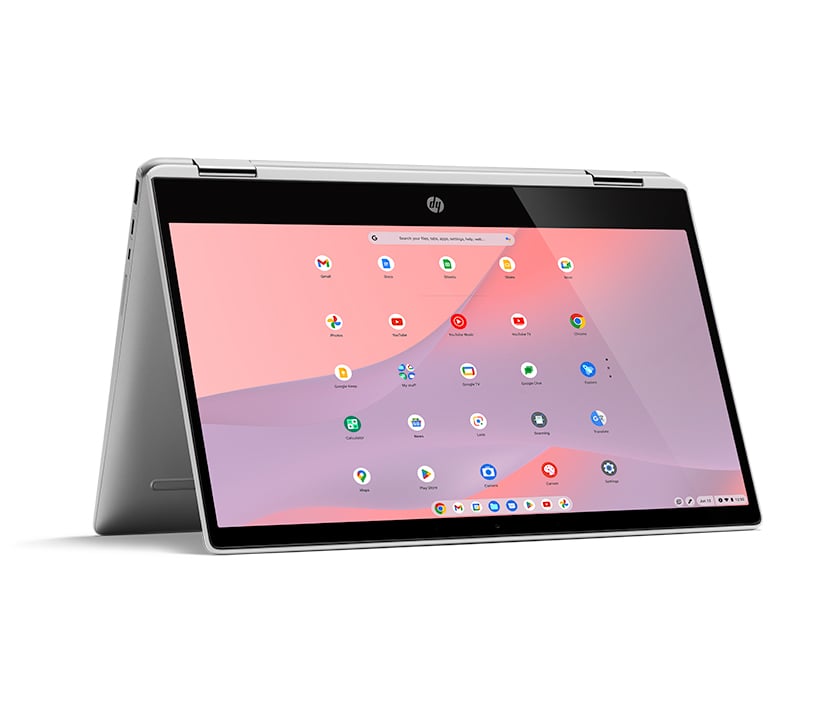
Unlocking The Full Potential of Your Chromebook: A Comprehensive Guide to Apps
Are you excited about your new Chromebook but not sure how to get started with the Google operating system? Do you want to know how to install apps on your Chromebook but feel overwhelmed by the process? Look no further! This guide will take you through the best apps for your Chromebook, covering productivity, music, video, photo editing, and more. We’ll also show you how to download and install these apps, as well as some hidden tricks to enhance your experience.
Getting Started With Apps on Your Chromebook
Before we dive into the world of apps, it’s essential to understand how to download and install them on your Chromebook. The majority of available applications can be found within the Chrome Web Store, which is similar to the way users download extensions for Google Chrome on Windows, macOS, or Linux.
To find an app, simply search using the inquiry bar or browse through the various categories offered by the Chrome Web Store. Once you’ve found a suitable app, click on its dedicated page and select the “Add App” button to initiate the installation process. After the procedure is complete, the app will appear directly in your Chrome OS dashboard.
Other Apps Available For Android Devices Compatible With Chromeos
In addition to apps available within the Chrome Web Store, it’s also possible to install Android-compatible apps on your Chromebook through a special version of the Google Play Store. This process is similar to installing apps on smartphones and tablets. Find the app you want, click on the “Install” button, and voilà! The app will be accessible from your Chrome OS dashboard.
Google Crostini: Unlocking Additional Features
Some specific devices are compatible with Google Crostini, which allows for Linux applications to run seamlessly on your Chromebook. To access this feature, open the Settings menu on your Chromebook, select “Advanced,” and then click on “Developers.” From there, activate the Ambient function of development Linux by clicking on the “Activate” button beside it. Once you’ve completed these steps, follow the official documentation provided by Google to install your chosen Linux application.
Top Apps For Your Chromebook
Now that we’ve covered the basics, let’s explore some top apps for your Chromebook across various categories:
Productivity Apps For Chromebook
- Google Document, Presentations, And Sheets: This suite of applications from Google is dedicated to productivity in the office. It allows you to create documents, slides, and spreadsheets with ease, saving everything automatically on Google Drive. The best part? It’s completely free!
- Microsoft Office: Yes, you read that right! Microsoft has developed a version of its famous suite for Chromebooks. You can access Word for typing, PowerPoint for presentations, Excel for accounting, OneNote for notes and Outlook for mail management. This version is also free and synchronizable with your OneDrive account.
- Sejda: A powerful PDF editor that allows you to view, modify, convert, and compress PDF files in one application available on the Chrome Web Store. Sejda offers a free version but charges a subscription for advanced features.
Music And Audio Apps
- Music Maker Jam: An Android app designed for creating musical pieces using pre-set beats, instruments, and melodies. This app is free to use, with options to purchase new patterns and styles through in-app shopping.
- Audiotool: A professional digital audio workstation (DAW) that allows you to work with virtual instruments and synthesize music before publishing it online. Audiotool is completely free!
- Soundtrap: A web app aimed at students for producing and distributing music at a professional level. It’s free for personal use, but various monthly and annual subscription plans are available for enhanced features.
- Spotify: The famous streaming musical application used by millions daily. Spotify offers both a free version and a premium option.
- Vlc: A popular media player that supports various audio formats like MP3, OGG, WAV, FLAC, and AAC.
Photo And Video Editing Apps
- Polarr: An app specialized in photo editing and color correction using digital photographs with a set of easy-to-use instruments. Polarr is free but has limitations that can be removed through a subscription.
- Pixlr: A suite of professional photo editing applications available as Web apps, offering both Pixlr X for beginners and Pixlr E with advanced functionalities. Pixlr is free to use but has limitations that can be removed with a premium subscription.
- Wevideo: A powerful online video editor offering various templates and effects at a professional level. WeVideo is free to use, with the option to pay a subscription for exclusive features.
- Magisto: An Android app specialized in swift and immediate video editing suitable for all types of users and creating videos for social media in just a few steps. Magisto is free but offers various templates and effects through in-app shopping.
- Plex: A version of Plex, another popular media player also available as an Android app. It can function as both a video player and a media center to access your multimedia library from any device.
Internet And Messaging Apps
- Thunderbird: An email client developed by Mozilla and available for Linux installation on Chromebooks through Google Crostini.
- Microsoft Teams: If you’re not satisfied with Google Meet, Microsoft Teams is a platform that offers digital workspaces suitable for company teams. It’s accessible on Chrome OS as a Web app and free to use.
- Discord: A popular messaging platform among gamers but now used by various communities. It’s available as a Web app and can be used for free with optional paid features through Discord Nitro subscription.
- Whatsapp Web: Although the Android version of WhatsApp isn’t compatible with Chrome OS, you can still use the Web version of this popular messaging app.
- Telegram: Available in several versions including an Android app installable on Google Play Store and a Linux-compatible program for Chromebooks.
Additional Interesting Apps
- Malwarebytes: As Chrome OS is based on Linux, it’s immune to most computer threats, but installing the Android version of Malwarebytes can offer additional security against smartphone-specific threats like viruses or annoying ads.
- Vpn Applications: If you need a secure connection and/or access services not available in your region, consider using a VPN app like NordVPN or Surfshark.
- Magical: An app that automates repetitive tasks within emails or messages, perfect for those concerned about privacy.
Conclusion
Your Chromebook is capable of so much more than just browsing the web. With these top apps and a little guidance on how to install them, you’ll be unlocking the full potential of your device in no time! Whether it’s productivity tools like Google Documents and Microsoft Office, creative outlets such as music makers or photo editors, or staying connected with friends and family through messaging platforms, we’ve got everything covered. So go ahead, explore, download, and enjoy the wealth of apps available on your Chromebook!


