
Chromecast: A Comprehensive Guide to Troubleshooting Common Problems
Are you experiencing issues with your Chromecast device? Don’t worry, we’ve got you covered! In this article, we’ll provide a step-by-step guide on how to troubleshoot common problems associated with the Chromecast.
Understanding Chromecast
Before we dive into the troubleshooting section, let’s quickly understand what Chromecast is. Chromecast is a digital media player developed by Google that allows users to stream content from their smartphones, tablets, or computers to their TVs. It’s essentially a device that turns your TV into a smart TV, providing access to various apps and streaming services.
Problem 1: Power Issues
If your Chromecast suddenly stops working or turns off unexpectedly, the first thing to check is the power supply. Ensure that you’re using the original power adapter and not a counterfeit one. If the issue persists, try replacing the power adapter with a new one.
Troubleshooting Steps:
- Check if the power cord is properly connected to both the Chromecast device and the wall outlet.
- Verify that the TV’s HDMI input is set to the correct channel (usually labeled as “Chromecast” or “HDMI 3”).
- Try using a different HDMI cable or adapter to rule out any issues with the existing one.
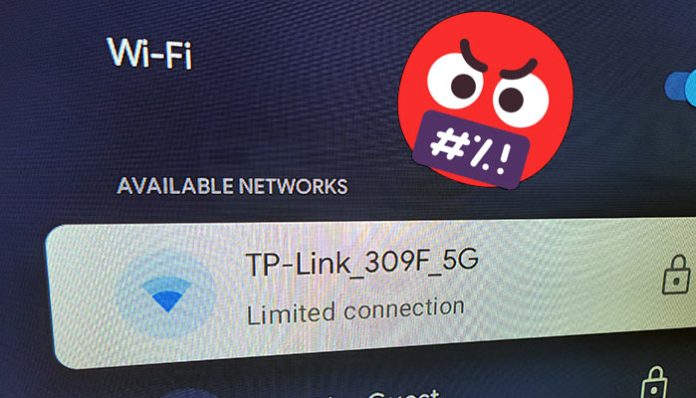
Problem 2: Network Connectivity Issues
If you experience buffering, stuttering audio, or slow streaming speeds, it’s likely due to network connectivity problems. Here are some steps to troubleshoot:
- Check your Wi-Fi connection strength by looking at the Chromecast device’s home screen. If the signal is weak, try moving the router closer to the TV.
- Restart your router and modem to refresh the connection.
- Consider investing in a Wi-Fi extender or mesh network system to improve coverage.
Troubleshooting Steps:
- Capsize the channel on your router by pressing the button for 10 seconds to reset it.
- Use a Wi-Fi analyzer app to identify the least congested frequency band and switch to it.
- Replace the old cable with a new one, as corroded or damaged cables can cause connectivity issues.
Problem 3: Video Resolution Issues
If you’re experiencing video resolution problems, try these steps:
- Ensure that your TV is set to the correct input channel (usually labeled as “HDMI” or “1080p”).
- Try adjusting the video resolution settings on your Chromecast device.
- Check if your TV supports the required video resolution and update its firmware if necessary.
Troubleshooting Steps:
- Update the Chromecast software to the latest version.
- Reset the Chromecast device by pressing the button on the back for 30 seconds.
- Try using a different HDMI cable or adapter to rule out any issues with the existing one.
Problem 4: Audio Issues
If you’re experiencing audio problems, try these steps:
- Ensure that your TV’s volume is turned up and not muted.
- Check if the audio output is set to the correct channel (usually labeled as “HDMI” or “Audio”).
- Try adjusting the audio settings on your Chromecast device.
Troubleshooting Steps:
- Update the Chromecast software to the latest version.
- Reset the Chromecast device by pressing the button on the back for 30 seconds.
- Check if there are any physical obstructions blocking the audio output or try using a different HDMI cable.
Problem 5: Software Updates
If you’re experiencing issues with your Chromecast, it’s possible that an outdated software version is causing problems. Here’s how to update:
- Open the Google Home app and navigate to the device settings.
- Select the Chromecast device and click on “Update” or “System Update”.
- Follow the on-screen instructions to complete the update.
Troubleshooting Steps:
- Ensure that you’re running the latest version of the Google Home app.
- Check if there are any pending software updates for your Chromecast device.
- Reset the Chromecast device by pressing the button on the back for 30 seconds and then try updating again.
Conclusion
In this comprehensive guide, we’ve walked you through common problems associated with the Chromecast device and provided step-by-step troubleshooting solutions. By following these tips, you should be able to resolve most issues related to power supply, network connectivity, video resolution, audio output, software updates, and more. Remember to always check your TV’s settings and ensure that it’s set to the correct input channel before attempting any troubleshooting steps.
Frequently Asked Questions (FAQs)
- Q: How do I Reset my Chromecast Device?
A: To reset your Chromecast device, press and hold the button on the back for 30 seconds. - Q: Why is my Chromecast Not Connecting to Wi-fi?
A: Check if your router’s channel is set correctly or try restarting it to refresh the connection. - Q: How do I Update my Chromecast Software?
A: Open the Google Home app and navigate to the device settings to check for any available updates. - Q: Why is my TV Not Showing The Correct Video Resolution?
A: Ensure that your TV’s input channel is set correctly or try adjusting the video resolution settings on your Chromecast device. - Q: How do I Troubleshoot Audio Issues With my Chromecast?
A: Check if your TV’s volume is turned up and not muted, or try adjusting the audio output settings on your Chromecast device. - Q: Why is my Chromecast Device Not Responding to Voice Commands?
A: Ensure that you’re running the latest version of the Google Home app and check if there are any pending software updates for your Chromecast device. - Q: How do I Reset my Chromecast Settings to Their Factory Defaults?
A: Press and hold the button on the back for 30 seconds while the device is connected to power, then release it and wait for the device to restart.
Hope this helps!


