
How to Convert Excel Rows Into Pdf Format
Are you tired of dealing with cumbersome Excel files that are hard to share or print? Do you wish there was an easier way to convert your Excel rows into a more manageable and portable format like PDF? Look no further! In this article, we will guide you through various methods to convert Excel rows into PDF format, making it easy to share and print your data.
Why Convert Excel Rows to Pdf?
Converting Excel rows to PDF format offers numerous benefits. PDFs are:
- More portable: PDFs can be easily shared via email or stored on cloud services like Google Drive or Dropbox.
- More secure: PDFs are more difficult to modify than Excel files, making them a safer choice for sensitive data.
- More compatible: PDFs can be viewed and printed by anyone with Adobe Reader, regardless of their computer’s operating system.
Method 1: Using The Virtual Printer
Your computer likely has a virtual printer pre-installed. This printer allows you to print documents directly from Excel without needing to install additional software. To access this feature:
- Open your Excel file and click on the “File” menu.
- Select “Print” from the drop-down menu.
- Choose the virtual printer (usually labeled as “Save as PDF”) and select the desired settings.
- Click “Print” to save the document as a PDF.
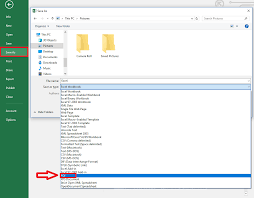
Method 2: Using Microsoft Excel
You can also use Microsoft Excel itself to convert your rows into a PDF. To do this:
- Open your Excel file and click on the “File” menu.
- Select “Export” from the drop-down menu.
- Choose the “Create PDF/XPS” option and select the desired settings.
- Click “Save As” to save the document as a PDF.
Method 3: Using Libreoffice
If you don’t have Microsoft Excel, you can use LibreOffice Calc to convert your rows into a PDF. To do this:
- Open your Excel file in LibreOffice Calc.
- Click on the “File” menu and select “Export”.
- Choose the “PDF” option and select the desired settings.
- Click “Save As” to save the document as a PDF.
Method 4: Using Adobe Acrobat
If you have Adobe Acrobat installed, you can use it to convert your rows into a PDF. To do this:
- Open your Excel file in Adobe Acrobat.
- Click on the “File” menu and select “Create PDF”.
- Choose the desired settings and click “Save As” to save the document as a PDF.
Method 5: Using Online Services
There are also several online services that can help you convert your rows into a PDF. Some popular options include:
- SmallPDF: A free online service that allows you to upload your Excel file and download it in PDF format.
- ILovePDF: A free online service that allows you to upload your Excel file and download it in PDF format.
Conclusion
Converting Excel rows into a PDF format is easier than ever, thanks to the various methods outlined above. Whether you use the virtual printer, Microsoft Excel, LibreOffice, Adobe Acrobat, or online services like SmallPDF or iLovePDF, you can rest assured that your data will be safely and securely converted into a more manageable and portable format.
Faqs
Here are some frequently asked questions about converting Excel rows to PDF:
- Q: What is The Best Method For Converting Excel Rows to Pdf?
A: The best method depends on your specific needs and preferences. If you have Microsoft Excel installed, using the built-in “Export” feature may be the most convenient option. If you prefer a free alternative, LibreOffice or online services like SmallPDF or iLovePDF may be a better choice. - Q: Can I Convert Excel Rows to Pdf on my Smartphone or Tablet?
A: Yes, it is possible to convert Excel rows to PDF on your smartphone or tablet using the virtual printer or apps like Excel. To do this, follow the same steps as above but use the mobile version of Excel instead. - Q: Is it Safe to Convert Sensitive Data Into a Pdf?
A: Yes, converting sensitive data into a PDF is generally safe, provided you take the necessary precautions. Make sure to password-protect your PDF and only share it with authorized personnel.
Conclusion
Converting Excel rows to PDF format offers numerous benefits, including increased portability, security, and compatibility. By following the methods outlined above, you can safely and securely convert your data into a more manageable and portable format, making it easier to share and print.


