
Converting Pdf to Word: A Step-by-step Guide
Are you tired of struggling to convert your PDF files into editable Word documents? Look no further! In this article, we’ll guide you through the process of converting PDFs to Word on PC, Mac, and even smartphone and tablet.
Why Convert Pdf to Word?
Converting PDFs to Word documents can be a game-changer for anyone who needs to edit or modify the contents of their PDF files. Whether it’s a contract, a report, or a document that requires frequent updates, converting it to Word format makes it easy to edit and save.
Solutions For Converting Pdf to Word on PC
1. Microsoft Word (Windows/MacOS)
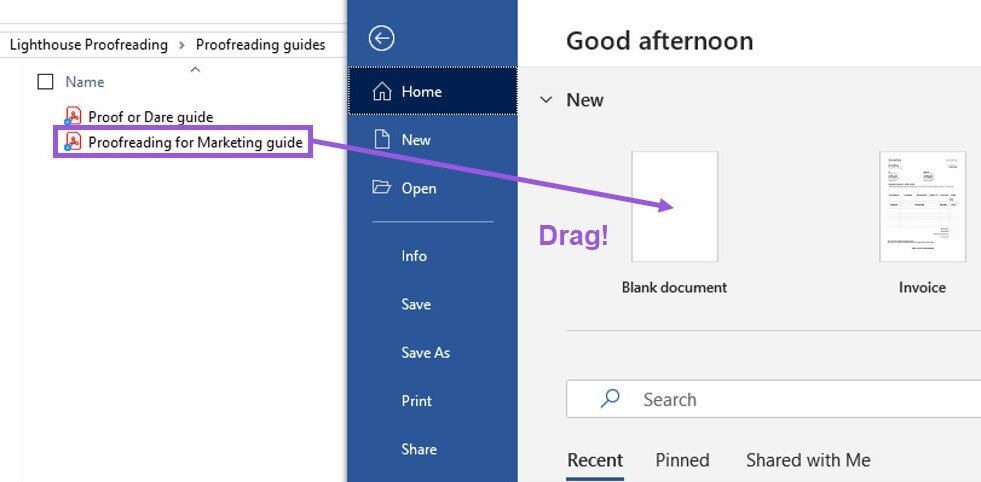
The first solution is to use Microsoft Word, which has been converting PDFs to Word documents since the version 2013. You can download Word free of charge, but after a free initial trial, it becomes a paid service.
Step-by-step Guide:
- Open Microsoft Word.
- Click on “File” > “Open” and select the PDF file you want to convert.
- Wait for the conversion process to complete.
- Save the converted document as a Word file (.Docx).
2. Doxillion Document Converter (Windows/MacOS)
Doxillion is another free software that can convert PDFs to Word documents.
Step-by-step Guide:
- Download and install Doxillion on your PC or Mac.
- Launch the program and click on “Add” to select the PDF file you want to convert.
- Choose the output format as Word (DOCX) and click on “Convert”.
- Wait for the conversion process to complete.
Other Programs to Convert Pdf to Word
- Adobe Acrobat (Windows/MacOS)
- PDF Element (Windows/MacOS)
- SmallPDF (Windows)
Solutions For Converting Pdf to Word Online
1. Online2pdf
Online2PDF is a free service that allows you to convert PDFs to Word documents online.
Step-by-step Guide:
- Visit the Online2PDF website.
- Click on “Select File” and upload your PDF file.
- Choose the output format as Word (DOCX) and click on “Convert”.
- Wait for the conversion process to complete.
2. Cloudconvert
CloudConvert is another online service that can convert PDFs to Word documents.
Step-by-step Guide:
- Visit the CloudConvert website.
- Click on “Select Files” and upload your PDF file.
- Choose the output format as Word (DOCX) and click on “Convert”.
- Wait for the conversion process to complete.
3. Other Online Services
- ILovePDF
- Zamzar
- Free Rows Converter
Solutions For Converting Pdf to Word on Mac
You can use the same solutions mentioned above, such as Microsoft Word or Doxillion, which are compatible with MacOS.
Solutions For Converting Pdf to Word on Smartphone And Tablet
1. Microsoft Office (Android/iOS/iPadOS)
Microsoft Office is a mobile app that allows you to convert PDFs to Word documents.
Step-by-step Guide:
- Launch the Microsoft Office app.
- Click on “Actions” > “PDF in Word”.
- Select the PDF file and choose the output format as Word (DOCX).
- Wait for the conversion process to complete.
2. Other Mobile Apps
- Adobe Acrobat (Android/iOS)
- SmallPDF (Android)
Conclusion
Converting PDFs to Word documents is a simple process that can be achieved using various software solutions, both online and offline. Whether you’re on PC, Mac, or smartphone, there’s a solution for everyone. Just remember to choose the right tool for your needs, and you’ll be able to edit and save your converted documents in no time!
Frequently Asked Questions (FAQs)
- Q: What is The Best Software For Converting Pdfs to Word?
A: Microsoft Word and Doxillion are two of the most popular and reliable solutions. - Q: Can I Convert Pdfs to Word Online?
A: Yes, there are several online services that allow you to convert PDFs to Word documents, such as Online2PDF and CloudConvert. - Q: How do I Convert a Pdf to Word on my Smartphone or Tablet?
A: You can use Microsoft Office mobile app or other third-party apps like Adobe Acrobat. - Q: What Happens if The Pdf Contains Scanned Images Instead of Text?
A: In such cases, you may need to use an OCR (Optical Character Recognition) tool to convert the scanned image into editable text. - Q: Are There Any Free Services For Converting Pdfs to Word?
A: Yes, many online services offer free conversion options, but be aware that they may have limitations on file size or conversions per hour. - Q: Can I Convert Multiple Pdf Files at Once?
A: Some software solutions allow batch conversion, while others may require manual conversion for each file. - Q: How do I Save The Converted Document as a Word File?
A: After converting the PDF to Word, you can save it as a .Docx file using Microsoft Word or other compatible software. - Q: Are There Any Compatibility Issues With Different Operating Systems?
A: Most software solutions are compatible across various operating systems, including Windows, MacOS, Android, and iOS.
Note: The FAQs provided above are not exhaustive, but they cover some of the most frequently asked questions related to converting PDFs to Word documents.


