
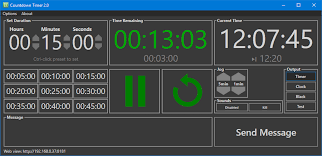
The Ultimate Guide to Countdown Timers on PC And Mac
Are you tired of waiting for something to happen? Do you want to keep track of time with ease? Look no further! In this article, we will explore the world of countdown timers on both PC and Mac.
What is a Countdown Timer?
A countdown timer is a software application that allows you to set a specific amount of time for an event or activity. It’s like having a personal assistant who reminds you when it’s time to do something!
Top 5 Countdown Timers on PC
- Free Countdown Timer: A free and highly customizable countdown timer for Windows that offers various formats and options.
- Chronometask: A software that functions as an alarm clock, timer, and calendar all in one. It’s also free!
- Orzeszek Timer: A simple and easy-to-use countdown timer with various formats and options. It’s completely free and doesn’t require installation!
Top 5 Countdown Timers on Mac
- Clock of Apple: The default clock app on Mac that offers a countdown timer feature.
- Countdowns: A third-party countdown timer app for macOS that allows you to set multiple countdowns directly from the menu bar.
- Timer: A simple and easy-to-use countdown timer app with various formats and options.
How to Use a Countdown Timer on PC
To use a countdown timer on your PC, follow these steps:
- Download and install the software of your choice (e.G., Free Countdown Timer).
- Open the application and set the desired time duration.
- Choose from various format options (e.G., Hours, minutes, seconds) and assign a title to the countdown.
- Select the sound option and choose a personalized sound or select one from the built-in menu.
- Click on the “Start” button to initiate the countdown.
How to Use a Countdown Timer on Mac
To use a countdown timer on your Mac, follow these steps:
- Download and install the software of your choice (e.G., Clock of Apple).
- Open the application and set the desired time duration.
- Choose from various format options (e.G., Hours, minutes, seconds) and assign a title to the countdown.
- Select the sound option and choose a personalized sound or select one from the built-in menu.
- Click on the “Start” button to initiate the countdown.
What Else Can I Do With a Countdown Timer?
A countdown timer can be used for various purposes beyond just setting a time duration. Some examples include:
- Setting reminders for upcoming events or appointments
- Tracking the progress of a project or task
- Creating a to-do list and setting deadlines
- Setting alarms for regular activities (e.G., Exercise, medication)
Conclusion
In conclusion, countdown timers on PC and Mac offer a convenient way to keep track of time with ease. With various options and formats available, you can customize your timer to suit your needs.
Frequently Asked Questions (FAQs)
- What is The Best Countdown Timer Software For Windows?
- The best countdown timer software for Windows is Free Countdown Timer.
- Can I Use a Countdown Timer on my Mac?
- Yes, you can use a countdown timer on your Mac using various third-party apps (e.G., Clock of Apple).
- How do I Set up a Countdown Timer on my PC or Mac?
- To set up a countdown timer on your PC or Mac, download and install the software of your choice, follow the installation instructions, and configure the settings as desired.
- Can I Customize The Format Options For a Countdown Timer?
- Yes, most countdown timer apps allow you to customize the format options (e.G., Hours, minutes, seconds).
- Can I Set Multiple Countdowns on my PC or Mac?
- Yes, some countdown timer apps allow you to set multiple countdowns directly from the menu bar.
- Is a Countdown Timer Free?
- Many countdown timer software applications are completely free!
- Can I Use a Countdown Timer For Business Purposes?
- Yes, countdown timers can be used for various business purposes (e.G., Project management, reminders).
- How do I Cancel or Modify a Countdown Timer on my PC or Mac?
- To cancel or modify a countdown timer on your PC or Mac, follow the specific instructions provided by the software application being used.


