
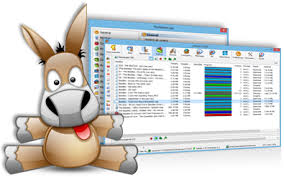
eMule: Download And Configure Emule
Are you interested in understanding how to download and configure eMule on your computer? If so, this guide is perfect for you! In this article, we will explore the process of downloading and configuring eMule, a popular peer-to-peer (P2P) file-sharing program.
About Emule
EMule is a P2P file-sharing program that allows users to share and download files without having to burden them on a website or cloud storage service. The program has been around for years and remains popular among users who want to access rare files not available on other platforms like BitTorrent or hosting services.
Downloading Emule
To begin, you need to download the eMule program from its official website. To do this:
- Visit the eMule website.
- Click on the “Download” button.
- Select the correct version of eMule for your Windows operating system (32-bit or 64-bit).
- Choose a location to save the downloaded file and click “Save.”
- Once the download is complete, run the installer by double-clicking on it.
Configuring Emule
After downloading and installing eMule, you need to configure it for optimal performance:
- Open the eMule program.
- Click on the “Options” button in the top-right corner of the window.
- In the Options window, select the “Connection” tab.
- Check the box next to “Connect automatically at start.”
- If you want to use a username, enter it in the “Username” field.
- Click “OK” to save your settings.
Opening Doors For Emule
Before you can download files with eMule, you need to open the necessary ports in your modem/router:
- Open the panel of administration of your modem/router.
- Create a new rule or virtual server.
- Enter the following information:
- Internal door and external door (or initial door and final door): 12321 (EMule’s default port)
- IP destination: Your computer’s local IP address
- Type #bring (or protocol): TCP
- Name: EMule TCP or eMule UDP
- Click “Save” or “Apply” to save the new rule.
Updating Server List
To connect to eD2K servers, you need to update your server list:
- Open eMule and select the “Server” tab.
- Delete all existing servers by clicking on an empty space in the list and selecting “Delete” from the context menu.
- Click “Yes” to confirm deletion.
Updating Kad Servers
To connect to Kad servers, you need to update your Kad configuration:
- Open eMule and select the “Kad” tab.
- Check the box next to “Charge nodes.”
- Enter the following address in the URL field: Http://Emulemods.Altervista.Org/download/nodes.Dat
- Click on the “BootStrap” button.
Downloading Files With Emule
To download files with eMule:
- Open eMule and select the “Search” tab.
- Enter your search query in the “Name” field.
- Select the type of files you want to search for (e.G., Audio, video).
- Click on the “Start” button.
- Once the search is complete, click on a file to download it.
eMule Adunanza
If you have an optical fiber connection, you can use a special version of eMule called eMule Adunanza:
- Download eMule Adunanza from its official website.
- Follow the installation procedure for eMule Adunanza.
eMule For Mac
Unfortunately, eMule is not officially available for Mac. However, you can use a special version of eMule called aMule:
- Download aMule from Sourceforge.
- Extract the ZIP file and drag the icon to your Applications folder.
- Open aMule and select the “OK” button.
- Agree to download the server list.
eMule For Android
EMule is not officially available for Android devices, but you can use an alternative app called Mule for Android:
- Download Mule for Android from the Play Store.
- Install and launch the app.
- Grant permission to access multimedia content and files on your device.
Frequently Asked Questions
Q: What is eMule?
A: EMule is a P2P file-sharing program that allows users to share and download files without having to burden them on a website or cloud storage service.
Q: How do I download eMule?
A: Visit the eMule website, click on the “Download” button, select the correct version for your Windows operating system, and follow the installation procedure.
Q: How do I configure eMule?
A: Open eMule, go to Options, and select the Connection tab. Check the box next to “Connect automatically at start” and enter a username if desired.
Q: Why do I need to open doors for eMule?
A: To download files with eMule, you need to open ports in your modem/router to allow eMule to communicate with external servers.
Q: How do I update my server list?
A: Open eMule, go to the Server tab, delete all existing servers, and click on an empty space in the list to select “Delete” from the context menu.
Q: What is eMule Adunanza?
A: EMule Adunanza is a special version of eMule for users with optical fiber connections.
Q: Can I use eMule on Mac or Android devices?
A: Unfortunately, eMule is not officially available for Mac. However, you can use a special version called aMule. For Android devices, you can use an alternative app called Mule for Android.
Conclusion
In conclusion, downloading and configuring eMule requires some technical knowledge and attention to detail. By following the steps outlined in this guide, you should be able to successfully install and configure eMule on your Windows computer.


