
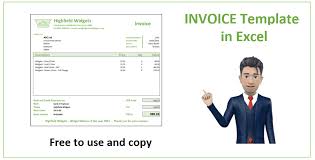
How to Use Excel Templates For Creating Bills: A Step-by-step Guide
As a business owner or entrepreneur, creating invoices and bills can be a tedious task. However, with the help of Excel templates, you can streamline this process and save time. In this article, we will guide you on how to use Excel templates for creating bills, including downloading and saving patterns, using them on PC and Mac, smartphone and tablet, online, and even LibreOffice/OpenOffice.
Understanding Excel Templates
Excel templates are pre-designed files that contain formulas and formatting for specific tasks, such as creating invoices or bills. These templates can be downloaded from the internet or created by yourself using Excel’s built-in features. Once you have an Excel template, you can fill in the necessary information, and Excel will automatically calculate the amounts due.
Downloading Excel Templates
If you’re new to using Excel templates, you might wonder where to find them. Fortunately, Microsoft provides a vast library of free templates on their website. To download a template:
- Open Excel and go to the “Templates” tab.
- Type “bill” in the search bar and press Enter.
- Browse through the available templates and select one that suits your needs.
- Click “Create” to open the template in Excel.
Saving Excel Templates as Patterns
If you’ve downloaded a template from the internet or created one yourself, you can save it as a pattern for future use:
- Open the template file (.Xls or .Xlsx).
- Go to the “File” menu and select “Save As.”
- Choose the location where you want to save the template.
- Select “Pattern” as the file type.
- Name your template and click “Save.”
Using Excel Templates on PC And Mac
If you’re using a recent version of Office for Windows or macOS, like Office 2016, you can find the templates directly in the application’s initial screen:
- Open Excel and go to the “Templates” tab.
- Type “bill” in the search bar and press Enter.
- Browse through the available templates and select one that suits your needs.
Using Excel Templates on Smartphone And Tablet
Excel is also available as a mobile app for Android, iOS, and Windows Phone devices. To use an Excel template on your smartphone or tablet:
- Open the Excel app.
- Go to the “New” tab.
- Select a bill template from the available options.
- Fill in the necessary information, and Excel will automatically calculate the amounts due.
Using Excel Templates Online
Microsoft has also made it possible to use Excel templates online, without installing any software:
- Go to the Microsoft Office website and sign in with your account.
- Click on “Excel” and select a bill template from the available options.
- Fill in the necessary information, and Excel will automatically calculate the amounts due.
Using Libreoffice/openoffice Templates
LibreOffice and OpenOffice are free alternatives to Microsoft Office. These applications also support Excel templates:
- Go to the LibreOffice or OpenOffice website and sign in with your account.
- Click on “Calc” (the spreadsheet application) and select a bill template from the available options.
- Fill in the necessary information, and Calc will automatically calculate the amounts due.
Conclusion
Using Excel templates for creating bills is a straightforward process that can save you time and effort. By following these steps, you can download, save, and use templates on your PC or Mac, smartphone or tablet, online, and even with LibreOffice/OpenOffice. Whether you’re a business owner or an individual, using templates can help you create professional-looking invoices and bills in no time.
Faqs
- What is The Difference Between an Excel Template And a Bill?
An Excel template is a pre-designed file that contains formulas and formatting for specific tasks, such as creating invoices or bills. A bill is a document that outlines the details of a transaction. - How do I Save an Excel Template as a Pattern?
To save an Excel template as a pattern, go to the “File” menu, select “Save As,” choose the location where you want to save the template, and select “Pattern” as the file type. - Can I Use Excel Templates Online?
Yes, Microsoft has made it possible to use Excel templates online, without installing any software. Simply go to the Microsoft Office website, sign in with your account, and click on “Excel” to access a variety of templates. - Are Libreoffice/openoffice Compatible With Excel Templates?
Yes, LibreOffice and OpenOffice support Excel templates, but you may need to adjust the formatting to match their style. - Can I Use Excel Templates on my Smartphone or Tablet?
Yes, Excel is available as a mobile app for Android, iOS, and Windows Phone devices, allowing you to create bills using templates on-the-go. - How do I Download an Excel Template From Microsoft’s Website?
To download an Excel template from Microsoft’s website, go to the “Templates” tab in Excel, type “bill” in the search bar, and browse through the available options. - Can I Save a Bill Created With Libreoffice/openoffice as an Excel File?
Yes, you can save a bill created with LibreOffice or OpenOffice as an Excel file by selecting the correct file format when saving the document. - Are There Any Free Excel Templates Available Online?
Yes, Microsoft provides a vast library of free templates on their website, including bills and invoices. - Can I Use Excel Templates to Create Custom Reports?
Yes, Excel templates can be used to create custom reports by modifying the formulas and formatting to suit your specific needs. - How do I Update an Excel Template if It’s Outdated?
If you find that an Excel template is outdated or no longer meets your needs, you can modify it yourself using Excel’s built-in features or seek help from a professional.


