
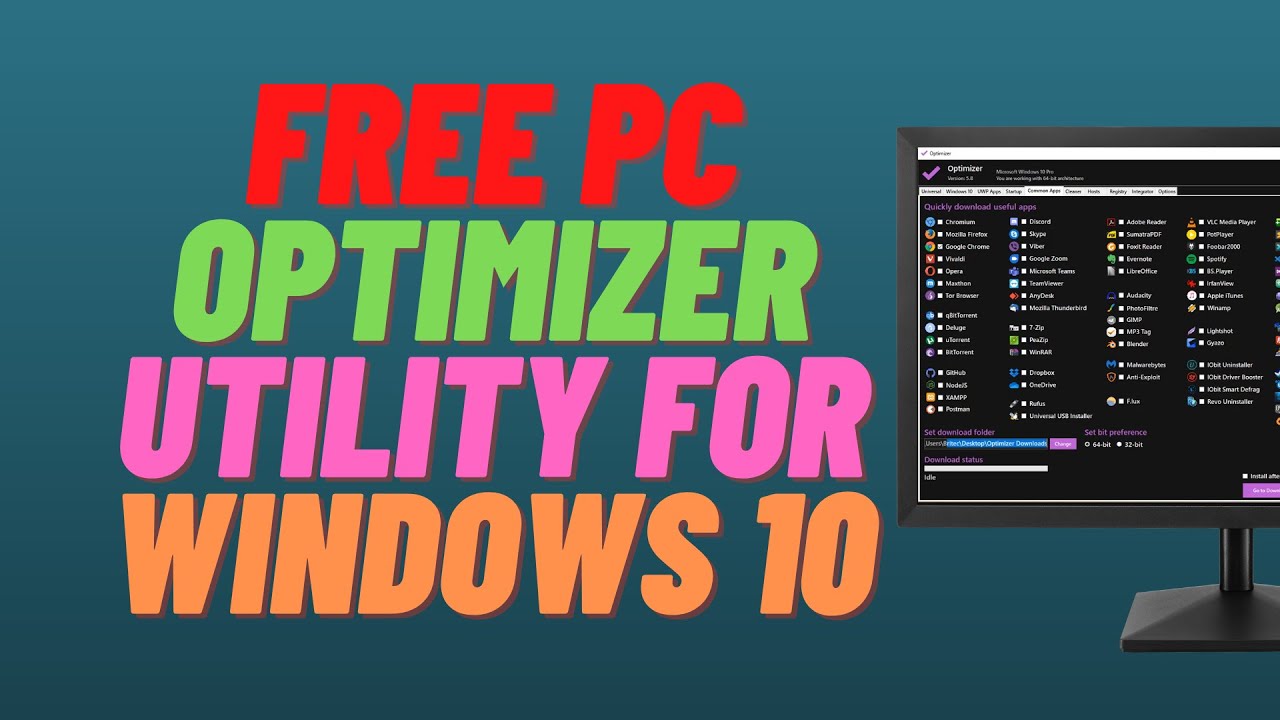
Optimizing Your Pc: A Comprehensive Guide
Are you tired of your computer slowing down due to cluttered storage, outdated software, and pesky malware? Look no further! In this article, we’ll explore the most effective ways to optimize your PC’s performance, boost its speed, and keep it running smoothly.
Understanding The Importance of Optimization
Before we dive into the nitty-gritty details, let’s understand why optimization is crucial for your PC. A cluttered hard drive, outdated software, and malware can significantly slow down your computer’s performance. This not only affects your productivity but also puts your sensitive data at risk.
The Best Programs to Optimize Your PC
Here are some of the top programs that can help you optimize your PC:
1. Windows Disk Cleanup
Windows Disk Cleanup is a built-in tool that helps remove temporary files, system logs, and other items you no longer need. This simple process can free up significant space on your hard drive.
How to Use It:
- Open the Start menu and type “Disk Cleanup” in the search bar.
- Select the drive you want to clean up (usually C:) And click OK.
- Follow the prompts to select which files you want to delete.
2. Ccleaner
CCleaner is a popular free program that helps remove temporary files, system logs, and other items you no longer need. It also has a registry cleaner to help fix errors in your Windows registry.
How to Use It:
- Download the latest version of CCleaner from their official website.
- Run the installer and follow the prompts to install it.
- Open CCleaner and select which files you want to delete or clean up.
3. Glary Utilities
Glary Utilities is a comprehensive PC optimization tool that helps clean up temporary files, system logs, and other items you no longer need. It also has a registry cleaner and disk defragmentation tools.
How to Use It:
- Download the latest version of Glary Utilities from their official website.
- Run the installer and follow the prompts to install it.
- Open Glary Utilities and select which files you want to delete or clean up.
4. Windows Defender
Windows Defender is a built-in antivirus tool that helps protect your PC from malware and other online threats. Make sure to update it regularly for optimal protection.
How to Use It:
- Open the Start menu and type “Windows Defender” in the search bar.
- Select the tab you want to use (usually the one with the green shield).
- Follow the prompts to scan your PC for malware or other threats.
5. Bleachbit
BleachBit is a free program that helps clean up temporary files, system logs, and other items you no longer need. It’s designed specifically for Windows users.
How to Use It:
- Download the latest version of BleachBit from their official website.
- Run the installer and follow the prompts to install it.
- Open BleachBit and select which files you want to delete or clean up.
6. Windirstat
WinDirStat is a powerful disk space analyzer that helps you visualize your PC’s storage usage. It also has a built-in file search feature.
How to Use It:
- Download the latest version of WinDirStat from their official website.
- Run the installer and follow the prompts to install it.
- Open WinDirStat and select which drive you want to analyze (usually C:).
7. Cleanmymacx (for Mac Users)
CleanMyMacX is a comprehensive Mac optimization tool that helps clean up temporary files, system logs, and other items you no longer need. It also has a built-in registry cleaner and disk defragmentation tools.
How to Use It:
- Download the latest version of CleanMyMacX from their official website.
- Run the installer and follow the prompts to install it.
- Open CleanMyMacX and select which files you want to delete or clean up.
The Ultimate Guide to Optimization
While these programs can help optimize your PC, there are some additional steps you can take:
1. Disable Startup Programs
Disabling unnecessary startup programs can significantly boost your PC’s performance.
How to Do It:
- Press the Windows key + R and type “msconfig” in the Run dialog box.
- Select the Startup tab and uncheck any programs you no longer need or use frequently.
2. Uninstall Unused Software
Uninstalling software you no longer need can help declutter your PC’s storage and improve performance.
How to Do It:
- Press the Windows key + I to open the Settings app.
- Select the Apps tab and look for any software you no longer use or need.
- Click the Uninstall button to remove it.
3. Update Your Operating System
Keeping your operating system up-to-date is crucial for optimal performance and security.
How to Do It:
- Press the Windows key + I to open the Settings app.
- Select the Update & Security tab and click Check for updates.
Conclusion
Optimizing your PC’s performance requires a combination of cleaning up temporary files, disabling startup programs, uninstalling unused software, and keeping your operating system up-to-date. By following these steps and using the best programs to optimize your PC, you can ensure that your computer runs smoothly, efficiently, and safely.
Frequently Asked Questions
- Q: What is Optimization?
A: Optimization refers to the process of improving a computer’s performance by cleaning up temporary files, disabling startup programs, uninstalling unused software, and keeping the operating system up-to-date. - Q: Which Program Should I Use For Optimization?
A: The best programs to use for optimization are Windows Disk Cleanup, CCleaner, Glary Utilities, Windows Defender, BleachBit, WinDirStat, and CleanMyMacX (for Mac users). - Q: How Often Should I Run an Optimization Tool?
A: It’s recommended to run an optimization tool regularly, such as weekly or monthly, depending on your PC usage and needs.
Additional Resources
For more information on optimization and the best programs to use, check out these additional resources:
- Microsoft Support: Windows Optimization
- CCleaner Official Website: CCleaner Features and Benefits
- Glary Utilities Official Website: Glary Utilities Features and Benefits
- BleachBit Official Website: BleachBit Features and Benefits


