
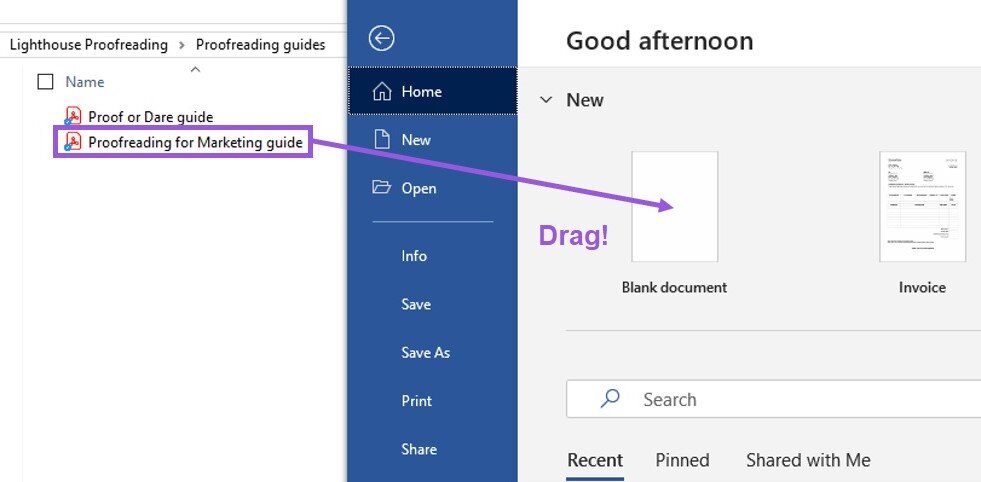
Converting Pdf to Word: A Comprehensive Guide
Are you tired of struggling with converting PDF files to editable Word documents? Look no further! In this article, we will explore the various ways to convert PDFs to Word, using a range of software and online tools.
The Problem With Pdfs
PDFs are great for sharing and viewing documents, but they can be a nightmare when it comes to editing them. The text is often locked, making it difficult to modify or update the content. This is where converting PDFs to Word comes in – allowing you to edit and manipulate the text as needed.
Method 1: Using Adobe Acrobat
Adobe Acrobat is a powerful tool for working with PDFs. With its built-in editing features, you can convert your PDFs to editable Word documents. Simply open the PDF in Adobe Acrobat, select “Export” from the menu, and choose Microsoft Word as the output format.
Method 2: Using Doxillion Document Converter
Doxillion is a free software for converting various types of documents into different formats. You can use it to convert your PDFs to Word, Excel, or other file formats. Simply download and install the software, then select “Add” from the menu and choose your PDF file.
Method 3: Using Convertio
Convertio is a free online tool that allows you to convert PDFs to Word, Excel, or other file formats. Simply upload your PDF file to the website, select Microsoft Word as the output format, and wait for the conversion to complete.
Method 4: Using Candy
Candy is another free online tool that can be used to convert PDFs to Word. Simply upload your PDF file, select Microsoft Word as the output format, and click on “Convert”.
Method 5: Using Smallpdf
Smallpdf is a free online tool that offers various features for working with PDFs, including converting them to Word documents. You can use it to convert your PDFs to editable Word files.
Method 6: Using Xodo
Xodo is another free online tool that allows you to convert PDFs to Word documents. Simply upload your PDF file, select Microsoft Word as the output format, and click on “Convert”.
Method 7: Using Ilovepdf App
ILovePDF is a mobile app that can be used to convert PDFs to Word documents. You can download it for Android or iOS devices, then use it to convert your PDFs.
Method 8: Using Microsoft Office App
Microsoft Office has an app that allows you to convert PDFs to Word documents. Simply upload your PDF file, select Microsoft Word as the output format, and click on “Convert”.
Method 9: Using Ocr Technology
OCR (Optical Character Recognition) technology can be used to convert scanned images of text into editable Word documents. This method is particularly useful for converting old or damaged documents.
Conclusion
Converting PDFs to Word is a straightforward process that can be achieved using various software and online tools. Whether you’re working with Adobe Acrobat, Doxillion Document Converter, Convertio, Candy, Smallpdf, Xodo, iLovePDF app, Microsoft Office app, or OCR technology, there’s a method out there for you.
Frequently Asked Questions
- What is The Best Way to Convert Pdfs to Word?
The best way to convert PDFs to Word depends on your specific needs and preferences. Some popular options include using Adobe Acrobat, Doxillion Document Converter, or Convertio. - How do I Convert a Scanned Image of Text Into an Editable Word Document?
You can use OCR technology to convert scanned images of text into editable Word documents. This method is particularly useful for converting old or damaged documents. - What Are Some Free Online Tools For Converting Pdfs to Word?
Some popular free online tools for converting PDFs to Word include Convertio, Candy, Smallpdf, and Xodo. - Can I Convert a Pdf File From my Mobile Device?
Yes, you can convert a PDF file from your mobile device using apps such as iLovePDF or Microsoft Office. - What Are Some Paid Software Options For Converting Pdfs to Word?
Some popular paid software options for converting PDFs to Word include Adobe Acrobat Pro and Doxillion Document Converter. - How do I Know Which Method is Best For my Specific Needs?
The best method for converting PDFs to Word will depend on your specific needs and preferences. You may want to experiment with different methods to find the one that works best for you.
I hope this comprehensive guide has helped you understand the various ways to convert PDFs to Word documents. Whether you’re working with Adobe Acrobat, Doxillion Document Converter, or other software and online tools, there’s a method out there for you!


