
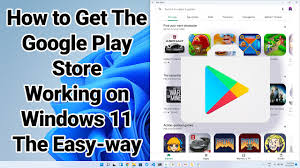
Google Play Games on Pc: What You Need to Know And How It Functions
Are you looking forward to playing your favorite video games directly on your computer? If yes, then you’re in the right place! In this guide, we’ll walk you through how to install Google Play Games on your PC, allowing you to enjoy your gaming experience on a bigger screen.
What is Google Play Games?
Google Play Games is a service developed by Android that provides functionality for game developers to integrate into their products, broadening the gaming experience, reducing development time, and ensuring universal functionalities in the Android ecosystem. Players can synchronize data in the Google Play Cloud to save progress, engage in multiplayer games, track rankings, achieve objectives, and more.
Why Bring Google Play Games to Pc?
By bringing Google Play Games to PC, you can play your favorite mobile games on a larger screen while still having access to the same features and functionality as before. Your game progress remains intact, allowing you to seamlessly switch between playing on your smartphone or tablet and your computer.
System Requirements For Google Play Games on PC
To install and run Google Play Games on your PC, ensure that your system meets these minimum requirements:
- Operating System: Windows 10 (v2004) or higher
- Storage Space: SSD with at least 10 GB of available storage space
- Graphics Card: GPU Intel UHD Graphics 630 or equivalent
- Processor: 4-Core physical CPU
- Memory: 8 GB of RAM
For a better gaming experience, consider upgrading to:
- Operating System: Windows 10 (v2004) or higher
- Storage Space: SSD with at least 10 GB of available storage space
- Graphics Card: GPU that supports your games’ requirements (e.G., GeForce GTX 600 or AMD Radeon HD 7790)
- Processor: 8-Core logical CPU
- Memory: 8 GB of RAM
How to Install Google Play Games on PC
- Go to the Google website and click on the “Download beta” button.
- Download and run the .Exe file, following the automated installation procedure.
- Access the Google account screen; if you already have a Google account associated with your mobile device, use that account to access Google Play Games.
How to Install App of Google Play Games on PC
After installing Google Play Games on your PC:
- Explore the Google Play Games catalogue by clicking on the “All games” section.
- Filter games using the provided categories and search bar.
- Download and install your preferred game by clicking on its profile picture and selecting “Install.”
- To initiate a game, click on the “Play” button in the Home section of Google Play Games.
How to Uninstall a Game or Google Play Games on PC
- In the Google Play Games home screen, go to the “Collected” section and find the app you want to uninstall.
- Click on the three dots next to the app’s profile picture and select “Uninstall.”
- To completely remove Google Play Games from your computer, go to Settings > Apps > Installed apps, find Google Play Games, click on the three dots, and select “Uninstall” twice.
Conclusion
Google Play Games offers an exciting way to enjoy mobile games on a bigger screen while maintaining seamless progress across devices. By following this guide, you’ll be able to install and run Google Play Games on your PC, taking advantage of its features and functionality. Happy gaming!
Frequently Asked Questions (FAQs)
- What is The Minimum System Requirement For Google Play Games on Pc?
- Operating System: Windows 10 (v2004) or higher
- Storage Space: SSD with at least 10 GB of available storage space
- Graphics Card: GPU Intel UHD Graphics 630 or equivalent
- Processor: 4-Core physical CPU
- Memory: 8 GB of RAM
- Do I Need to Have a Google Account to Use Google Play Games on Pc?
- Yes, you’ll need to access your Google account associated with your mobile device.
- Can I Play Games That Are Not Available on The Google Play Games Catalogue?
- Unfortunately, no. The current catalogue is limited to a hundred games.
- How do I Uninstall a Game or Google Play Games From my Pc?
- To uninstall a game, go to the Collected section and find the app you want to uninstall. Click on the three dots next to its profile picture and select “Uninstall.” For complete removal of Google Play Games, follow the instructions in the Settings > Apps > Installed apps section.
- Can I Use Google Play Games on a Mac?
- Currently, Google Play Games is not available for Mac.
- How do I Report Bugs or Provide Feedback to Google Play Games on Pc?
- You can find the “Report bug” feature in the Home section of Google Play Games.
- Will my Game Progress be Saved When Switching Between Devices?
- Yes, your game progress remains intact across devices.
Note: This FAQ list is not exhaustive, and more information might be available on the official Google Play Games website.


