
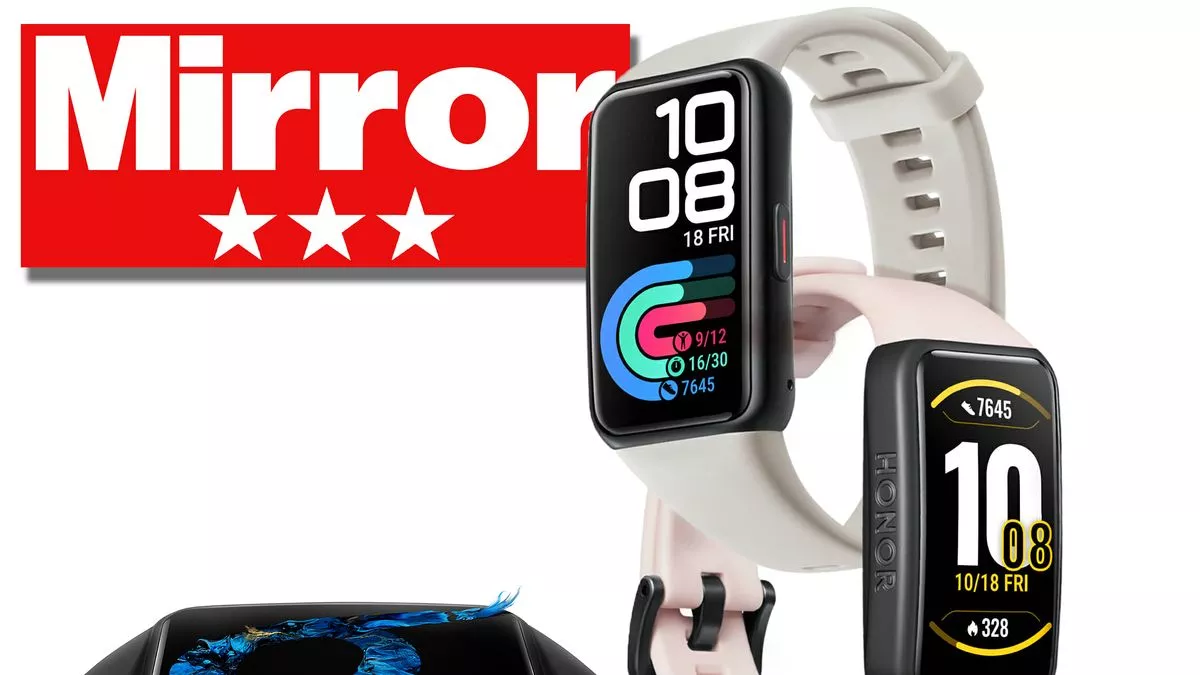
Honor Band: A Comprehensive Guide to Installation And Configuration
Are you ready to take control of your physical activity? Look no further than the Honor Band, a smart band that tracks your every move. However, setting it up can be a bit daunting, especially if you’re new to smart devices. Fear not, dear reader, as we have crafted this comprehensive guide to walk you through the installation and configuration process.
What App Should I Use For Honor Band?
The first step is to download and install the correct app for your device. For Android users, the Honor Health app can be downloaded from the Google Play Store or an alternative store. Ensure that your phone is updated to the latest version of Android (9 Pie) for compatibility.
For iPhone users, head over to the App Store (the blue icon with the “To” logo) and download the Honor Health app. This app is compatible with iOS 12 and later versions.
How to Install The Honor Health App
Follow these steps to install the Honor Health app:
- On Android:
- Tap on the “Install” button.
- Read and accept the terms of service.
- Choose the permissions you want to grant to the app (e.G., Location, contacts).
- Complete your profile with basic information like name, age, height, weight, and goals.
- On iPhone:
- Tap on the “Get” button.
- Wait for the installation process to complete.
- Follow the prompts to set up your account.
Setting Up Your Honor Band
Now that you have installed the app, it’s time to configure your Honor Band:
- Connect your Honor Band to its base charger using a micro-USB or USB Type-C cable (usually included in the packaging).
- Download and install the necessary firmware update for your device.
- Open the Honor Health app on your phone and follow the prompts to connect your Honor Band to your account.
Configuring Your Honor Band
Once you’ve connected your Honor Band, it’s time to configure its settings:
- On Android:
- Tap on the “Devices” tab in the top-right corner.
- Select the device name (e.G., Honor Band 4/5).
- Follow the prompts to complete your profile and set up notifications.
Troubleshooting Common Issues
If you encounter any issues during installation or configuration, don’t panic! Here are some common problems and their solutions:
- App Crashes or Freezes: Close the app and restart it. If the issue persists, check for firmware updates.
- Band Not Connecting to Phone: Check that the band is properly charged and connected to its charger.
Unlocking Your Honor Band’s Full Potential
Once you’ve completed these steps, you’ll have access to a range of features on your Honor Band:
- Sleep Tracking: Monitor your sleep patterns and get insights into your restful hours.
- Heart Rate Monitoring: Track your heart rate in real-time and receive alerts if it exceeds normal levels.
- Exercise Tracking: Monitor your physical activity, including steps taken, calories burned, and distance traveled.
Conclusion
Congratulations! You’ve successfully set up your Honor Band and are now ready to unlock its full potential. With this guide, you’ll be able to track your physical activity with ease, receive notifications, and stay connected with friends and family.
Frequently Asked Questions (FAQs)
Here are some common questions and answers:
- What if I Encounter Issues During Installation?
- If you encounter issues during installation, check the app’s documentation or contact Honor’s customer support for assistance.
- Can I Use my Honor Band With Other Apps?
- Yes, you can use your Honor Band with third-party apps that are compatible with your device.
- How do I Update my Honor Band’s Firmware?
- To update your Honor Band’s firmware, follow the prompts in the app or check for updates on the Honor website.
- Can I Share my Data With Others?
- Yes, you can share your data with friends and family by connecting your Honor Band to their accounts.
By following this guide, you’ll be able to unlock the full potential of your Honor Band and enjoy a more connected, healthier lifestyle. Happy tracking!


