
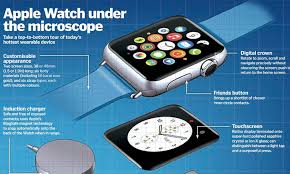
How To Use Apple Watch: A Comprehensive Guide
Are you new to the world of smartwatches? Are you wondering how to use your brand-new Apple Watch? Look no further! In this article, we will take you on a journey through the process of setting up and using your Apple Watch. We’ll cover everything from initial configuration to troubleshooting common issues.
Initial Configuration: The First Step
The first step in using your Apple Watch is to configure it for the first time. This involves pairing your watch with your iPhone, unlocking the device, and accessing the home screen. To do this:
- Unlock your iPhone and access the home screen.
- Tap on the “Apple Watch” icon and select “Pair.”
- Put your Apple Watch in pair mode by tapping the button on the back of the case.
- Open the Apple Watch app on your iPhone and follow the instructions to complete the pairing process.
Gestures, Buttons, And Leading Functions
To interact with your Apple Watch, you need to understand which gestures are supported and how to use them effectively. Here are the basic gestures:
- Tap: Tap on the screen to select options or navigate through menus.
- Play: Double-tap on the screen to quickly access specific features or functions.
- Drag: Swipe left or right to scroll through lists or browse through menus.
- Scroll: Swipe up or down to see additional information or access hidden menus.
The Apple Watch has two physical buttons:
- Digital Crown: Tap, hold, or rotate the crown to navigate through menus, select options, and adjust settings.
- Side Button: Press and hold the side button to quickly access features like SOS, Siri, or Apple Pay.
Using Apps on Your Apple Watch
One of the most exciting features of your Apple Watch is its ability to run apps directly from the device. To use an app:
- Open the Apple Watch app on your iPhone.
- Tap on “My Watch” and select “Apps.”
- Browse through available apps, select one, and tap on it to install it on your watch.
Some popular apps include:
- Weather: Get real-time weather forecasts directly from your wrist.
- Maps: Use turn-by-turn directions to navigate your way around.
- Fitness: Track your workouts, set goals, and receive rewards for achieving them.
Notifying You of Important Events
Your Apple Watch can notify you of important events, such as:
- Calendar reminders
- Text messages
- Email notifications
To customize notification settings:
- Open the Apple Watch app on your iPhone.
- Tap on “Notifications” and select “Notification Style.”
- Choose from various notification styles to suit your preferences.
Adjusting Settings For a Better Experience
Your Apple Watch allows you to adjust various settings to enhance your experience. To access settings:
- Press and hold the Digital Crown or tap on the Settings icon.
- Scroll through available options, such as brightness, display, and sounds.
Some popular settings include:
- Brightness: Adjust screen brightness for optimal visibility in different lighting conditions.
- Display: Customize display settings to suit your preferences.
- Sounds: Select from various alert sounds or adjust volume levels.
Controlling And Charging The Battery
Your Apple Watch has a built-in battery that requires occasional charging. To control battery life:
- Open the Apple Watch app on your iPhone.
- Tap on “Battery” and select “Low Power Mode.”
- Adjust settings to conserve battery life, such as turning off unnecessary features.
To charge your Apple Watch:
- Place the watch in charging mode by tapping the button on the back of the case.
- Connect the charging cable to a power source or use a compatible charger.
Updating Your Apple Watch
Regular software updates are essential for maintaining a secure and functional device. To update your Apple Watch:
- Open the Apple Watch app on your iPhone.
- Tap on “WatchOS” and select “Software Update.”
- Follow instructions to download and install the latest update.
Troubleshooting Common Issues
In case you encounter any issues with your Apple Watch, don’t panic! Try the following troubleshooting steps:
- Restart your watch by pressing and holding the side button.
- Check for software updates and install them if available.
- Re-sync your watch with your iPhone.
If none of these solutions work, contact Apple Support for further assistance.


