
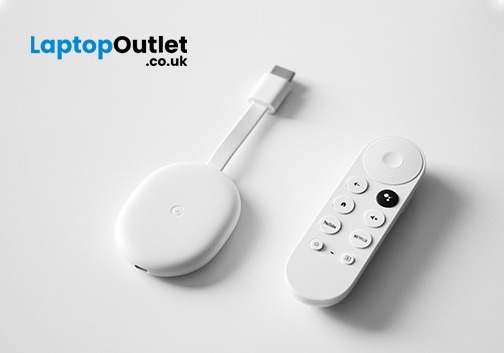
How to Use Chromecast: A Step-by-step Guide
Are you ready to unlock the full potential of your Chromecast device? Look no further! This comprehensive guide will walk you through every step, from setting up your Chromecast to enjoying your favorite content on the big screen.
What is Chromecast?
Before we dive in, let’s quickly cover what Chromecast is. Chromecast is a small device produced by Google that allows you to stream content from your smartphone, tablet, or computer to your TV. It’s a simple and affordable way to upgrade your entertainment experience without breaking the bank.
Setting Up Your Chromecast
To get started, follow these steps:
- Physical Installation: Extract the Chromecast device from its packaging and insert it into an HDMI port on your TV.
- Powering On: Connect the USB-C cable to the Chromecast device and plug it into a nearby power source or use a high-quality USB charger.
- Connecting to Wi-fi: Use your smartphone, tablet, or computer to connect the Chromecast device to your Wi-Fi network.
Configuring Your Chromecast
Now that you’ve set up your Chromecast device, it’s time to configure it. Here’s how:
- Pairing The Remote: Download and install the Google Home app on your mobile device. Open the app and follow the prompts to pair the remote with your Chromecast device.
- Setting Up Google Home: Use the app to set up your Google Home account, which will allow you to control your Chromecast device remotely.
Streaming Content
Now that you’ve configured your Chromecast device, it’s time to stream some content! Here are a few ways to do so:
- Streaming From Your Mobile Device: Open the Google Home app and select the Chromecast device you want to use. Choose the content you want to stream from your mobile device.
- Streaming From Your Computer: Open a web browser on your computer, navigate to the Google Cast website, and select the Chromecast device you want to use.
Additional Features
Your Chromecast device has some additional features that are worth exploring:
- Voice Control: Use voice commands to control your Chromecast device.
- Multi-room Audio: Connect multiple Chromecast devices to create a multi-room audio system.
- Google Cast: Stream content from supported apps, such as YouTube and Netflix.
Troubleshooting
Having trouble with your Chromecast device? Don’t worry! Here are some troubleshooting tips:
- Restart Your Device: Restarting your Chromecast device can resolve connectivity issues.
- Update Your Software: Ensure that your Chromecast device is running the latest software.
- Reset Your Device: If all else fails, try resetting your Chromecast device to its factory settings.
Chromecast Without Wi-fi
You don’t need a Wi-Fi connection to use your Chromecast device! Here are some alternatives:
- Using a Sim Card: Insert a SIM card with sufficient data into your Chromecast device.
- Tethering Your Mobile Device: Use your mobile device as a hotspot to connect your Chromecast device.
Conclusion
That’s it! With this comprehensive guide, you should now have a solid understanding of how to use your Chromecast device. From setting up and configuring the device to streaming content and exploring additional features, we’ve covered everything you need to know.
Frequently Asked Questions (FAQs)
Here are some frequently asked questions about Chromecast:
- Q: How do I Set up my Chromecast Device?
A: Follow the steps outlined in this guide. - Q: What Kind of Content Can I Stream Using Chromecast?
A: You can stream a wide range of content, including videos, music, and photos. -
Q: Do I Need a Wi-fi Connection to Use Chromecast?
A: No, but you will need a stable internet connection to access some features. -
Q: How do I Troubleshoot Issues With my Chromecast Device?
A: Try restarting your device, updating your software, or resetting it to its factory settings. -
Q: Can I Use Chromecast Without Wi-fi?
A: Yes, you can use a SIM card or tether your mobile device to connect the Chromecast device. -
Q: What Additional Features Does Chromecast Offer?
A: You can use voice control, multi-room audio, and Google Cast to stream content from supported apps. -
Q: How do I Reset my Chromecast Device to Its Factory Settings?
A: Press and hold the button on the back of the device for 20 seconds to reset it to its factory settings. -
Q: Can I Use Chromecast With Other Streaming Devices, Such as Amazon Fire TV or Google Nest Hub?
A: Yes, you can integrate Chromecast with other smart devices to create a seamless entertainment experience.
We hope this guide has been helpful in getting the most out of your Chromecast device!


