
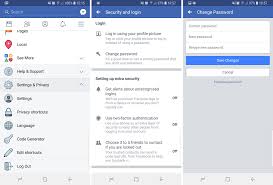
How to See Your Facebook Password on Various Devices
Are you struggling to remember your Facebook password? Do you want to access it on different devices, but can’t seem to find it? Look no further! In this article, we will guide you through the process of recovering and viewing your Facebook password on various devices, including smartphones, tablets, computers, and more.
Why Can’t I See My Facebook Password?
Facebook is a secure social media platform that stores your login credentials in its servers. When you save your password on different devices, it’s encrypted to protect it from unauthorized access. However, this also means that the password is not displayed directly on the device. To view your password, you need to follow specific steps on each device.
Viewing Your Facebook Password on Android Devices
If you’re using an Android smartphone or tablet, here’s how to view your Facebook password:
- Go to your device’s Settings app.
- Scroll down and select “Google” or “Accounts.”
- Tap on “Saved login credentials.”
- Find the Facebook entry and tap on it.
- You’ll see a list of saved login credentials, including your email address and password.
Viewing Your Facebook Password on Ios Devices
If you’re using an iPhone, iPad, or iPod touch, follow these steps:
- Go to your device’s Settings app.
- Scroll down and select “Passwords & Accounts.”
- Tap on “Saved Logins” or “Password Manager.”
- Find the Facebook entry and tap on it.
- You’ll see a list of saved login credentials, including your email address and password.
Viewing Your Facebook Password on Computers
Here’s how to view your Facebook password on different browsers:
- Google Chrome: Open Google Chrome, click on the three dots in the top right corner, select “Settings,” then “Show advanced settings.” Scroll down to the “Passwords” section and click on it. Find the Facebook entry and click on the eye icon next to it.
- Mozilla Firefox: Open Mozilla Firefox, click on the menu button in the top right corner, select “Options,” then “Privacy & Security.” Scroll down to the “Saved Logins” section and find the Facebook entry. Click on the eye icon next to it.
- Microsoft Edge: Open Microsoft Edge, click on the three dots in the top right corner, select “Settings,” then “Passwords.” Find the Facebook entry and click on the eye icon next to it.
Resetting Your Facebook Password
If you’ve forgotten your password or are having trouble accessing your account, here’s how to reset it:
- Go to the Facebook login page.
- Click on “Forgot Account?”
- Enter your email address or phone number associated with your account.
- Follow the instructions provided by Facebook to reset your password.
Conclusion
In conclusion, viewing and resetting your Facebook password is a straightforward process that requires following specific steps on different devices. Remember to always use strong and unique passwords for each of your online accounts to ensure maximum security.
Frequently Asked Questions (FAQs)
- Q: Why Can’t I See my Facebook Password?
A: Your Facebook password is encrypted for security reasons, so it’s not displayed directly on the device. - Q: How do I View my Facebook Password on Android Devices?
A: Go to your device’s Settings app, select “Google” or “Accounts,” and find the Facebook entry in the list of saved login credentials. - Q: How do I View my Facebook Password on Ios Devices?
A: Go to your device’s Settings app, select “Passwords & Accounts,” and find the Facebook entry in the list of saved logins. - Q: How do I Reset my Facebook Password?
A: Go to the Facebook login page, click on “Forgot Account?”, enter your email address or phone number associated with your account, and follow the instructions provided by Facebook. - Q: Can I See my Facebook Password on Multiple Devices?
A: Yes, you can view your Facebook password on multiple devices, but it requires following specific steps on each device. - Q: Is it Safe to Save my Facebook Password on Multiple Devices?
A: Saving your Facebook password on multiple devices is generally considered secure, as long as you use strong and unique passwords for each account. - Q: How do I Change or Reset my Facebook Password?
A: Go to the Facebook login page, click on “Forgot Account?”, enter your email address or phone number associated with your account, and follow the instructions provided by Facebook. - Q: Can I Use a Third-party App to View my Facebook Password?
A: No, it’s not recommended to use a third-party app to view your Facebook password, as this can compromise your security.


