
How to See My Passwords Saved on Google
Are you wondering how to see your passwords saved on Google? You’re not alone! Many people have forgotten their login credentials or need help accessing them. In this article, we’ll show you how to easily view and manage your saved passwords on Google.
Why Save Passwords on Google?
Saving passwords on Google is a convenient way to access multiple accounts without having to remember individual login credentials. With Google’s password management feature, you can store and synchronize your passwords across all your devices, making it easy to log in to your favorite websites and services.
How to See My Passwords Saved on Google
To see your saved passwords on Google, follow these steps:
- Go to the Google Account page.
- Click on the “Security” tab.
- Scroll down to the “Password Manager” section.
- Click on the “Passwords” button.
- You’ll be prompted to enter your Google account password to access the password manager.
How to See My Passwords Saved on PC
If you’re using a Windows PC, follow these steps:
- Press the Windows key + S to open the search bar.
- Type in “Credential Manager” and select the result.
- Click on the “Windows Credentials” tab.
- Select the account for which you want to view saved passwords.
How to See My Passwords Saved on Mac
On a Mac, follow these steps:
- Open the Keychain Access application (located in Applications/Utilities).
- Select the login keychain.
- Click on the “i” icon next to the password field.
- Enter your login credentials to access the password manager.
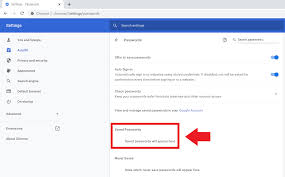
How to See My Passwords Saved on Chrome
If you’re using Google Chrome, follow these steps:
- Open a new tab and type in chrome://Settings/.
- Scroll down to the “Advanced” section.
- Click on the “Passwords” button.
- Select the account for which you want to view saved passwords.
How to See My Passwords Saved on Edge
If you’re using Microsoft Edge, follow these steps:
- Open a new tab and type in edge://Settings/.
- Scroll down to the “Advanced” section.
- Click on the “Passwords” button.
- Select the account for which you want to view saved passwords.
How to See My Passwords Saved on Firefox
If you’re using Mozilla Firefox, follow these steps:
- Open a new tab and type in about:Logins/.
- Click on the “Logins” button.
- Select the account for which you want to view saved passwords.
How to See My Passwords Saved on Safari
On a Mac or iOS device, follow these steps:
- Open the Settings app.
- Scroll down to the “Passwords & Auto-fill” section.
- Click on the “Passwords” button.
- Select the account for which you want to view saved passwords.
How to See My Passwords Saved on Android
On an Android device, follow these steps:
- Open the Google Settings app.
- Scroll down to the “Google Account” section.
- Tap on the “Security” tab.
- Click on the “Password Manager” button.
- Select the account for which you want to view saved passwords.
How to See My Passwords Saved on Iphone
On an iOS device, follow these steps:
- Open the Settings app.
- Scroll down to the “Passwords & Auto-fill” section.
- Click on the “Passwords” button.
- Select the account for which you want to view saved passwords.
Conclusion
Saving and viewing your passwords is a straightforward process with Google’s password management feature. Whether you’re using a PC, Mac, Android device, or iPhone, we’ve provided step-by-step instructions to help you access your saved passwords. Always remember to keep your login credentials secure and consider using a password manager for added security.
Frequently Asked Questions
-
How do I See my Passwords Saved on Google?
To view your saved passwords on Google, go to the Google Account page, click on “Security,” scroll down to “Password Manager,” and click on “Passwords.” -
How do I See my Passwords Saved on Pc?
On a Windows PC, press the Windows key + S, type in “Credential Manager,” select the result, and click on “Windows Credentials” to view your saved passwords. -
How do I See my Passwords Saved on Mac?
On a Mac, open Keychain Access (located in Applications/Utilities), select the login keychain, and click on the “i” icon next to the password field to access the password manager. -
How do I See my Passwords Saved on Chrome?
Open Google Chrome, type in chrome://Settings/, scroll down to “Advanced,” click on “Passwords,” and select the account for which you want to view saved passwords. -
How do I See my Passwords Saved on Edge?
Open Microsoft Edge, type in edge://Settings/, scroll down to “Advanced,” click on “Passwords,” and select the account for which you want to view saved passwords. -
How do I See my Passwords Saved on Firefox?
Open Mozilla Firefox, type in about:Logins/, click on “Logins,” and select the account for which you want to view saved passwords. -
How do I See my Passwords Saved on Safari?
On a Mac or iOS device, open Settings, scroll down to “Passwords & Auto-fill,” click on “Passwords,” and select the account for which you want to view saved passwords. -
How do I See my Passwords Saved on Android?
Open Google Settings, scroll down to “Google Account,” tap on “Security,” click on “Password Manager,” and select the account for which you want to view saved passwords.
References
- Google Support: Password manager
- Microsoft Support: Save and manage passwords in Microsoft Edge
- Mozilla Firefox Support: Logins and passwords


