
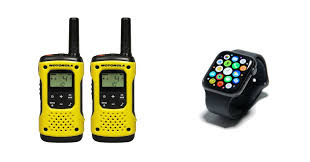
The Ultimate Guide to Using Walkie-talkie on Apple Watch
Are you tired of using traditional walkie-talkies or struggling to communicate with friends and family through other means? Look no further! In this article, we’ll explore the world of Walkie-Talkie on Apple Watch and show you how to use it like a pro.
What is Walkie-talkie on Apple Watch?
Walkie-Talkie is a feature on Apple Watch that allows users to communicate with friends and family in real-time. It’s similar to traditional walkie-talkies, but with the added convenience of being connected through your Apple Watch.
How Does Walkie-talkie Work?
To use Walkie-Talkie on Apple Watch, you’ll need an iPhone 12 or later, running iOS 14 or later. Your Apple Watch must also be updated to watchOS 5.3 Or later. Here’s a step-by-step guide to get you started:
Step 1: Enable Facetime
To use Walkie-Talkie on Apple Watch, you’ll need to enable FaceTime on your iPhone.
- Open the Settings app on your iPhone
- Tap on FaceTime
- Make sure FaceTime is enabled
Step 2: Activate Walkie-talkie on Your Apple Watch
Now that FaceTime is enabled on your iPhone, it’s time to activate Walkie-Talkie on your Apple Watch.
- Open the Walkie-Talkie app on your Apple Watch
- Tap on the icon to enable Walkie-Talkie
Step 3: Add Friends to Your Walkie-talkie List
To use Walkie-Talkie, you’ll need to add friends to your list. Here’s how:
- Open the Walkie-Talkie app on your Apple Watch
- Tap on the contact you want to add to your list
- Send a friend request
How to Use Walkie-talkie
Once you’ve added friends to your list, it’s time to start using Walkie-Talkie.
- Open the Walkie-Talkie app on your Apple Watch
- Tap on the person you want to talk to
- Hold down the button to speak
- Release the button when you’re done speaking
Tips And Tricks
Here are a few tips and tricks to help you get the most out of Walkie-Talkie:
Tip 1: Keep Your Apple Watch Connected
To use Walkie-Talkie, your Apple Watch must be connected to the internet. Make sure it’s always connected to ensure seamless communication.
Tip 2: Use Headphones For Better Audio Quality
Using headphones can improve audio quality and make conversations more enjoyable.
Troubleshooting Common Issues
We’ve all been there – experiencing issues with Walkie-Talkie at some point. Here are a few common problems and their solutions:
Issue 1: My Friend Isn’t Available on Walkie-talkie
If your friend isn’t available on Walkie-Talkie, it’s likely because they don’t have an Apple Watch or aren’t using the app.
- Ask your friend to download and install Walkie-Talkie
- Make sure their Apple Watch is connected to the internet
Issue 2: I’m Not Receiving Notifications
If you’re not receiving notifications for Walkie-Talkie, make sure you’ve enabled notifications in the Settings app.
Conclusion
Walkie-Talkie on Apple Watch is a convenient and fun way to communicate with friends and family. By following these steps and tips, you’ll be well on your way to becoming a pro at using this feature. Happy chatting!
Frequently Asked Questions (FAQs)
Q: Do I need an iPhone to use Walkie-Talkie on Apple Watch?
A: Yes, you’ll need an iPhone 12 or later running iOS 14 or later.
Q: Can I use Walkie-Talkie with anyone?
A: Yes, but only with friends who also have an Apple Watch and are using the app.
Q: How do I add friends to my Walkie-Talkie list?
A: Open the Walkie-Talkie app on your Apple Watch, tap on a contact you want to add, and send a friend request.
Q: Can I use Walkie-Talkie in areas with poor internet connectivity?
A: No, Walkie-Talkie requires a stable internet connection to work properly.
Q: How do I troubleshoot common issues with Walkie-Talkie?
A: Check our troubleshooting guide for solutions to common problems.
Q: Is Walkie-Talkie available on older Apple Watch models?
A: Yes, but only if your Apple Watch is updated to watchOS 5.3 Or later.


