
How to Use Find My Iphone: A Step-by-step Guide
Are you tired of worrying about your iPhone getting lost or stolen? Do you want to be able to locate it easily if it goes missing? Look no further than Find My iPhone, a powerful tool that can help you recover your device and keep your personal data safe.
What is Find My Iphone?
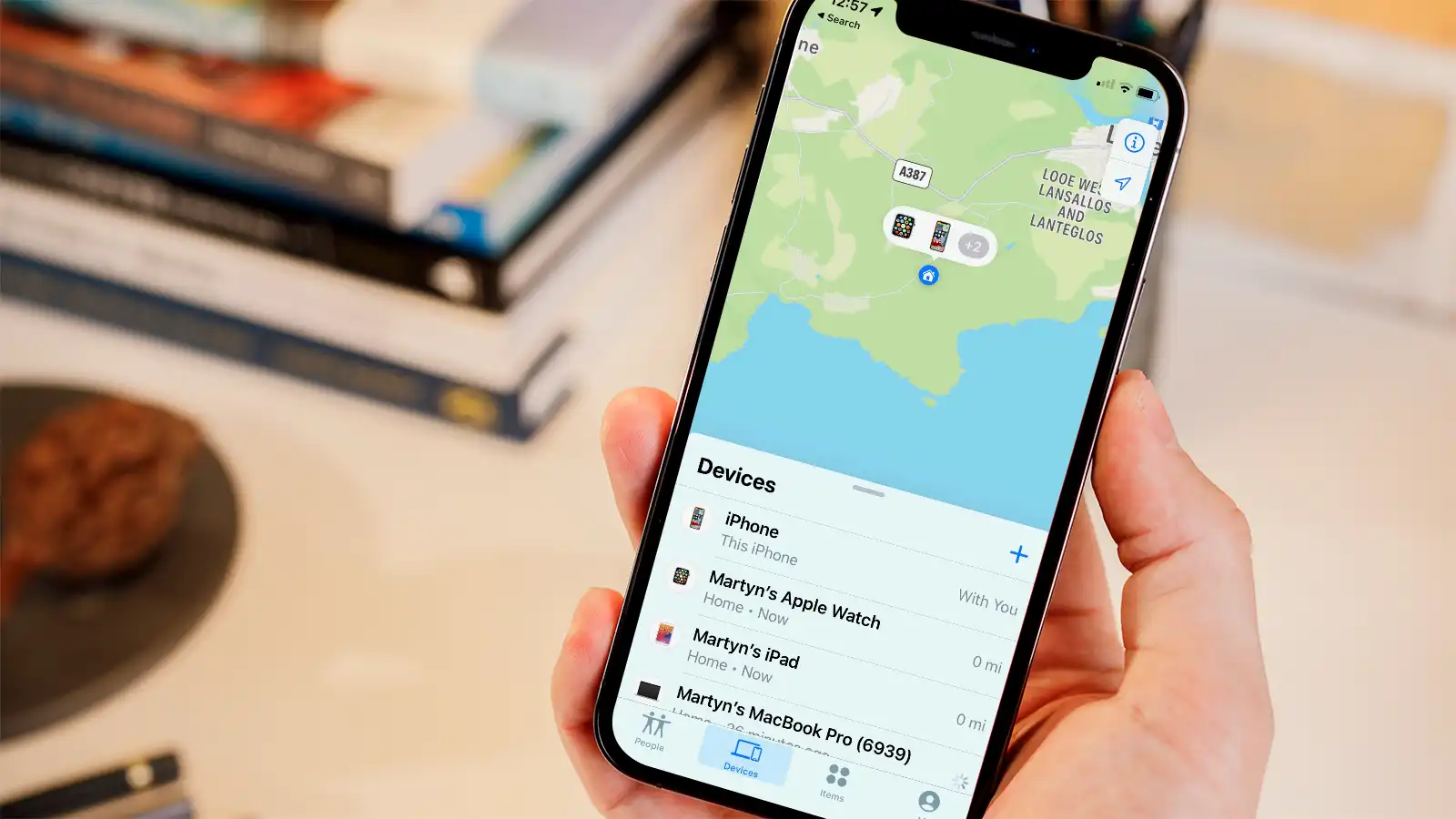
Find My iPhone is a feature built into the iOS operating system that allows you to locate your iPhone on a map, lock or erase it remotely, and even play a sound to help you find it if it’s nearby. It’s an essential tool for anyone who owns an iPhone, and we’re going to show you how to use it effectively.
Why Should I Use Find My Iphone?
There are many reasons why you should use Find My iPhone:
- Locate Your Device: If you misplace or lose your iPhone, you can easily locate it on a map using Find My iPhone.
- Lock or Erase Your Device: If someone finds your iPhone and tries to access your data, you can lock the device remotely or erase all of your data to prevent unauthorized use.
- Play a Sound: You can even play a sound on your iPhone if it’s nearby, making it easier for you to find.
How Do I Set Up Find My Iphone?
Setting up Find My iPhone is easy and straightforward. Here are the steps:
- Open the Settings app on your iPhone.
- Tap on iCloud, then scroll down to the bottom of the page.
- Tap on Find My iPhone.
- Make sure that Enable Location Services is turned on.
- Make sure that Share My Location is turned on.
How Do I Use Find My Iphone?
Using Find My iPhone is also easy and straightforward. Here are the steps:
- Open the iCloud website in a web browser.
- Sign in with your Apple ID and password.
- Click on Find My iPhone.
- If your device is nearby, you can tap on it to locate it on a map.
- You can also lock or erase your device remotely if someone finds it.
How Do I Play a Sound on My Iphone Using Find My Iphone?
Playing a sound on your iPhone using Find My iPhone is easy and straightforward. Here are the steps:
- Open the iCloud website in a web browser.
- Sign in with your Apple ID and password.
- Click on Find My iPhone.
- Tap on All Devices at the top of the page.
- Select your device from the list.
- Tap on Play Sound.
How Do I Use Find My Iphone on Android?
Find My iPhone is exclusive to iOS devices, but there are other apps available that can help you locate your lost or stolen iPhone on an Android device.
- Google Find My Device: This app allows you to locate your device on a map and lock or erase it remotely.
- Lookout: This app allows you to locate your device on a map, take a photo of the person using it, and even play a sound to help you find it if it’s nearby.
How Do I Use Find My Iphone on Pc?
Find My iPhone is exclusive to iOS devices, but there are other apps available that can help you locate your lost or stolen iPhone on a Windows PC.
- Google Find My Device: This app allows you to locate your device on a map and lock or erase it remotely.
- Lookout: This app allows you to locate your device on a map, take a photo of the person using it, and even play a sound to help you find it if it’s nearby.
How Do I Use Find My Iphone on Mac?
Find My iPhone is exclusive to iOS devices, but there are other apps available that can help you locate your lost or stolen iPhone on a Mac.
- Google Find My Device: This app allows you to locate your device on a map and lock or erase it remotely.
- Lookout: This app allows you to locate your device on a map, take a photo of the person using it, and even play a sound to help you find it if it’s nearby.
How Do I Use Find My Iphone on Ipad?
Find My iPhone is exclusive to iOS devices, but there are other apps available that can help you locate your lost or stolen iPhone on an iPad.
- Google Find My Device: This app allows you to locate your device on a map and lock or erase it remotely.
- Lookout: This app allows you to locate your device on a map, take a photo of the person using it, and even play a sound to help you find it if it’s nearby.
How Do I Use Find My Iphone on Airtag?
AirTag is a small Bluetooth device that can be attached to an item, allowing you to track its location. If your iPhone is paired with an AirTag, you can use the Find My app to locate it even if it’s turned off or out of range.
- Open The Find My App on Your Iphone.
- Tap on All Devices at The Top of The Page.
- Select Your Device From The List.
- Tap on The Airtag Icon Next to Your Device’s Name.
- Follow The Prompts to Locate Your Device Using Airtag.
Conclusion
Find My iPhone is a powerful tool that can help you recover your lost or stolen iPhone and keep your personal data safe. With its easy-to-use interface, Find My iPhone makes it simple to locate your device on a map, lock or erase it remotely, and even play a sound to help you find it if it’s nearby.
Frequently Asked Questions (FAQs)
- Q: Is Find My iPhone only available for iOS devices?
A: Yes, Find My iPhone is exclusive to iOS devices. - Q: Can I use Find My iPhone on Android?
A: No, Find My iPhone is not available for Android devices. - Q: How do I set up Find My iPhone?
A: To set up Find My iPhone, open the Settings app on your iPhone and tap on iCloud, then scroll down to the bottom of the page and tap on Find My iPhone. - Q: How do I use Find My iPhone?
A: To use Find My iPhone, open the iCloud website in a web browser, sign in with your Apple ID and password, and click on Find My iPhone. - Q: Can I play a sound on my iPhone using Find My iPhone?
A: Yes, you can play a sound on your iPhone using Find My iPhone by opening the iCloud website, signing in with your Apple ID and password, clicking on Find My iPhone, tapping on All Devices at the top of the page, selecting your device from the list, and tapping on Play Sound. - Q: Is Find My iPhone available for iPad?
A: Yes, Find My iPhone is available for iPad. - Q: Can I use Find My iPhone on Mac?
A: No, Find My iPhone is not available for Mac. - Q: How do I use Find My iPhone on AirTag?
A: To use Find My iPhone on AirTag, open the Find My app on your iPhone, tap on All Devices at the top of the page, select your device from the list, tap on the AirTag icon next to your device’s name, and follow the prompts to locate your device using AirTag.


