
Gmail Tutorial: Understanding How Gmail Works on Various Devices
Are you new to using Gmail? Do you want to understand how Gmail works on your device? Look no further! In this article, we will explore the ins and outs of using Gmail on various devices, including smartphones, tablets, computers, and more.
What is Gmail?
Gmail is a free email service provided by Google. It is one of the most popular email services in the world, with over 1 billion active users. Gmail offers a range of features, including email, chat, calendar, and storage for files and photos.
How Does Gmail Work on Smartphones?
To use Gmail on your smartphone, you can download the official Gmail app from the Google Play Store or Apple App Store. Once installed, follow these steps:
- Open the Gmail app and tap on “OK” to accept the terms of service.
- If you already have a Google account, sign in with your email address and password. Otherwise, create a new account by following the prompts.
- Tap on the “+” icon to compose a new email message.
- Type in the recipient’s email address, subject line, and body of the message.
- Attach files or photos to the email if needed.
- Send the email by tapping on the “Send” button.
How Does Gmail Work on Android?
To use Gmail on your Android device, follow these steps:
- Download and install the official Gmail app from the Google Play Store.
- Open the app and tap on “OK” to accept the terms of service.
- If you already have a Google account, sign in with your email address and password. Otherwise, create a new account by following the prompts.
- Tap on the “+” icon to compose a new email message.
- Type in the recipient’s email address, subject line, and body of the message.
- Attach files or photos to the email if needed.
- Send the email by tapping on the “Send” button.
How Does Gmail Work on Huawei?
To use Gmail on your Huawei device, follow these steps:
- Download and install the official Gmail app from the Google Play Store.
- Open the app and tap on “OK” to accept the terms of service.
- If you already have a Google account, sign in with your email address and password. Otherwise, create a new account by following the prompts.
- Tap on the “+” icon to compose a new email message.
- Type in the recipient’s email address, subject line, and body of the message.
- Attach files or photos to the email if needed.
- Send the email by tapping on the “Send” button.
How Does Gmail Work on Iphone?
To use Gmail on your iPhone, follow these steps:
- Download and install the official Gmail app from the App Store.
- Open the app and tap on “OK” to accept the terms of service.
- If you already have a Google account, sign in with your email address and password. Otherwise, create a new account by following the prompts.
- Tap on the “+” icon to compose a new email message.
- Type in the recipient’s email address, subject line, and body of the message.
- Attach files or photos to the email if needed.
- Send the email by tapping on the “Send” button.
How Does Gmail Work on Computers?
To use Gmail on your computer, follow these steps:
- Open a web browser (such as Google Chrome or Mozilla Firefox).
- Go to the Gmail website (www.Gmail.Com).
- Sign in with your email address and password.
- Click on the “Compose” button to create a new email message.
- Type in the recipient’s email address, subject line, and body of the message.
- Attach files or photos to the email if needed.
- Send the email by clicking on the “Send” button.
How Does Gmail Work on Tablets?
To use Gmail on your tablet, follow these steps:
- Download and install the official Gmail app from the Google Play Store or Apple App Store.
- Open the app and tap on “OK” to accept the terms of service.
- If you already have a Google account, sign in with your email address and password. Otherwise, create a new account by following the prompts.
- Tap on the “+” icon to compose a new email message.
- Type in the recipient’s email address, subject line, and body of the message.
- Attach files or photos to the email if needed.
- Send the email by tapping on the “Send” button.
Using Gmail Offline
Gmail allows you to use your emails offline, even when you don’t have an internet connection. To do this:
- Open the Gmail app on your device.
- Tap on the settings icon (three horizontal lines).
- Scroll down and tap on “Use offline”.
- Choose how many days of email messages you want to sync offline.
Tips For Using Gmail
Here are some tips for using Gmail effectively:
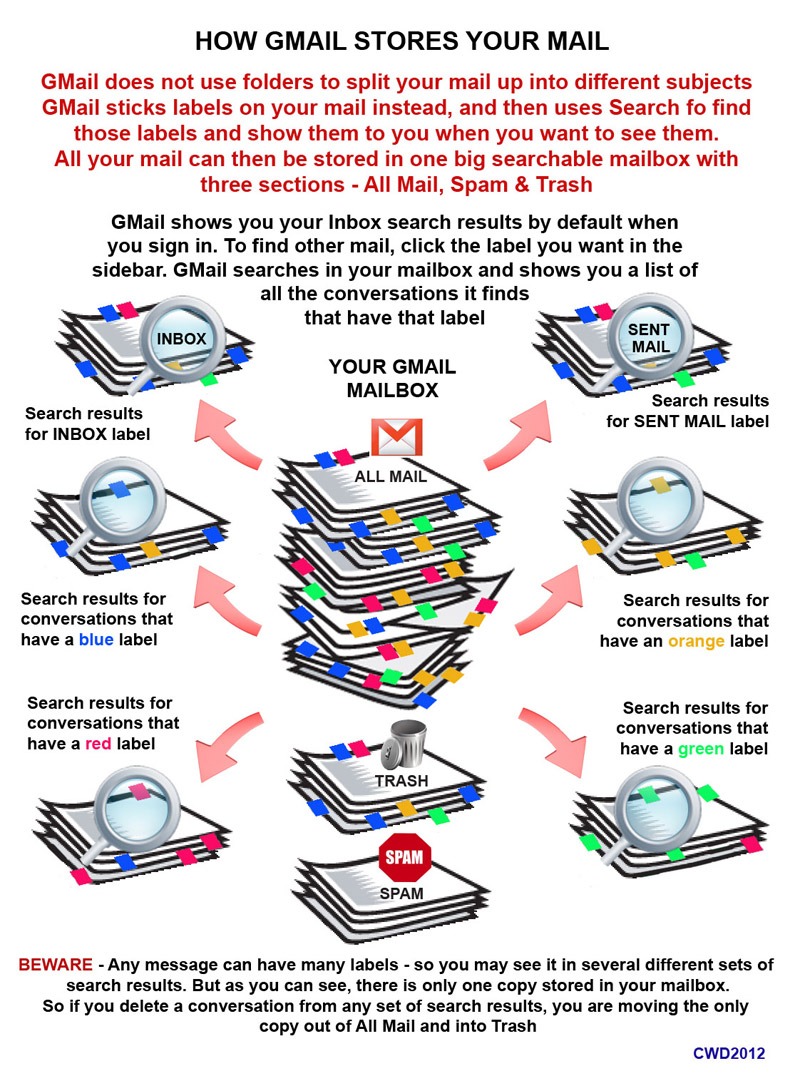
- Use Labels: Use labels to categorize your emails, making it easier to find specific messages.
- Create Filters: Create filters to automatically sort and prioritize your emails.
- Use The Search Bar: Use the search bar to quickly find specific emails.
- Use The Compose Button: Use the compose button to create new email messages directly from Gmail.
By following these steps and tips, you can effectively use Gmail on various devices and get the most out of this powerful email service. Happy emailing!
Faqs
Q: How do I sign up for a Gmail account?
A: To sign up for a Gmail account, go to the Gmail website (www.Gmail.Com) and follow the prompts.
Q: Can I use multiple email addresses on one account?
A: Yes, you can add multiple email addresses to your Gmail account.
Q: How do I attach files to an email?
A: To attach a file to an email, click on the paperclip icon or drag-and-drop the file into the body of the message.
Q: Can I use Gmail offline?
A: Yes, Gmail allows you to use your emails offline, even when you don’t have an internet connection.
Q: How do I delete an email account?
A: To delete a Gmail account, go to the Gmail website (www.Gmail.Com), sign in with your email address and password, and follow the prompts.
Conclusion
Gmail is a powerful email service that offers a range of features and tools to help you manage your emails effectively. By understanding how Gmail works on various devices, including smartphones, tablets, computers, and more, you can get the most out of this service and stay organized in your personal and professional life. Happy emailing!


