
Unlocking The Power of Google Duo: A Comprehensive Guide
Are you looking for a free service that allows you to carry out video calls with up to 32 participants? Look no further than Google Duo, a fantastic tool that is now part of our digital lives. In this article, we will take a closer look at how Google Duo works, its features, and provide step-by-step instructions on how to use it effectively.
What is Google Duo?
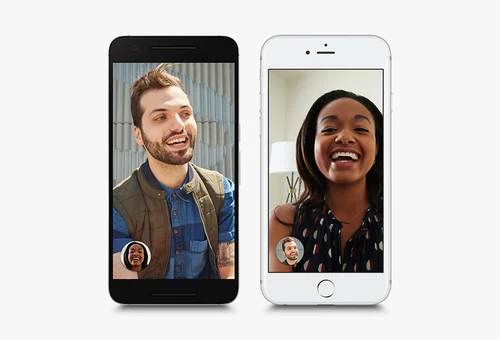
Google Duo is a free service offered by Google that allows users to make video calls with up to 32 participants. It’s a simple and user-friendly way to connect with friends, family, or colleagues, making it an excellent choice for both personal and professional purposes.
How Does Google Duo Work?
Using Google Duo is straightforward. You can access the service by signing in with your Google account on your computer, smartphone, or tablet. Once you’re logged in, you can search for contacts to call, initiate a call, and even create videoconferences with up to 32 participants.
How to Use Google Duo on Your PC
To use Google Duo on your PC, follow these steps:
- Sign in with your Google account.
- Click on the “Try Duo for Web” button on the official website.
- Choose your preferred Google account or enter your phone number if you don’t have a Google account.
- Follow the prompts to add your phone number and set up your account.
How to Configure Google Duo
To configure Google Duo, follow these steps:
- Sign in with your Google account on your computer or mobile device.
- Click on the “Settings” icon (three vertical dots) and select “Account”.
- Add your phone number by following the prompts.
- Choose whether you want to be contacted via email or only through your phone number.
How to Make a Video Call With Google Duo
To make a video call with Google Duo, follow these steps:
- Sign in with your Google account on your computer or mobile device.
- Search for contacts to call by typing their name or phone number in the search bar.
- Click on the contact you want to call and select the “Call” option.
- If you’re calling someone who has already called you, click on their profile picture to initiate a video call.
How to Organize Videoconferences With Google Duo
To organize videoconferences with up to 32 participants using Google Duo, follow these steps:
- Sign in with your Google account on your computer or mobile device.
- Click on the “Create link cluster” button.
- Copy and share the invitation link with the contacts you want to invite.
- Select the participants by searching for their names or phone numbers.
How to Use Google Duo on Your Smartphone or Tablet
To use Google Duo on your smartphone or tablet, follow these steps:
- Download the Google Duo app from the App Store (for iOS devices) or Google Play Store (for Android devices).
- Sign in with your Google account.
- Add your phone number by following the prompts.
- Choose whether you want to be contacted via email or only through your phone number.
Tips And Tricks For Using Google Duo Effectively
Here are some additional tips and tricks for using Google Duo effectively:
- Use the “Toc Toc” feature to see the video of the caller before they answer.
- Switch between a normal audio call and a video call by clicking on the camera icon.
- Turn off your microphone or webcam during a call by clicking on the corresponding icon.
- Choose the orientation of your video feed (vertical or horizontal) during a video call.
Conclusion
Google Duo is an excellent tool for making video calls with up to 32 participants. With its simple and user-friendly interface, it’s perfect for both personal and professional purposes. By following these step-by-step instructions, you’ll be able to unlock the full potential of Google Duo and make the most out of this fantastic service.
Frequently Asked Questions
Q: Is Google Duo free?
A: Yes, Google Duo is a free service offered by Google.
Q: How many participants can I have in a videoconference using Google Duo?
A: Up to 32 participants can participate in a videoconference using Google Duo.
Q: Can I use Google Duo on my computer or mobile device?
A: Yes, you can use Google Duo on your computer, smartphone, or tablet.
Q: How do I add my phone number to Google Duo?
A: To add your phone number to Google Duo, follow the prompts in the settings menu.
Q: Can I be contacted via email or only through my phone number using Google Duo?
A: Yes, you can choose whether you want to be contacted via email or only through your phone number using Google Duo.
Q: How do I switch between a normal audio call and a video call using Google Duo?
A: You can switch between a normal audio call and a video call by clicking on the camera icon during a call.
Q: Can I turn off my microphone or webcam during a call using Google Duo?
A: Yes, you can turn off your microphone or webcam during a call using Google Duo by clicking on the corresponding icon.


