
Google Lens: The Revolutionary Visual Search Tool
Are you tired of searching for information online, only to find irrelevant results? Look no further than Google Lens, a revolutionary visual search tool that allows you to find answers with just a snap.
What is Google Lens?
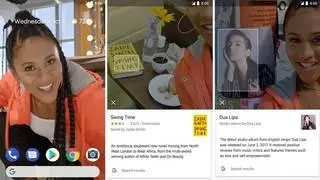
Google Lens is a system of visual recognition that uses the camera on your smartphone or tablet to identify and provide information about the objects, text, and images in front of it. With the help of artificial intelligence, Google Lens can understand what you’re looking at and provide relevant results, making it an incredibly useful tool for everyday life.
How Does Google Lens Work?
To use Google Lens, simply open the app (available on Android and iOS) and point your camera at the object or text you want to learn more about. The app will then analyze the image and provide information about what you’re looking at. You can also specify a category for the search, such as “text” or “accomplished,” which can help narrow down the results.
Features of Google Lens
- Visual Recognition: Google Lens uses advanced algorithms to recognize objects, text, and images in real-time.
- Information Retrieval: With just a snap, you can get information about what you’re looking at, including details such as prices, addresses, and reviews.
- Integration With Other Apps: Google Lens is integrated with other Google apps, such as Google Photos, which means you can also use it to identify objects in your photos.
Scenarios For Using Google Lens
Google Lens has a wide range of scenarios where it can be useful. For example:
- Travel: Use Google Lens to identify landmarks, restaurants, and shops while traveling.
- Shopping: Scan barcodes or QR codes with Google Lens to get information about products.
- Home Decor: Use Google Lens to identify furniture, decor, and other home items.
How to Use Google Lens on Android
To use Google Lens on an Android device, follow these steps:
- Download the Google app from the Play Store.
- Open the app and select the Google Lens icon.
- Point your camera at the object or text you want to learn more about.
- Select a category for the search (optional).
- Wait for the results to appear.
How to Use Google Lens on Iphone And Ipad
To use Google Lens on an iOS device, follow these steps:
- Download the Google app from the App Store.
- Open the app and select the Google Lens icon.
- Point your camera at the object or text you want to learn more about.
- Select a category for the search (optional).
- Wait for the results to appear.
Tips And Tricks
- Use The Auto-search Feature: By default, Google Lens will attempt to identify the object automatically.
- Specify a Category: If the auto-search feature doesn’t work, you can specify a category for the search to help narrow down the results.
- Scan Multiple Objects: You can scan multiple objects in one go by selecting the “scan more” option.
Conclusion
Google Lens is an incredibly powerful tool that can make your life easier and more convenient. With its advanced visual recognition capabilities, integration with other Google apps, and wide range of scenarios where it can be useful, Google Lens is a must-have for anyone looking to get the most out of their smartphone or tablet.
Frequently Asked Questions
- What is Google Lens?
Google Lens is a system of visual recognition that uses the camera on your smartphone or tablet to identify and provide information about the objects, text, and images in front of it. - How Does Google Lens Work?
Google Lens works by analyzing the image with advanced algorithms and providing relevant results based on what you’re looking at. - Is Google Lens Available For Android And Ios?
Yes, Google Lens is available for both Android and iOS devices. - Can I Use Google Lens to Scan Multiple Objects in One Go?
Yes, you can scan multiple objects by selecting the “scan more” option. - How do I Specify a Category For my Search?
You can specify a category by selecting from the options provided, such as “text,” “accomplished,” or others. - Can I Use Google Lens With Other Google Apps?
Yes, Google Lens is integrated with other Google apps, such as Google Photos and Google Search. - Is Google Lens Free to Use?
Yes, Google Lens is a free service provided by Google. - How do I Update Google Lens on my Device?
You can update Google Lens by checking the app store for updates or by enabling automatic updates.
I hope this helps! Let me know if you have any further questions.


