
Google Meet: A Comprehensive Guide
Are you looking for a reliable video conferencing tool that’s easy to use on all your devices? Look no further than Google Meet! In this article, we’ll delve into the world of Google Meet, exploring its features, benefits, and how to use it effectively.
What is Google Meet?
Google Meet is a video conferencing platform developed by Google. It allows users to create and join meetings with up to 250 participants, making it an ideal tool for remote teams, businesses, and individuals who need to collaborate or communicate with others in real-time.
Key Features of Google Meet
Before we dive into the nitty-gritty of using Google Meet, let’s take a look at some of its key features:
- Cross-platform Compatibility: Google Meet is available on Android, iOS, iPadOS, and desktop devices, making it accessible to users across various platforms.
- High-quality Video: Enjoy crystal-clear video conferencing with up to 1080p resolution, ensuring that your meetings are engaging and effective.
- Simple And Intuitive Interface: Google Meet’s user-friendly interface makes it easy to navigate and use, even for those who are new to video conferencing.
- Screen Sharing And Recording: Share your screen with participants, or record meetings for future reference.
How to Use Google Meet on PC
Using Google Meet on a desktop device is straightforward:
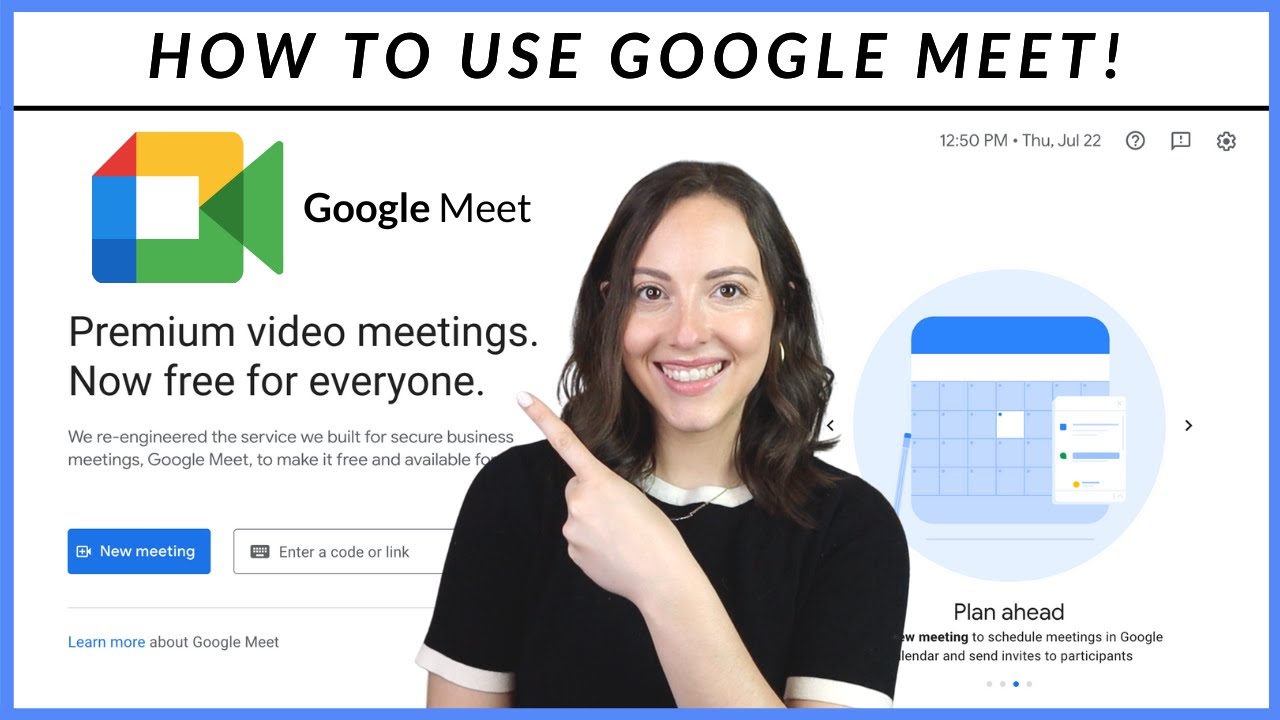
- Open your preferred web browser (Google Chrome, Microsoft Edge, Safari, or Mozilla Firefox) and navigate to the Google Meet website.
- Sign in to your Google account using your credentials.
- Click the “New meeting” button and select the option to initiate a meeting.
- Grant permission for Google Meet to access your webcam and microphone.
- Invite participants by sharing a meeting link or code, depending on your preference.
How to Use Google Meet on Mobile
Using Google Meet on mobile devices is just as easy:
- Download and install the official Google Meet app from the Play Store (for Android) or App Store (for iOS).
- Sign in to your Google account using your credentials.
- Create a new meeting by clicking the “+” button, selecting “Create a new meeting,” and following the prompts.
- Share the meeting link or code with participants via messaging apps, email, or social media.
Tips For Effective Video Conferencing on Google Meet
To get the most out of Google Meet:
- Test Your Audio And Video: Ensure that your microphone and webcam are working correctly before joining a meeting.
- Use a Stable Internet Connection: A fast and reliable internet connection is crucial for smooth video conferencing experience.
- Minimize Distractions: Find a quiet and private space to join meetings, and consider using headphones or earbuds for better audio quality.
- Take Notes: Use the chat feature to take notes during meetings and refer back to them later.
Conclusion
Google Meet is an excellent video conferencing tool that’s easy to use on all your devices. With its high-quality video, simple interface, and robust features, it’s perfect for remote teams, businesses, and individuals who need to collaborate or communicate with others in real-time.
Frequently Asked Questions
Here are some frequently asked questions about Google Meet:
Q: What is The Maximum Number of Participants Allowed in a Meeting on Google Meet?
A: The maximum number of participants allowed in a meeting on Google Meet is 250, but this can be increased to 1,000 for business accounts with Google Workspace.
Q: Is Google Meet Free to Use?
A: Yes, Google Meet is free to use, and meetings are available for up to 60 minutes without any time limit for single users. Business accounts with Google Workspace may incur additional costs, depending on the plan chosen.
Q: Can I Use Google Meet on my Mobile Device?
A: Yes, you can use Google Meet on your Android or iOS device by downloading and installing the official app from the Play Store or App Store.
Q: How do I Invite Participants to a Meeting on Google Meet?
A: You can invite participants to a meeting on Google Meet by sharing a meeting link or code via messaging apps, email, or social media.
Q: Can I Record Meetings on Google Meet?
A: Yes, you can record meetings on Google Meet for future reference. However, this feature may not be available for all users, depending on the plan chosen.
Q: Is Google Meet Compatible With my Device?
A: Google Meet is compatible with most modern devices, including Android, iOS, iPadOS, and desktop devices.
Q: How do I Troubleshoot Issues With Google Meet?
A: If you encounter any issues with Google Meet, try checking your internet connection, restarting the app, or seeking help from the Google Support team.


