
Understanding Icloud: A Comprehensive Guide
Are you considering switching to iCloud or already using it? Perhaps you’re curious about the features and benefits that come with this cloud storage service? Look no further! In this article, we’ll delve into the world of iCloud, exploring its functions, pricing plans, and how to use it on various devices.
What is Icloud?
ICloud is a cloud storage service provided by Apple that allows users to store and access their data across multiple devices. It’s an essential part of the Apple ecosystem, but don’t worry if you’re not an avid Apple fan – we’ll cover all the necessary details to get you up and running.
Key Features of Icloud
Before we dive into the nitty-gritty, let’s highlight some of the key features that make iCloud so appealing:
- Cloud Storage: Store your files, photos, and videos securely in the cloud.
- Backup: Automatically backup your device data, including contacts, calendars, and more.
- Icloud Drive: Access your files from any device with an internet connection.
- Photo Library: Store and access your photos and videos across devices.
- Mail: Use iCloud Mail for email services, complete with personalized commands.
Pricing Plans: What You Need to Know
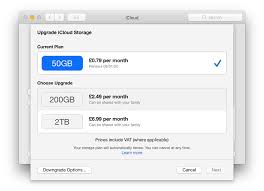
While the free version of iCloud offers 5 GB of storage, you might find yourself running out of space quickly. Apple provides several pricing plans to suit your needs:
- 50 GB: €0.99/Month (or $0.99) – Ideal for basic users.
- 200 GB: €2.99/Month (or $2.99) – Perfect for those with a moderate amount of data.
- 2 TB: €9.99/Month (or $9.99) – Great for heavy users or families.
- 6 TB: €29.99/Month (or $29.99) – Suitable for large-scale users or businesses.
- 12 TB: €59.99/Month (or $59.99) – The ultimate plan for those with massive storage needs.
Using Icloud on Your Iphone
To start using iCloud on your iPhone, follow these steps:
- Go to Settings > [Your Name] > iCloud.
- Tap “iCloud” and then “Backup & Update.”
- Toggle the switch next to “iCloud Backup” to enable it.
- Choose which data you’d like to back up.
Using Icloud on Your Ipad
The process is similar for iPads:
- Go to Settings > [Your Name] > iCloud.
- Tap “iCloud” and then “Backup & Update.”
- Toggle the switch next to “iCloud Backup” to enable it.
- Choose which data you’d like to back up.
Using Icloud on Your Mac
If you’re using a Mac, follow these steps:
- Click on the Apple logo in the top left corner and select System Preferences.
- Click on Apple ID.
- Select iCloud.
- Sign in with your Apple ID and password.
- Choose which data you’d like to sync.
Using Icloud on Your Windows PC
To access iCloud on your Windows device:
- Download the official iCloud for Windows app from the Microsoft Store.
- Launch the app and sign in with your Apple ID and password.
- Select which services you’d like to enable (e.G., Photos, Contacts, Calendar).
Icloud Family Sharing: The Ultimate Plan For Families
If you’re part of a family, consider upgrading to iCloud Family Sharing. This plan allows you to share storage space across up to 5 family members. Each member can use their own Apple ID and access shared content.
Using Icloud With Other Services
ICloud integrates seamlessly with other Apple services, such as:
- Apple Music: Access your music library and playlists.
- Apple Tv+: Watch exclusive original content.
- Apple Arcade: Enjoy a vast library of games without ads.
Conclusion
In this comprehensive guide, we’ve explored the world of iCloud, covering its features, pricing plans, and how to use it on various devices. Whether you’re a seasoned Apple user or just starting out, understanding iCloud is essential for maximizing your cloud storage experience.
Frequently Asked Questions (FAQs)
- What is The Difference Between Icloud And Icloud+?
ICloud+ is an upgraded version of iCloud that offers additional features, such as increased storage space, family sharing, and more. - How Much Storage Space do I Get With The Free Version of Icloud?
The free version of iCloud offers 5 GB of storage space. - Can I Use Icloud on my Windows Device?
Yes, you can download the official iCloud for Windows app to access your iCloud data on your PC. - What is Icloud Family Sharing?
ICloud Family Sharing allows up to 5 family members to share storage space and access shared content using their own Apple ID. - Can I Use Icloud With Other Services Like Apple Music And Apple Tv+?
Yes, iCloud integrates seamlessly with other Apple services, such as Apple Music, Apple TV+, and more. - How do I Upgrade to a Paid Version of Icloud?
To upgrade to a paid version of iCloud, go to the Settings app on your iPhone or iPad, select [Your Name] > iCloud, and tap “Upgrade to iCloud+”. - What Happens if I Run Out of Storage Space in my Icloud Account?
If you run out of storage space, you’ll receive an alert asking you to upgrade to a paid version of iCloud or delete some data to free up space. - Can I Access my Icloud Data on Multiple Devices at The Same Time?
Yes, with iCloud, you can access your data across multiple devices, including iPhones, iPads, Macs, and Windows PCs.
We hope this guide has been helpful in understanding iCloud. If you have any further questions or concerns, feel free to ask!


