
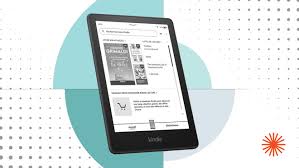
The Ultimate Guide to Kindle: Unlocking Its Full Potential
Are you ready to explore the world of e-books and discover the secrets of your Kindle device? Look no further! In this comprehensive guide, we will walk you through every step of the process, from configuring your Kindle to downloading books, using Prime Reading, and more. By the end of this article, you’ll be an expert in navigating the world of e-readers.
Getting Started With Your Kindle
Before we dive into the nitty-gritty details, let’s take a quick look at what comes out of the box when you purchase your Kindle device. You should find:
- The Kindle device itself
- A USB cable for charging and connecting to your computer
- A Quick Start guide
Now that you have your device in hand, it’s time to set it up.
Configuring Your Kindle Device
Configuring your Kindle is a breeze. Follow these simple steps:
Step 1: Connect to The Internet
To connect your Kindle to the internet, follow these steps:
- Go to Settings
- Select Wireless and then Wi-Fi
- Choose your network from the list of available networks
- Enter your password when prompted
You should now be connected to the internet.
Step 2: Set up Your Account
To set up your account on your Kindle, follow these steps:
- Go to Settings
- Select Wireless and then Wi-Fi
- Choose your network from the list of available networks
- Enter your password when prompted
- Sign in with your Amazon account credentials
You should now be signed into your Amazon account.
Step 3: Set up Prime Reading
If you have an Amazon Prime membership, you can set up Prime Reading on your Kindle. Follow these steps:
- Go to the Home screen
- Select Prime Reading from the menu
- Sign in with your Amazon account credentials if prompted
You should now see a list of free books available through Prime Reading.
Downloading Books on Your Kindle
Now that you have configured your Kindle, it’s time to download some books. Here are a few ways to do this:
Method 1: Using The Kindle Store
To download books from the Kindle store, follow these steps:
- Go to the Home screen
- Select Shop from the menu
- Browse through the various categories of books
- Select a book and click on Buy Now with 1-Click
You should now have the book downloaded onto your Kindle.
Method 2: Using Prime Reading
If you are an Amazon Prime member, you can use Prime Reading to download free books. Follow these steps:
- Go to the Home screen
- Select Prime Reading from the menu
- Browse through the various categories of free books
- Select a book and click on Read Now
You should now have the book downloaded onto your Kindle.
Transferring Books From Your Computer to Your Kindle
To transfer books from your computer to your Kindle, follow these steps:
- Connect your Kindle to your computer using a USB cable
- Go to Settings and select Wireless and then Wi-Fi
- Choose your network from the list of available networks
- Enter your password when prompted
- Select Transfer Books from Computer
You should now see a list of books on your computer that can be transferred to your Kindle.
Transferring Books Using Email
To transfer books using email, follow these steps:
- Connect your Kindle to the internet
- Go to Settings and select Wireless and then Wi-Fi
- Choose your network from the list of available networks
- Enter your password when prompted
- Select Send to Kindle
- Sign in with your Amazon account credentials if prompted
You should now be able to send books from your computer to your Kindle using email.
Transferring Books Using Dropbox
To transfer books using Dropbox, follow these steps:
- Connect your Kindle to the internet
- Go to Settings and select Wireless and then Wi-Fi
- Choose your network from the list of available networks
- Enter your password when prompted
- Select Send to Kindle
- Sign in with your Amazon account credentials if prompted
- Select Dropbox as the transfer method
You should now be able to send books from your computer to your Kindle using Dropbox.
Conclusion
And that’s it! With these steps, you should now have a fully functional Kindle device and be able to download books from the Kindle store, use Prime Reading, and transfer books from your computer to your Kindle. Happy reading!
Faqs
-
Q: How do I configure my Kindle device?
A: To configure your Kindle device, follow these steps:* Go to Settings * Select Wireless and then Wi-Fi * Choose your network from the list of available networks * Enter your password when prompted -
Q: How do I download books from the Kindle store?
A: To download books from the Kindle store, follow these steps:* Go to the Home screen * Select Shop from the menu * Browse through the various categories of books * Select a book and click on Buy Now with 1-Click -
Q: How do I use Prime Reading?
A: To use Prime Reading, follow these steps:* Go to the Home screen * Select Prime Reading from the menu * Browse through the various categories of free books * Select a book and click on Read Now -
Q: How do I transfer books from my computer to my Kindle?
A: To transfer books from your computer to your Kindle, follow these steps:* Connect your Kindle to your computer using a USB cable * Go to Settings and select Wireless and then Wi-Fi * Choose your network from the list of available networks * Enter your password when prompted * Select Transfer Books from Computer -
Q: How do I transfer books using email?
A: To transfer books using email, follow these steps:* Connect your Kindle to the internet * Go to Settings and select Wireless and then Wi-Fi * Choose your network from the list of available networks * Enter your password when prompted * Select Send to Kindle * Sign in with your Amazon account credentials if prompted -
Q: How do I transfer books using Dropbox?
A: To transfer books using Dropbox, follow these steps:* Connect your Kindle to the internet * Go to Settings and select Wireless and then Wi-Fi * Choose your network from the list of available networks * Enter your password when prompted * Select Send to Kindle * Sign in with your Amazon account credentials if prompted * Select Dropbox as the transfer method -
Q: How do I come back to the home screen on my Kindle?
A: To come back to the home screen on your Kindle, follow these steps:* Go to Settings * Select Wireless and then Wi-Fi * Choose your network from the list of available networks * Enter your password when prompted -
Q: How do I use the Kindle app?
A: To use the Kindle app, follow these steps:* Go to the Home screen * Select Shop from the menu * Browse through the various categories of books * Select a book and click on Buy Now with 1-Click -
Q: How do I reset my Kindle?
A: To reset your Kindle, follow these steps:* Go to Settings * Select Wireless and then Wi-Fi * Choose your network from the list of available networks * Enter your password when prompted -
Q: How do I troubleshoot common issues with my Kindle?
A: To troubleshoot common issues with your Kindle, follow these steps:* Go to Settings * Select Wireless and then Wi-Fi * Choose your network from the list of available networks * Enter your password when prompted
I hope this guide has been helpful in answering any questions you may have had about your Kindle device. If you have any further questions or need additional assistance, don’t hesitate to reach out. Happy reading!


