
How to Use Facebook Messenger: A Step-by-step Guide
Are you new to Facebook Messenger? This guide will walk you through setting up an account, using its features, and troubleshooting common issues.
What is Facebook Messenger?
Facebook Messenger is a free messaging app that allows users to send text messages, make voice and video calls, and share photos and videos with friends. It’s available on desktop and mobile devices.
Getting Started
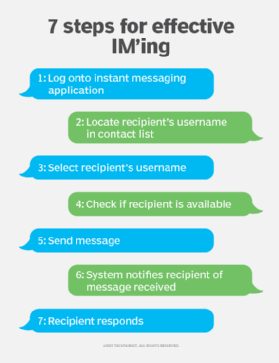
To use Facebook Messenger:
- Create a Facebook account if you don’t already have one.
- Download and install the Messenger app on your device.
- Launch the app and sign in with your Facebook login credentials.
Using Facebook Messenger
Here’s how to use the app:
Sending Messages
To send a message:
- Open a conversation.
- Type your message in the text box at the bottom of the screen.
- Click “Send” to send your message.
Making Voice And Video Calls
To make a call:
- Open a conversation.
- Click the “Call” button at the top of the screen.
- Choose whether you want to make a voice or video call.
Sharing Photos And Videos
To share media:
- Open a conversation.
- Click the “Share” button at the bottom of the screen.
- Select the photo or video you want to share from your device.
Additional Features
Facebook Messenger offers additional features, including:
- Secret Conversations: Create a secret conversation by tapping on an user’s name in a conversation and selecting the option to initiate a secret conversation.
- Rooms: To create a room, open the Messenger app and select the conversation you want to create a room in. Click the “Create Room” button at the top of the screen.
Troubleshooting Common Issues
If you’re experiencing issues with Facebook Messenger, try:
- Restarting the app.
- Checking for updates.
- Ensuring your device has sufficient storage.
Conclusion
Facebook Messenger is a versatile messaging app that offers a range of features. By following this guide, you can get started and make the most out of its capabilities.


