
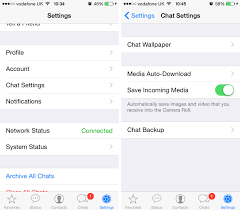
How to Disable Automatic Photo Saving on Whatsapp
Are you tired of having your photos and videos saved automatically on WhatsApp? Do you want to take control of your device’s storage space? Look no further! In this article, we will guide you through the process of disabling automatic photo saving on WhatsApp for Android, iPhone, PC, and Google Photos.
Why Disable Automatic Photo Saving on Whatsapp?
Saving photos and videos automatically can consume a significant amount of storage space on your device. If you’re running low on storage or want to manage your media files manually, disabling this feature is a great idea.
Disabling Automatic Photo Saving on Whatsapp For Android
To disable automatic photo saving on WhatsApp for Android:
- Open the WhatsApp app and tap on the three dots ⋮ in the top-right corner.
- Select “Settings” from the menu.
- Tap on “Chat” and then select “Visibility of media.”
- Swipe the switch next to “Media visibility” to disable it.
Disabling Automatic Photo Saving on Whatsapp For Iphone
To disable automatic photo saving on WhatsApp for iPhone:
- Open the WhatsApp app and tap on the Settings icon (gear) in the top-left corner.
- Select “Chat” and then tap on “Save in chat.”
- Swipe the switch next to “Save in chat” to disable it.
Disabling Automatic Photo Saving on Whatsapp For PC
To disable automatic photo saving on WhatsApp for PC:
- Open the WhatsApp web application or desktop app.
- Click on the three dots ⋮ in the top-right corner and select “Settings.”
- In the settings menu, click on “Storage” and then select “Download automatic media.”
- Uncheck the box next to “Photos” to disable automatic photo saving.
Disabling Automatic Photo Saving on Whatsapp For Google Photos
To disable automatic photo saving on WhatsApp for Google Photos:
- Open the Google Photos app.
- Tap on your profile picture in the top-right corner and select “Settings.”
- Scroll down to the “Backup & synchronization” section and ensure that “WhatsApp” is deselected.
What’s Next?
Once you’ve disabled automatic photo saving on WhatsApp, it’s essential to clean up any previously saved files. To do this:
- Open the WhatsApp app and tap on the three dots ⋮ in the top-right corner.
- Select “Settings” from the menu.
- Tap on “Storage” and then select “Manage storage.”
- Scroll down to the “Media” section and delete any unwanted photos or videos.
Other Tips And Tricks
- To prevent future photo saving, follow the steps outlined above for your device type (Android, iPhone, PC, or Google Photos).
- If you want to save specific photos or videos, you can do so manually by opening the chat and selecting the desired media files.
- Consider using a cloud storage service like Google Drive or Dropbox to store your WhatsApp media files.
Conclusion
Disabling automatic photo saving on WhatsApp is a straightforward process that takes just a few minutes. By following these steps, you’ll be able to take control of your device’s storage space and prevent unnecessary file accumulation. Remember to clean up any previously saved files and adjust your settings accordingly.
Frequently Asked Questions (FAQs)
- Q: Why do I Want to Disable Automatic Photo Saving on Whatsapp?
A: To save storage space, manage media files manually, or prevent accidental photo sharing. - Q: How do I Disable Automatic Photo Saving on Whatsapp For Android?
A: Follow the steps outlined above (tap on three dots ⋮, select Settings, tap on Chat, and swipe switch next to Media visibility). - Q: Can I Save Specific Photos or Videos Manually?
A: Yes, you can save individual media files by opening the chat and selecting the desired file. - Q: How do I Clean up Previously Saved Files on Whatsapp?
A: Follow the steps outlined above (tap on three dots ⋮, select Settings, tap on Storage, and select Manage storage). - Q: Can I Use a Cloud Storage Service to Store Whatsapp Media Files?
A: Yes, you can use services like Google Drive or Dropbox to store your WhatsApp media files. - Q: Why is it Essential to Disable Automatic Photo Saving on Whatsapp For Pc?
A: To save storage space and prevent unnecessary file accumulation on your device. - Q: How do I Check if Google Photos Has Automatically Saved my Whatsapp Photos?
A: Check the Google Photos app settings (tap on profile picture, select Settings, and scroll down to Backup & synchronization). - Q: Can I Reactivate Automatic Photo Saving on Whatsapp?
A: Yes, you can reactivate this feature by following the steps outlined above for your device type.
I hope this article has helped you understand how to disable automatic photo saving on WhatsApp. Remember to take control of your device’s storage space and adjust your settings accordingly!


