
How to Use Skype: A Comprehensive Guide
Are you looking for a reliable and user-friendly video conferencing service? Look no further than Skype! In this article, we will guide you through the process of using Skype on various devices, including computers, smartphones, and tablets.
What is Skype?
Skype is a free video conferencing service developed by Microsoft that allows users to make voice and video calls, send messages, and share files with others across the globe. With Skype, you can connect with friends, family, colleagues, or clients from anywhere in the world, at any time.
How Does Skype Work?
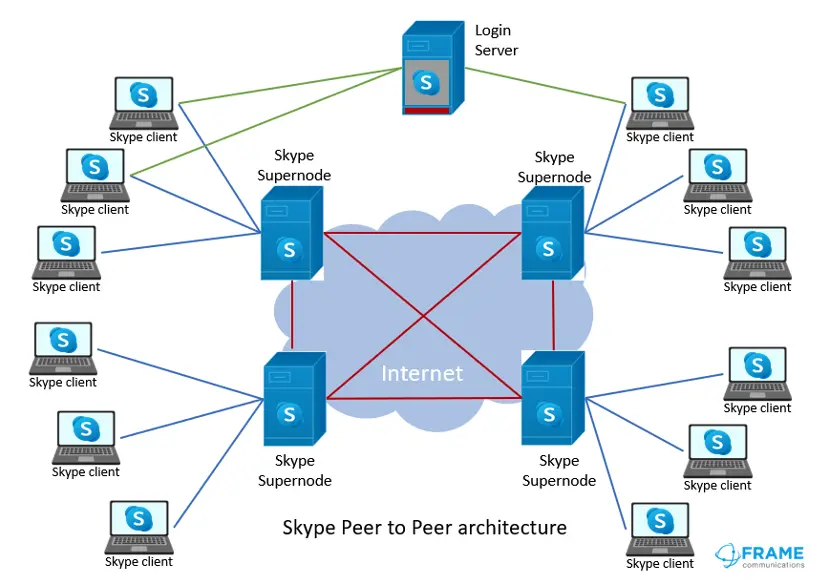
To use Skype, you need to have an account on the platform. You can sign up for a free account using your email address, phone number, or Microsoft account. Once you’ve signed up, you can download and install the Skype app on your device.
Using Skype on a Computer
To use Skype on a computer, follow these steps:
- Download And Install Skype: Go to the Skype website and download the application for Windows or macOS.
- Sign In to Your Account: Open Skype and sign in with your Microsoft account or create a new one.
- Add Contacts: Click on the “Contacts” tab and add the people you want to connect with.
- Make Calls: Click on the call button to make voice or video calls to your contacts.
Using Skype on a Smartphone
To use Skype on a smartphone, follow these steps:
- Download The App: Go to the App Store (for iOS devices) or Google Play Store (for Android devices) and download the Skype app.
- Sign In to Your Account: Open Skype and sign in with your Microsoft account or create a new one.
- Add Contacts: Tap on the “Contacts” tab and add the people you want to connect with.
- Make Calls: Tap on the call button to make voice or video calls to your contacts.
Using Skype Online
If you don’t have access to a computer or smartphone, you can still use Skype online using a web browser. Simply go to the Skype website and sign in with your Microsoft account. You can then make calls, send messages, and share files with others online.
Using Skype For Business
Skype for Business is a more advanced version of Skype that offers additional features for businesses, such as meeting recording, calendar integration, and custom branding. If you’re interested in using Skype for business purposes, please refer to our separate guide on how to use Microsoft Teams.
Benefits of Using Skype
There are many benefits to using Skype, including:
- Convenience: Skype allows you to connect with others from anywhere in the world, at any time.
- Cost-effectiveness: Skype is free to download and use, making it a cost-effective option for personal and business communications.
- Security: Skype offers end-to-end encryption, ensuring that your conversations remain private and secure.
Common Questions About Skype
Here are some common questions about Skype:
-
What is The Minimum System Requirement For Using Skype?
The minimum system requirements for using Skype on a computer or smartphone include a processor with at least 1 GB of RAM, a storage capacity of at least 100 MB, and an operating system such as Windows 7 or macOS 10.11. -
Can I Use Skype to Make Emergency Calls?
Unfortunately, no. Skype is not designed for making emergency calls, so if you need to call emergency services, please dial the relevant number on your phone instead. -
How do I Troubleshoot Issues With my Skype Connection?
If you’re experiencing issues with your Skype connection, try restarting the application or checking your internet connectivity. -
Can I Use Skype For Business Purposes?
Yes! Skype offers a range of features and tools that are suitable for business communications, including meeting recording, calendar integration, and custom branding. -
Is Skype Secure?
Skype takes security seriously and uses end-to-end encryption to ensure that your conversations remain private and secure. -
Can I Use Skype on Multiple Devices at Once?
Yes! You can use Skype on multiple devices simultaneously, including computers, smartphones, and tablets. -
How do I Add Contacts to my Skype List?
To add contacts to your Skype list, simply go to the “Contacts” tab and click on the “Add Contact” button. -
Can I Share Files With Others Using Skype?
Yes! You can share files with others using Skype by clicking on the “Share File” button in a call or chat window.
Conclusion
Skype is a versatile and user-friendly video conferencing service that offers a range of features and benefits for personal and business communications. By following this guide, you should now be able to use Skype confidently and effectively on your computer, smartphone, or tablet. Happy Skyping!


